

Microsoft Teams
Connecting NeuBird to your Microsoft Teams workspace lets you ask NeuBird questions, trigger investigations, and read investigation results without leaving Teams. NeuBird replies in the channel where you ask, updates its answer live while it works, and links back to the Platform for the full investigation. NeuBird is installed as a Teams app and linked to your NeuBird organization by signing in from Teams.
Before You Start
Section titled “Before You Start”- A NeuBird organization. You need its name: it is the subdomain you use to open NeuBird. For
acme-corp.app.neubird.ai, the organization name isacme-corp. - A Microsoft Teams admin for the one-time app upload in step 1.
- A Microsoft 365 admin who can grant consent for the whole organization (a Global Administrator or Privileged Role Administrator) to approve NeuBird’s directory permissions in step 2. This is a one-time step for your organization. See Permissions.
- Custom apps allowed in your tenant. NeuBird is uploaded as a custom app for your organization. If the admin center won’t let you upload it, or people can’t find NeuBird under Apps, check that your org-wide app settings and the app permission policy that applies to those users allow custom apps.
- A team owner (or anyone allowed to add apps to the team) for each team where NeuBird should work.
Get Started
Section titled “Get Started”Four steps take you from installing the app to your first investigation.
1. Install the NeuBird app
Section titled “1. Install the NeuBird app”The NeuBird app is not in the public Teams store yet, so a Microsoft Teams admin adds it to your organization first. Everyone else then installs it from Apps like any other app.
-
Upload the app package (Teams admin): Download the NeuBird app package, neubird-teams-app.zip. In the Teams admin center, go to Teams apps → Manage apps → Upload new app and upload the zip as is, without unpacking it. NeuBird then appears under Apps → Built for your org for everyone in the organization.
If NeuBird is already in your organization’s catalog, do not upload it as a new app: the admin center rejects the package because the app ID is already in use. Instead open Manage apps, click NeuBird, and use Update on the app’s page to upload the new package. Existing installs pick the update up automatically, except that new team permissions in an update apply to a team only after a team owner accepts them: open the team’s Apps tab, find NeuBird, and click Update. If no update prompt appears, remove the app from the team and add it again.
-
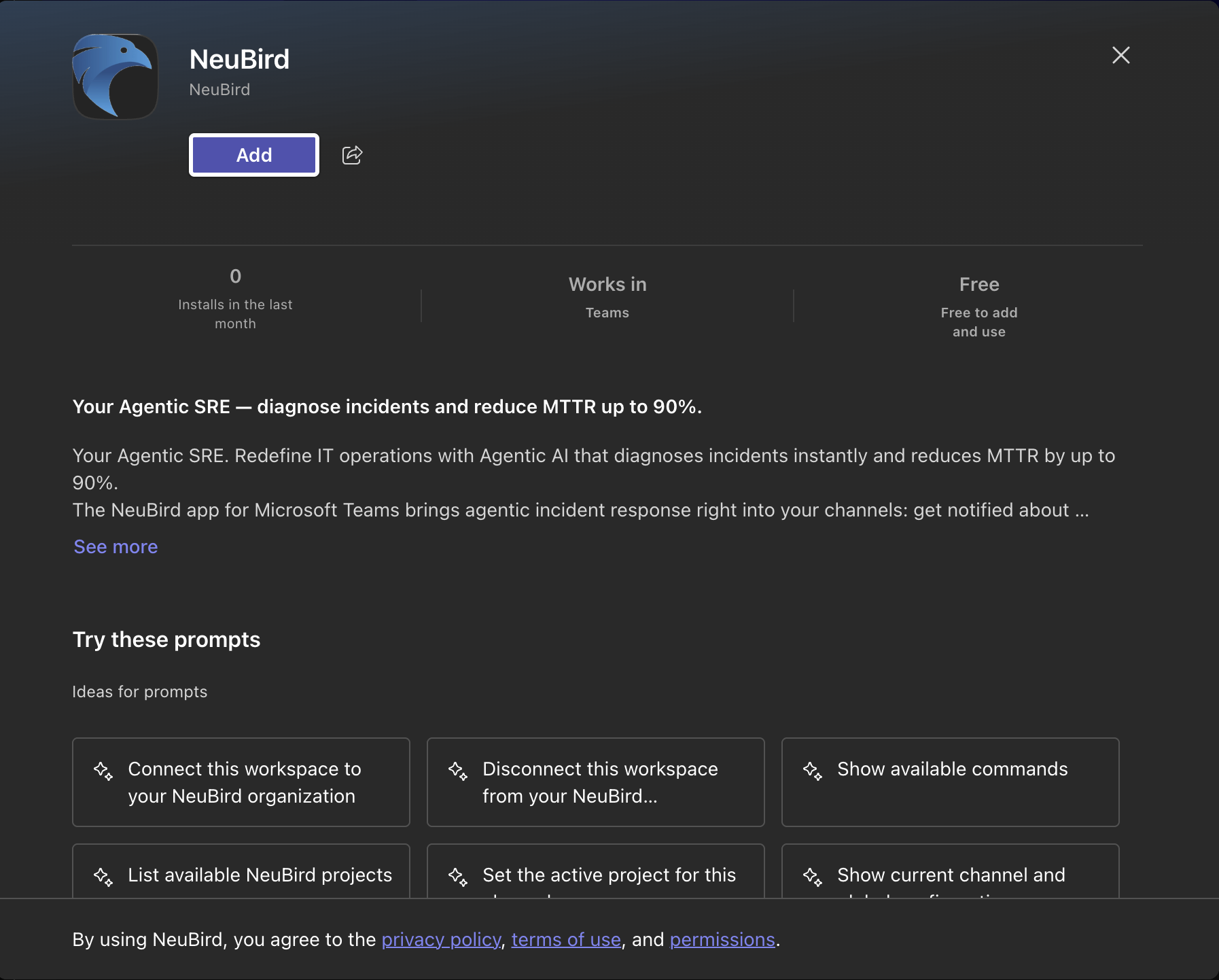
In Teams, open Apps from the left rail and search for NeuBird, or find it under Built for your org.
-
Open the app and click Add. When Teams asks where to use it, pick a channel in the team where you want NeuBird (search for one if it isn’t listed). You can also add it later from the team itself: Manage team → Apps → NeuBird. Once NeuBird is in a team, you can @mention it in any of that team’s channels.
-
Accept the permissions prompt when Teams shows it. This lets NeuBird receive messages in that team’s channels, and list the team’s channels so you can pick one in the NeuBird Platform. If you skip it, remove the app from the team and add it again to see the prompt.
-
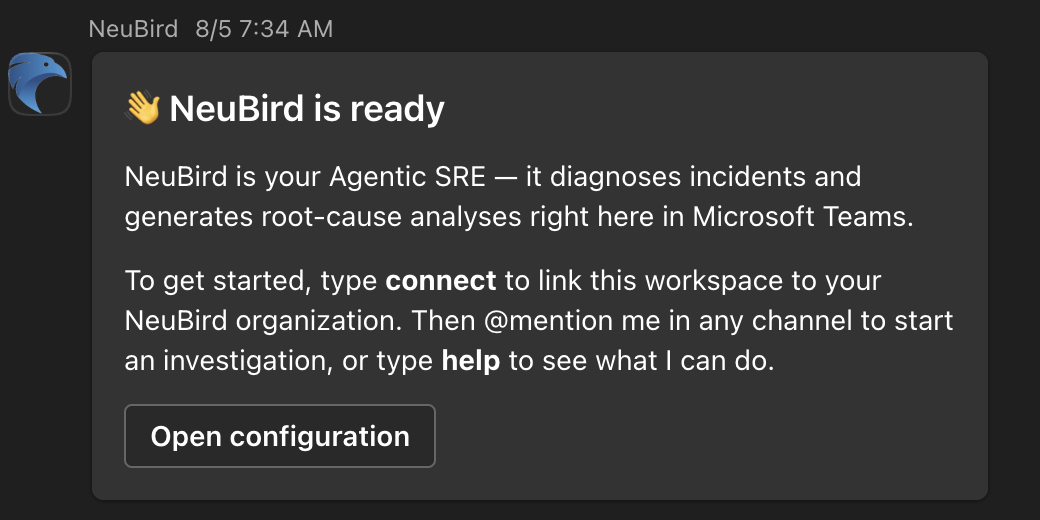
NeuBird posts a welcome card as soon as it is added.
2. Connect your workspace to your NeuBird organization
Section titled “2. Connect your workspace to your NeuBird organization”Link the Teams workspace to your NeuBird organization once. In any channel where NeuBird is added, mention it with the connect command and your NeuBird organization name:
@NeuBird connect <organization name>For example, @NeuBird connect acme-corp. NeuBird replies with a Connect to NeuBird card. Click Connect, sign in with your NeuBird email address and password, and close the browser tab when it says you’re connected.
Back in Teams, NeuBird confirms with a Connected card, followed by a short card with the next steps. If the card says One more step, an admin needs to approve the permissions NeuBird uses to read earlier channel messages for context: click Grant permission, sign in as a Global Administrator or Privileged Role Administrator, and accept for your organization. See Permissions for what is granted.
You connect the workspace once. Every team and channel where NeuBird is added shares the link. Connecting also creates a Microsoft Teams connection on the Connections page in the Platform.
3. Set a project
Section titled “3. Set a project”NeuBird answers questions and runs investigations against a project. Each channel can have its own project, and the workspace can have a global project that applies to every channel without one. Until a channel has a project (its own or the global one), NeuBird can’t answer there and says so.
-
To see the list of all projects in your NeuBird organization:
@NeuBird list projects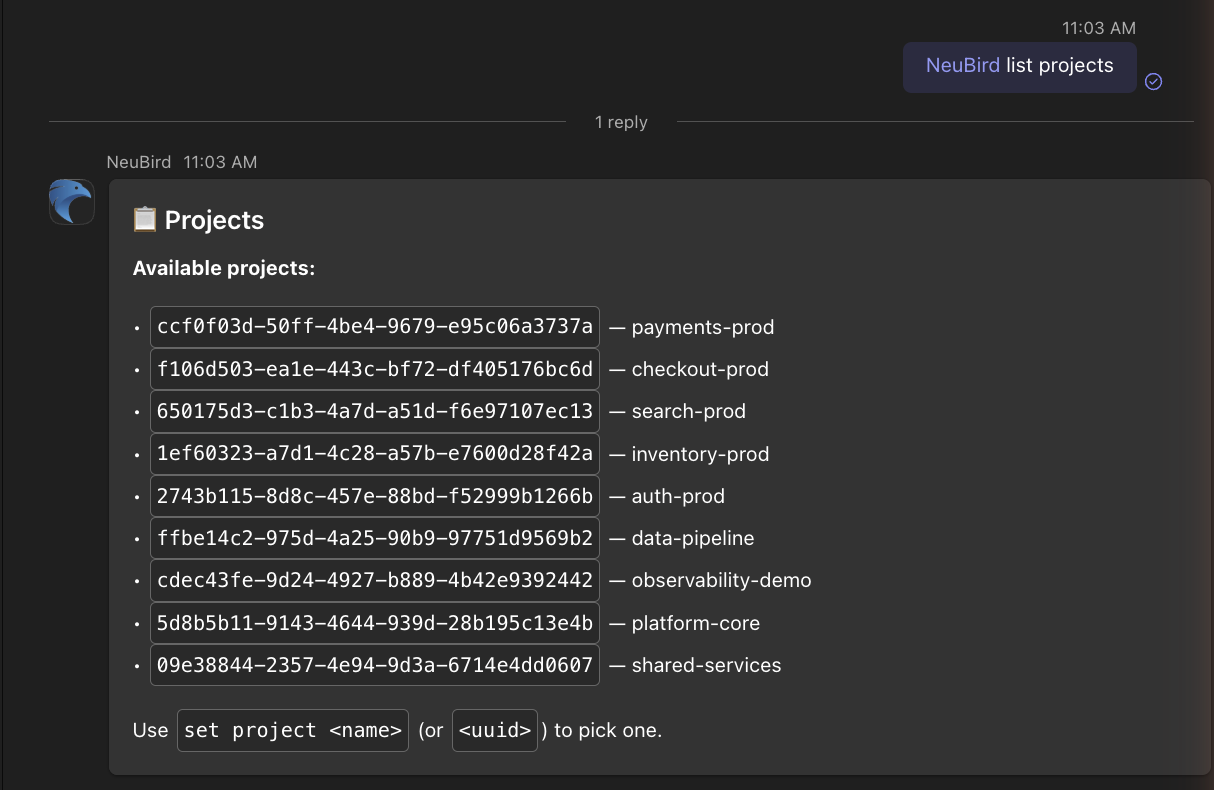
-
To set the project for the current channel, run this in that channel with the project name or ID from the list:
@NeuBird set project <project name>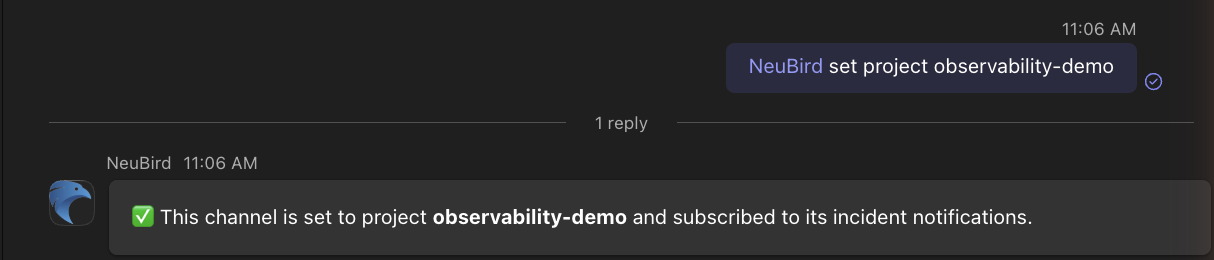
Setting a project also adds the Teams connection to that project in NeuBird, if it isn’t there already. The reply tells you when it does.
-
To use one project everywhere, set a global project instead. Channels without their own project fall back to it:
@NeuBird set global-project <project name> -
@NeuBird unset projectremoves the channel’s project.@NeuBird unset global-projectremoves the global one.@NeuBird show configshows what is set for the current channel and the workspace default.
4. Ask your first question
Section titled “4. Ask your first question”Mention NeuBird in the channel with a question or a description of the problem, in plain language. When you type @NeuBird, pick NeuBird from the list Teams suggests, so the name turns into a real mention:
@NeuBird what caused the payment-service failures on August 4th, and what should we fix?Simple questions that NeuBird can settle with a few lookups, such as “how many incidents are open right now?”, get a direct reply under your message. Anything that needs a real investigation gets a live investigation card as a reply to your message, which NeuBird updates in place as it works, so you can follow its progress. The card shows the investigation’s title as soon as it has one; the title links to the full investigation in the Platform. A Cancel investigation button on the card stops a run you no longer need. When the investigation completes, the card shows the answer with the key findings, the project, NeuBird’s confidence, a Download RCA (PDF) button, and a Rate button.
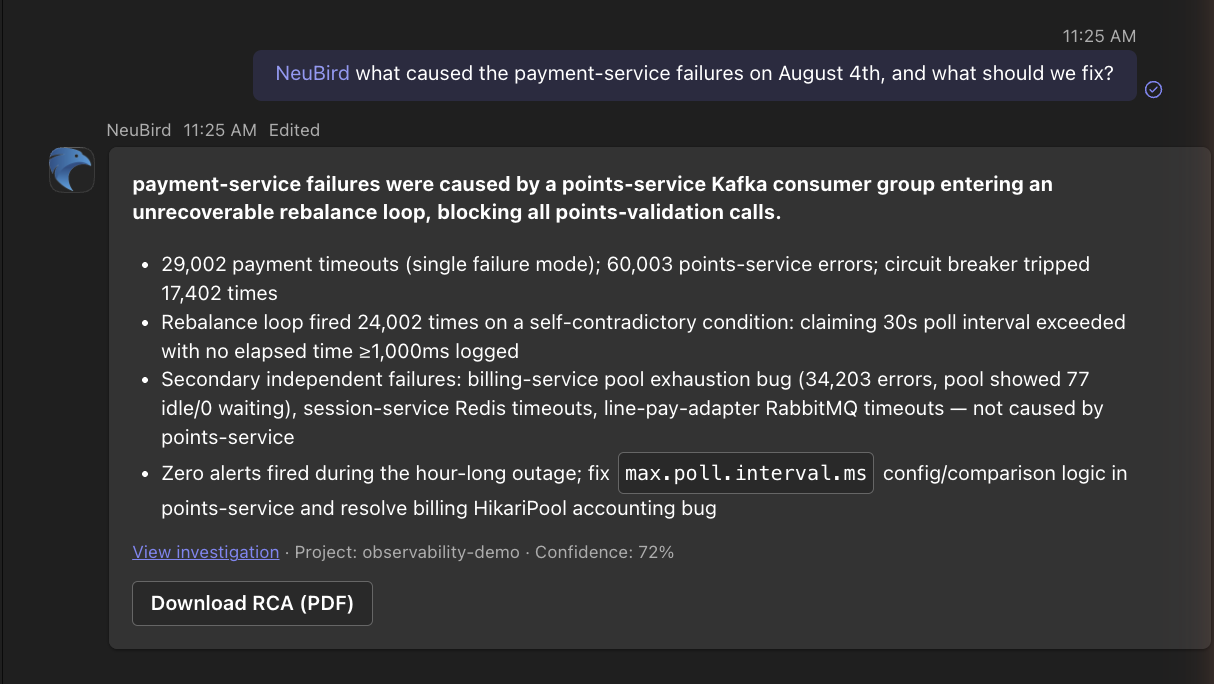
To dig deeper, wait for the result, then reply in the same thread and mention NeuBird again with your follow-up. NeuBird keeps the context of the investigation it just ran.
- How deep to go: start your question with
<Medium>,<High>or<Exhaustive>to choose how thoroughly NeuBird investigates, for example@NeuBird <High> why is checkout latency high? - Screenshots and documents: attach a screenshot or a PDF to your mention. NeuBird reads images and documents and uses them in its answer.
- The channel’s conversation: once an admin has granted NeuBird’s directory permissions, you can ask about the channel itself, for example
@NeuBird summarize what was discussed in this channel today. NeuBird reads the channel’s earlier messages and uses them in its answer. - Feedback: click Rate on a result card to give a thumbs up or down, pick the areas it applies to, and add a note. A 👍 or 👎 reaction on any of NeuBird’s answers also records feedback. Feedback tunes future investigations.
Note
Always include a question or a command after the mention. A mention on its own gets no reply.
Who can ask NeuBird
Section titled “Who can ask NeuBird”Anyone in a team where NeuBird is added can mention it. The first time someone without a NeuBird account asks a question, NeuBird checks their email address:
- Same email domain as your NeuBird organization: NeuBird posts a card asking them to accept the Terms and create a NeuBird account. Only that person can answer it. After Yes, NeuBird creates the account and runs their question. After No, nothing runs.
- Any other domain: NeuBird replies that they aren’t part of the organization, and nothing runs.
Using NeuBird in Teams
Section titled “Using NeuBird in Teams”NeuBird has no slash commands in Teams. Every command is a message that mentions @NeuBird, followed by the command. You can also ask questions in a one-on-one chat with NeuBird (open it from Apps → NeuBird → Open); there the mention is not needed: type the command or question directly.
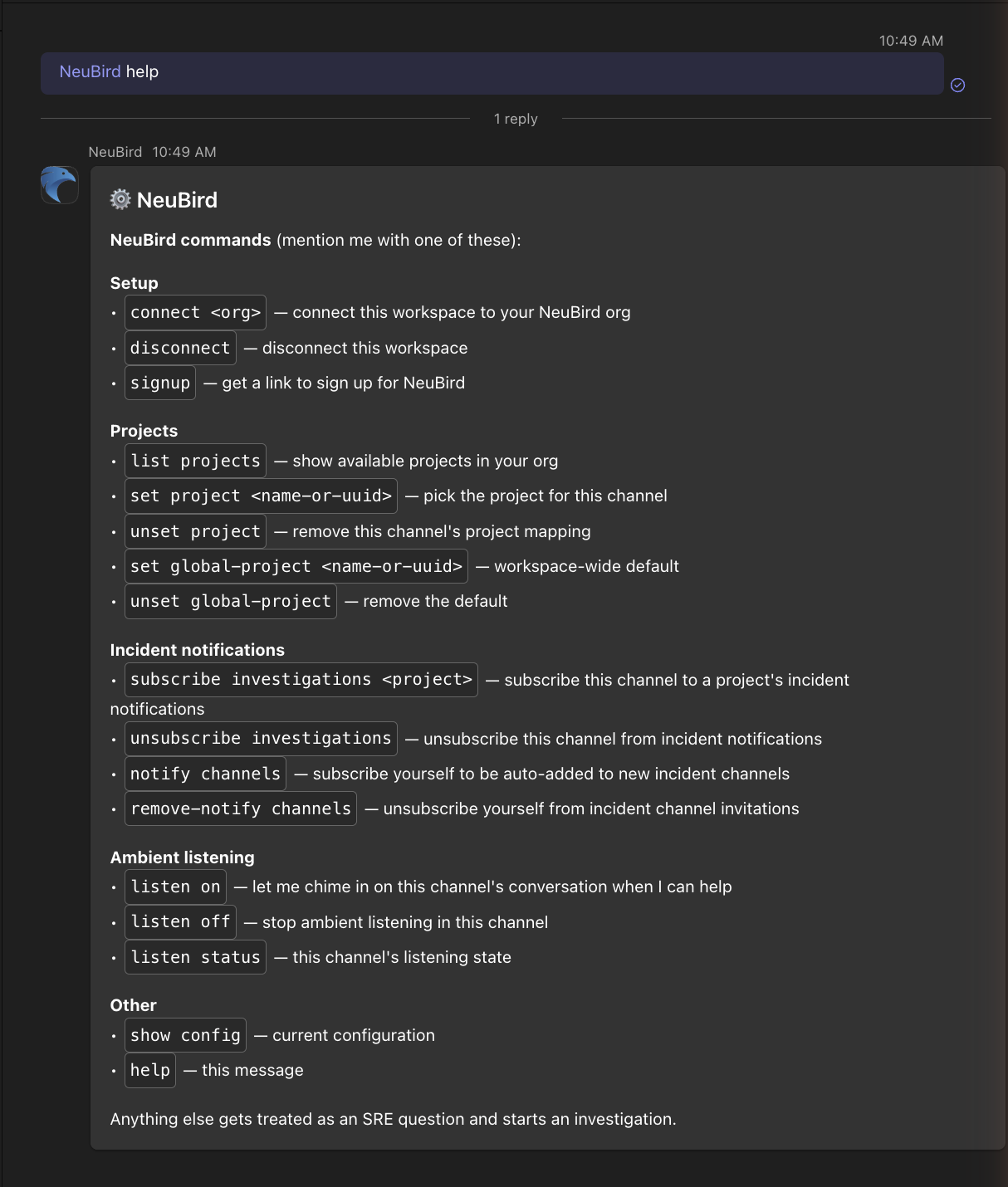
View all commands: type @NeuBird help in any channel where NeuBird is added.
Note
To use NeuBird in a channel, the NeuBird app must be added to that team. If it is missing, add it from Apps → NeuBird → Add, or from the team’s Manage team → Apps.
Command Reference
Section titled “Command Reference”| Command | Description |
|---|---|
@NeuBird help | Show the main commands, grouped by task. |
@NeuBird connect <organization name> | Link this Teams workspace to your NeuBird organization. |
@NeuBird disconnect | Unlink the workspace. NeuBird asks you to confirm with a Disconnect button first. |
@NeuBird list projects | List all projects available in your NeuBird organization. |
@NeuBird set project <project name> | Set this channel’s project for questions and investigations. Accepts the project name or ID. unset project removes it. |
@NeuBird set global-project <project name> | Set the workspace-wide default project, used by every channel without its own. unset global-project removes it. |
@NeuBird show config | Show the project settings for the current channel and the workspace default. |
@NeuBird subscribe investigations <project name> | Post the project’s incident investigations to this channel as they happen. |
@NeuBird unsubscribe investigations | Stop those posts in this channel. Type it without a project name. |
@NeuBird notify channels | Get added automatically to new incident channels. remove-notify channels opts you out again. |
@NeuBird listen on | Let NeuBird chime in on this channel’s conversation when it can help, without being mentioned. listen off stops it, listen status shows the channel’s state. Available once ambient listening is enabled for your organization. |
@NeuBird listen chattiness low|medium|high | How often NeuBird chimes in on its own, for the whole workspace. Replies to mentions and inside threads never count. |
@NeuBird auto-investigate on | Start investigating automatically when NeuBird is added to an incident channel. auto-investigate off turns it off. |
Any message to NeuBird that is not one of these commands is treated as a question and starts an investigation against the channel’s project.
Investigation Results in Teams
Section titled “Investigation Results in Teams”Every investigation NeuBird runs from a Teams message ends with a result card in the same thread. The card includes:
- The answer and the key findings from the investigation
- NeuBird’s confidence in the result
- The investigation’s title, which links back to the Platform for the full chain of thought and supporting evidence
- A Download RCA (PDF) button for the root-cause analysis report.
- A Rate button to send feedback on the result
Replies in that thread continue the same investigation, so you can ask NeuBird to look at a specific service, time window, or hypothesis without starting over. Results always stay in the thread where the question was asked.
NeuBird runs one investigation per thread at a time. If you mention it in a thread while an investigation is still running there, it replies that it is still working; ask again once the result card is in.
Notifications
Section titled “Notifications”There are two ways to get NeuBird’s incident activity into Teams:
- Subscribe a channel with
@NeuBird subscribe investigations <project name>. NeuBird posts the project’s incident investigations to that channel as they start and complete. - Notification rules in the Platform give you more control. Go to Notifications → New notification, choose what to watch (for example Signals), when it fires (Signal arrives, Signal investigated, Investigation completed or Investigation updated), and add a Teams channel under Where. Pick Existing Channel to post into a channel you choose, or New Channel Per Signal to have NeuBird create a channel for each signal in the team. Use Match to narrow the rule by source, title or alert fields. See Notifications for every option.
To pick a Teams channel in the Platform, NeuBird must be added to the team that owns it, and the team permissions from step 1 must be accepted.
Direct Messages
Section titled “Direct Messages”A notification rule can also go straight to a person. NeuBird sends the notification as a direct message in that person’s 1:1 chat with NeuBird, instead of posting it in a channel. This works well when:
- An on-call engineer or an incident owner wants investigation results the moment they are ready, without watching a busy channel.
- An update should reach one person only, for example a signal for a service they own.
- Someone wants a personal feed of the investigations they care about, alongside the shared channel posts.
The cards are the same as in a channel: the result, the findings, and a link to the full investigation in the Platform.
Microsoft Teams only lets an app message someone who has the app installed for themselves (as a personal app), not just in a team they belong to. So there are two parts to setup: get NeuBird installed for each person, then add them to a notification rule.
Step 1: Install NeuBird for each person. Use one of these:
- For everyone, by a Teams admin (recommended). In the Teams admin center, go to Teams apps → Setup policies and open the policy your users have (Global (Org-wide default) unless you assign custom policies). Under Installed apps, click Add apps, search for NeuBird, click Add, then Save. Teams installs NeuBird as a personal app for everyone covered by the policy, so nobody has to do anything. Teams can take several hours, up to a day, to roll out policy changes.
- By each person, themselves. In Teams, open Apps, search for NeuBird, and open it for yourself (click Open, or Add and choose to add it for yourself). NeuBird then appears in your chat list. Send it any message, for example
hi, to confirm the chat works.
Step 2: Add the person to a notification rule.
- In the Platform, go to Notifications and create a new notification or open an existing one.
- Under Where, click + Person and pick the person.
- Save the notification.
The next time the rule fires, the notification arrives in that person’s chat with NeuBird. The person’s email address in NeuBird must be the one they sign in to Teams with, in the Microsoft 365 organization connected to NeuBird.
Joining a Channel
Section titled “Joining a Channel”When NeuBird is added to a team, or a new channel is created in a team it is in, it posts a short intro in that channel: what it does, which project it uses, a few example questions, and whether it is listening there. If the channel has no project yet, the intro says so and points to set project.
You can replace the default intro with your own text, or turn it off, from NeuBird’s My Work tab (see below).
With auto-investigate on, landing in an incident channel (one named like inc-… or incident-…, or opened by NeuBird’s own incident flow) starts an investigation of that incident right away, at most once per channel per day.
The My Work Tab
Section titled “The My Work Tab”Open NeuBird from Apps → NeuBird → Open (after that it appears in your chat list) and select its My Work tab. The first time, Teams asks for permission to sign you in to the tab: click Continue and accept. The tab shows the investigations assigned to you, and the workspace settings for NeuBird in Teams, including:
- Channel welcome message: the text NeuBird posts when it is added to a channel. Edit it (Teams markdown, up to 2,500 characters) and click Save, or click Reset to default. A tag shows whether the default or your custom text is in use. A custom welcome replaces the intro and listening lines; NeuBird still adds the project-setup reminder when a channel has no project, and a pointer to
help. - Post a welcome message when I’m added to a channel: on by default. Turn it off and NeuBird joins channels without posting anything. Your custom text is kept for when you turn it back on.
- Ambient listening: Listen in channels by default, Where I listen and Chattiness, for the whole workspace.
Permissions
Section titled “Permissions”NeuBird uses two kinds of Microsoft permissions.
- Team permissions (resource-specific consent), accepted by a team owner when the app is added to a team, let NeuBird receive messages in the channels of that team, list the team’s channels and read its name so you can choose a channel in the NeuBird Platform, and create channels in that team.
- Directory permissions are granted once for your whole organization by a Global Administrator or Privileged Role Administrator, through the Grant permission button on the Connected card. They are these Microsoft Graph permissions:
| Permission | What NeuBird uses it for |
|---|---|
Chat.Read.WhereInstalled | Read the recent messages of a group chat or meeting chat that NeuBird has been added to, so a question asked there with @NeuBird has the conversation as context (for example “check latest status” after NeuBird’s recap of an incident). Chats NeuBird is not in are never readable |
User.Read.All | Look up users by email address |
Earlier messages in a channel are read with the team permission a team owner grants when adding the app, so no directory permission is needed for that. RCA reports are offered through the Download RCA (PDF) button. Without directory permissions NeuBird still answers questions and runs investigations, but it can’t read group or meeting chats or look people up by email.
When NeuBird ships features that need additional permissions, an admin re-runs the consent from the Grant permission card, or by running @NeuBird connect again.
Disconnecting and Uninstalling
Section titled “Disconnecting and Uninstalling”@NeuBird disconnectunlinks the workspace from your NeuBird organization and clears its channel and project settings, after you confirm on the card. The app stays installed, and@NeuBird connectlinks it again. To move the workspace to a different NeuBird organization, disconnect first, then connect to the new one.- Removing the NeuBird app from Teams deletes the Teams connection from your NeuBird organization and clears all of the workspace’s settings.
Troubleshooting
Section titled “Troubleshooting”| What you see | What to do |
|---|---|
| You can’t upload the app, or people can’t find NeuBird under Apps | A Teams admin needs to allow custom apps in the org-wide app settings and in the app permission policy for those users. |
| NeuBird doesn’t reply to a mention | Check that NeuBird is added to the team, that you picked NeuBird from the mention suggestions, and that your message has a question or command after the mention. |
”Couldn’t find org” after connect | Use the organization name from your NeuBird URL: acme-corp for acme-corp.app.neubird.ai. |
| NeuBird says no project is configured for the channel | Run @NeuBird set project <project name>, or set a global project. @NeuBird list projects shows the names. |
| NeuBird says it is still working on the previous question | An investigation is already running in that thread. Wait for its result card, or click Cancel investigation on it, then ask again. |
| The Connected card says One more step | A Global Administrator or Privileged Role Administrator clicks Grant permission and accepts for the organization. See Permissions. |
| NeuBird says it can’t read the channel’s conversation, for example when asked to summarize the channel | The directory permissions haven’t been granted. An admin clicks Grant permission on the Connected card (run @NeuBird connect again to get the card), then ask again. |
| A teammate is told they aren’t part of the organization | Their email domain doesn’t match your NeuBird organization. Invite them to NeuBird from Users in the Platform. |
| A Teams channel is missing from a channel picker in the Platform | Add NeuBird to the team that owns the channel, and have a team owner accept its permissions. |
| A person on a notification rule gets no direct message | NeuBird isn’t installed for that person yet. Have a Teams admin add it under Installed apps in the setup policy, or have the person open NeuBird from Apps. Also check that their NeuBird email is the one they use in Teams. See Direct Messages. |
Connection Fields
Section titled “Connection Fields”| Field | Required | Description |
|---|---|---|
| N/A | - | The Teams connection is created by signing in from Teams; no manual fields are needed |
Support
Section titled “Support”If something isn’t working, or you have a question about NeuBird in Teams:
- Email: support@neubird.ai. Include your organization name and, for an investigation, the link on its title.
- Contact form: neubird.ai/contact
- New to NeuBird? Sign up to create an organization.
NeuBird’s answers are AI-generated and can contain mistakes. To report an inaccurate or inappropriate answer, email support@neubird.ai.
Privacy
Section titled “Privacy”For details on how NeuBird handles data received through the Microsoft Teams integration, see the NeuBird Data Processing Addendum.
For general instructions on creating and managing connections, see the Connections Overview.