



Firehydrant
Connecting FireHydrant to NeuBird enables automated incident creation, response coordination, and post-incident analysis. This connection allows NeuBird alerts to flow directly into FireHydrant, ensuring incidents are tracked, triaged, and resolved efficiently.
With the FireHydrant integration, you can:
- Automatically create and update incidents in FireHydrant from NeuBird alerts
- Sync incident metadata such as severity, affected service, and timestamps
- Maintain consistent communication and response workflows
- Generate post-incident reports with complete alert context from NeuBird
Create a FireHydrant API Key
Section titled “Create a FireHydrant API Key”Try the interactive demo below to walk through the setup process.
-
Open FireHydrant settings
- Sign in to your FireHydrant account.
- From the top menu, open Settings then click on API Keys under the Integrations section.

-
Create a new API key
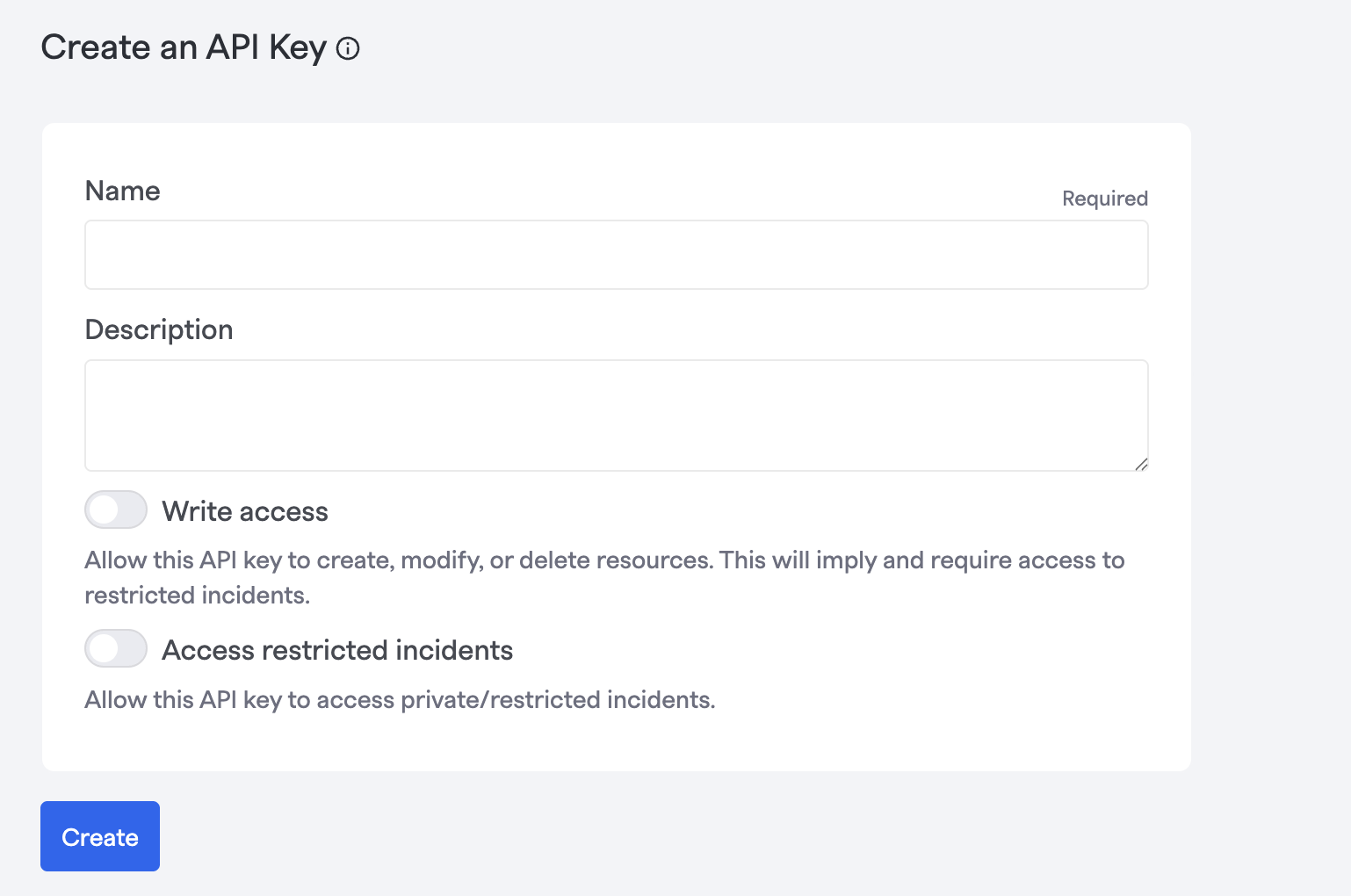
- Click + Create API key.

- Give the key a clear, descriptive name and optional description (for example
NeuBird - <env> - <date>). - Ensure you enable the Write access toggle (this allows NeuBird to post updates on the incident timeline and post RCA after investigations are complete).
- Click Save. The generated token will be displayed — copy it now because it will not be shown again.
Important
FireHydrant API keys are issued as organization-level tokens and carry Owner-level privileges. Creating or managing API keys requires admin/Owner permissions in FireHydrant. Treat keys as highly privileged secrets.
Connection Fields
Section titled “Connection Fields”| Field | Required | Description |
|---|---|---|
| Name | Yes | A descriptive name for this connection |
| Description | No | An overview of what this connection is used for |
| API Key | Yes | The FireHydrant API key created in the steps above (with write access enabled) |
For general instructions on creating and managing connections, see the Connections Overview.