



SignalFX
Connecting to SignalFx (now part of Splunk Observability Cloud) enables the collection of your application and infrastructure telemetry, including metrics, traces, and logs.
You will need an API Token and the API Endpoint URL that corresponds to your SignalFx/Observability Cloud instance.
Create an API Token in SignalFx
Section titled “Create an API Token in SignalFx”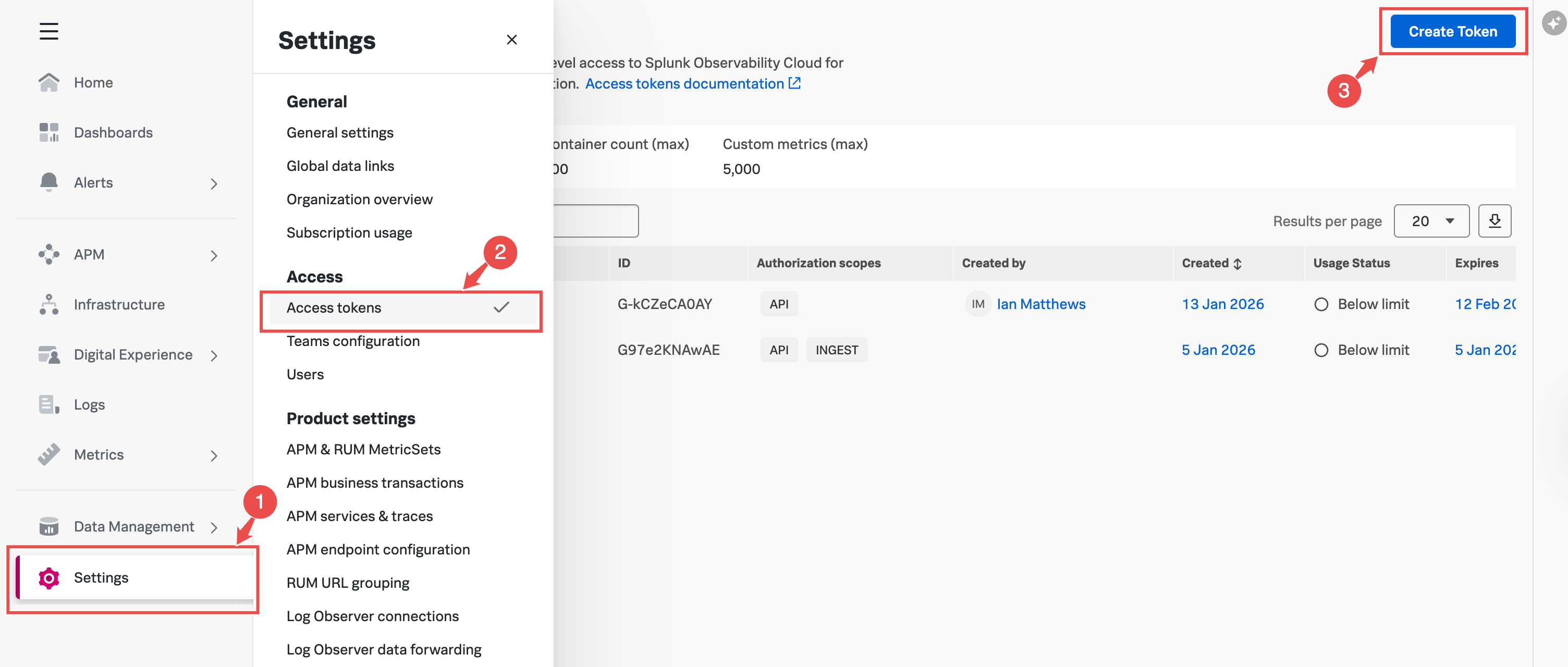
-
Open Settings On the left-hand sidebar, click Settings (highlighted as step 1 in the image).
-
Go to Access Tokens Under the Access section in the Settings menu, select Access tokens (highlighted as step 2).
-
Create a New Token Click the Create Token button at the top-right corner of the screen (highlighted as step 3).
-
Follow the Prompts After clicking Create Token, follow the on-screen instructions to set the token name and configure expiration. When you select authorization scopes, include the API scope. This is what makes the token usable for reading telemetry; without it NeuBird cannot query your organization.
-
Save Your Token Once created, make sure to copy and securely store the token as it may not be displayed again.
Get the SignalFx API Endpoint
Section titled “Get the SignalFx API Endpoint”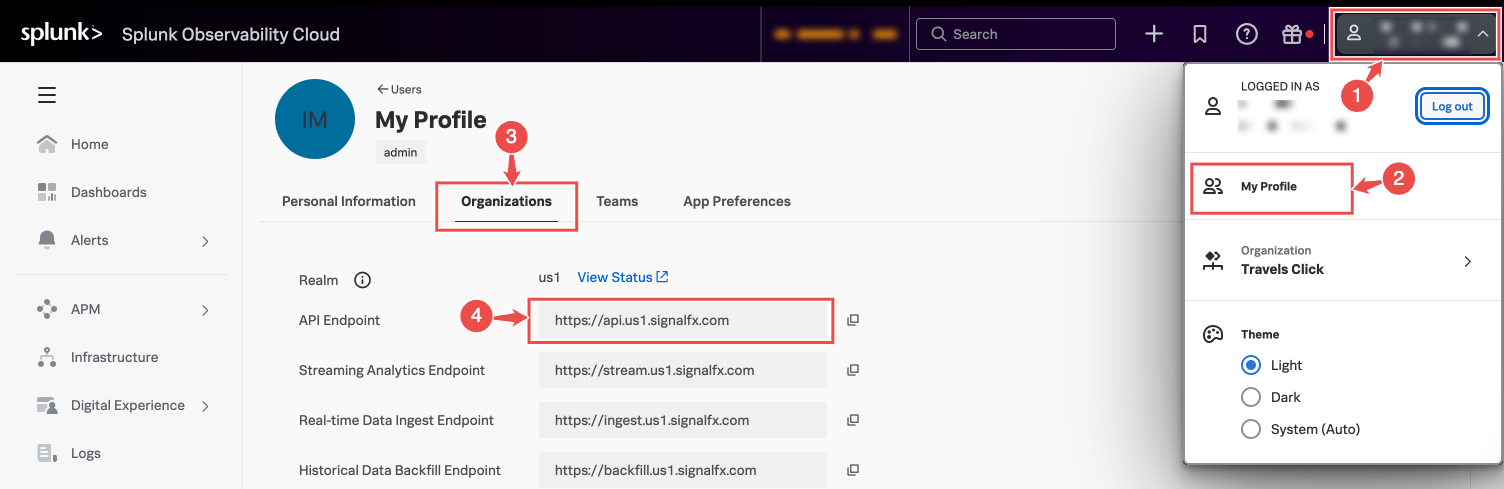
-
In the top-right corner of the Splunk Observability Cloud interface, click on your profile icon (user avatar).
-
From the dropdown menu, click My Profile.
-
In the My Profile page, select the Organizations tab.
-
Under Organizations, locate the API Endpoint field. This shows the SignalFx endpoint URL for your organization.
- Example:
https://api.us1.signalfx.com - You can copy the URL by clicking the copy icon next to it.
- Example:
Connection Fields
Section titled “Connection Fields”| Field | Required | Description |
|---|---|---|
| Name | Yes | A descriptive name for the connection |
| Description | No | Optional description of the integration |
| API Token | Yes | The API-scoped token generated in the steps above |
| URL | Yes | The API endpoint URL for your SignalFx organization (e.g., https://api.us1.signalfx.com) |
For general instructions on creating and managing connections, see the Connections Overview.