



AWS
Connecting NeuBird to your AWS environment enables collection of resource configurations, CloudTrail change events, CloudWatch metrics, logs, and alarms. The scope of data NeuBird can access depends on the permissions assigned to the AWS role.
NeuBird follows AWS best practices by using an assumed role with an external ID for secure, read-only access.
Step 1: Create an IAM Role
Section titled “Step 1: Create an IAM Role”You can create the role using the AWS CLI (recommended for automation) or the AWS Console (recommended for most users).
Option A: AWS CLI
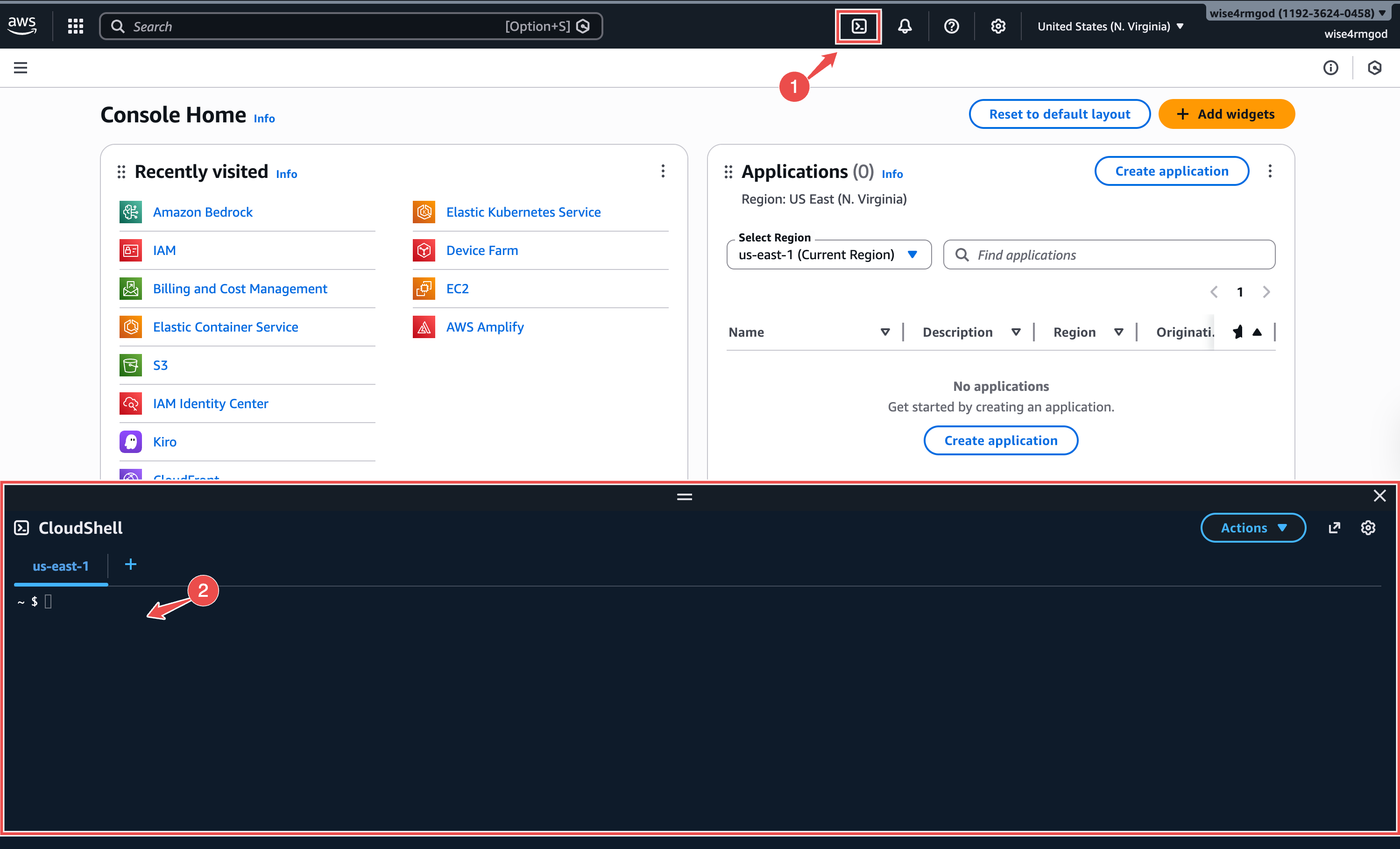
Section titled “Option A: AWS CLI”Open CloudShell from the terminal icon at the top of the AWS Console and run:
aws iam create-role \  --role-name NeuBird \  --assume-role-policy-document '{    "Version": "2012-10-17",    "Statement": [{      "Effect": "Allow",      "Principal": { "AWS": "arn:aws:iam::905418326654:root" },      "Action": "sts:AssumeRole",      "Condition": {        "StringEquals": { "sts:ExternalId": "YOUR_EXTERNAL_ID" }      }    }]  }' \  --description "NeuBird read-only access"
aws iam attach-role-policy \  --role-name NeuBird \  --policy-arn arn:aws:iam::aws:policy/ReadOnlyAccess
aws iam get-role --role-name NeuBird --query 'Role.Arn' --output text
Replace YOUR_EXTERNAL_ID with the External ID shown in the NeuBird connection dialog.
What this does:
- Creates an IAM role called
NeuBirdthat allows AWS account905418326654(NeuBird) to assume it, verified by an external ID- Attaches the AWS-managed
ReadOnlyAccesspolicy — NeuBird can view but not modify your resources- Outputs the Role ARN you’ll need for the connection
If you use EKS, you’ll attach one more policy in Step 2a.
Option B: AWS Console
Section titled “Option B: AWS Console”-
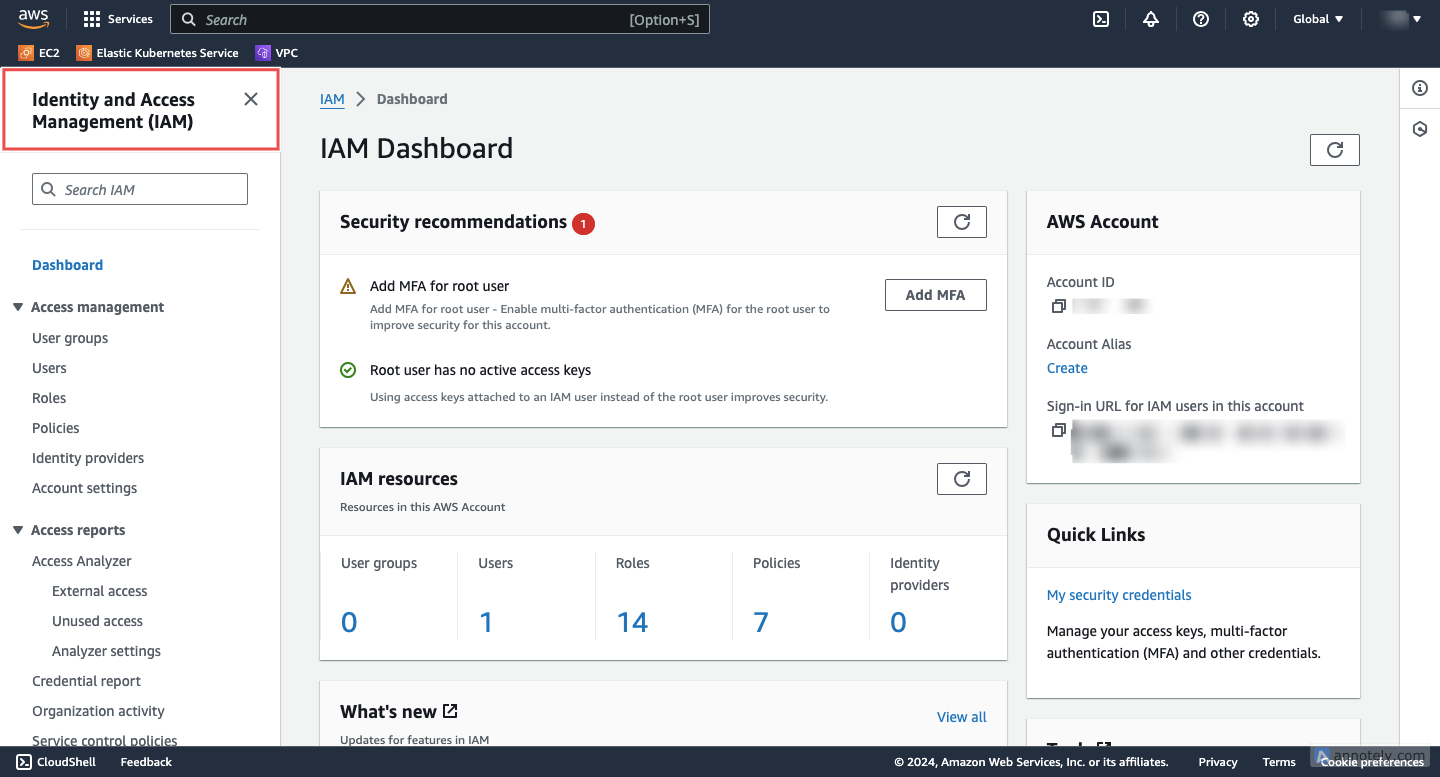
Access IAM: Navigate to the IAM service in the AWS Console.
-
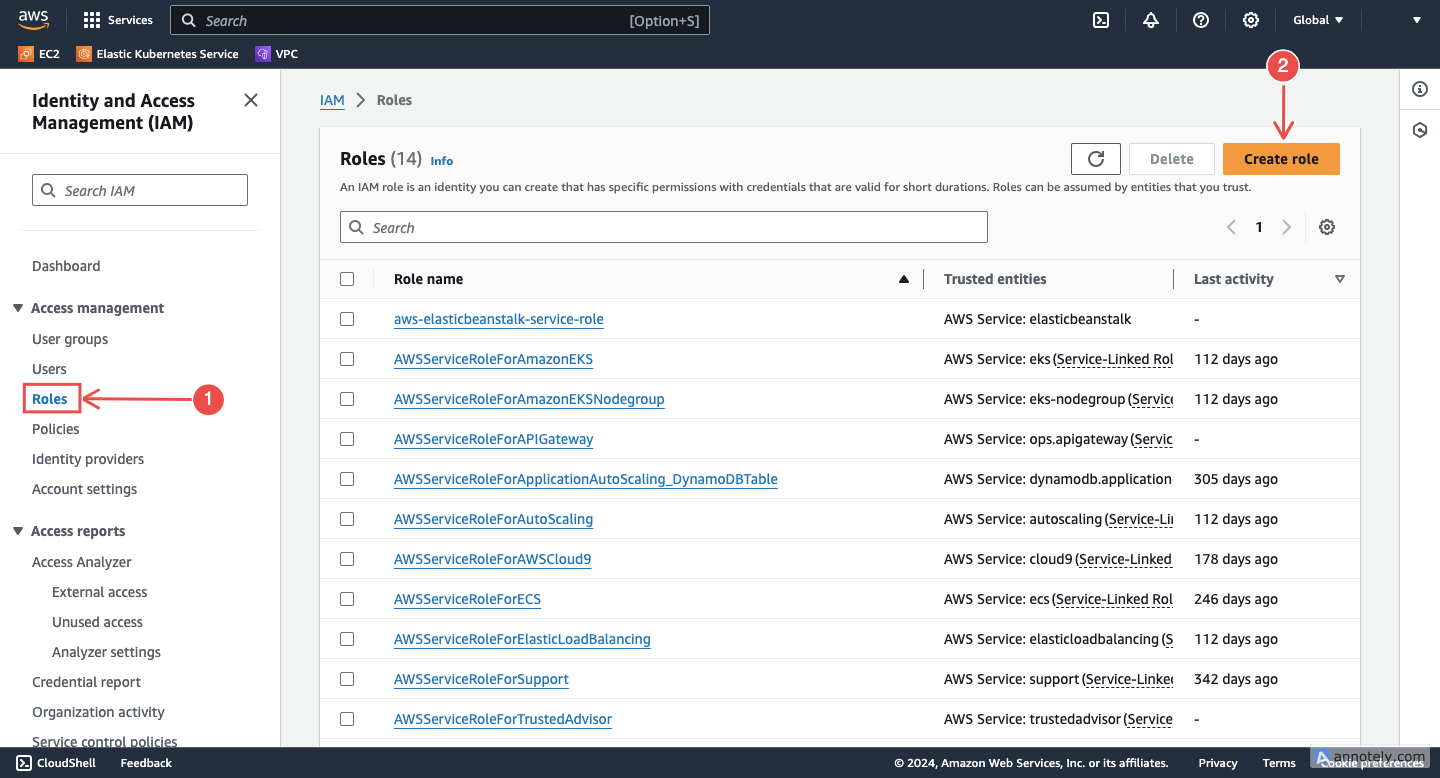
Create a new role: In the navigation pane, choose Roles > Create role.
-
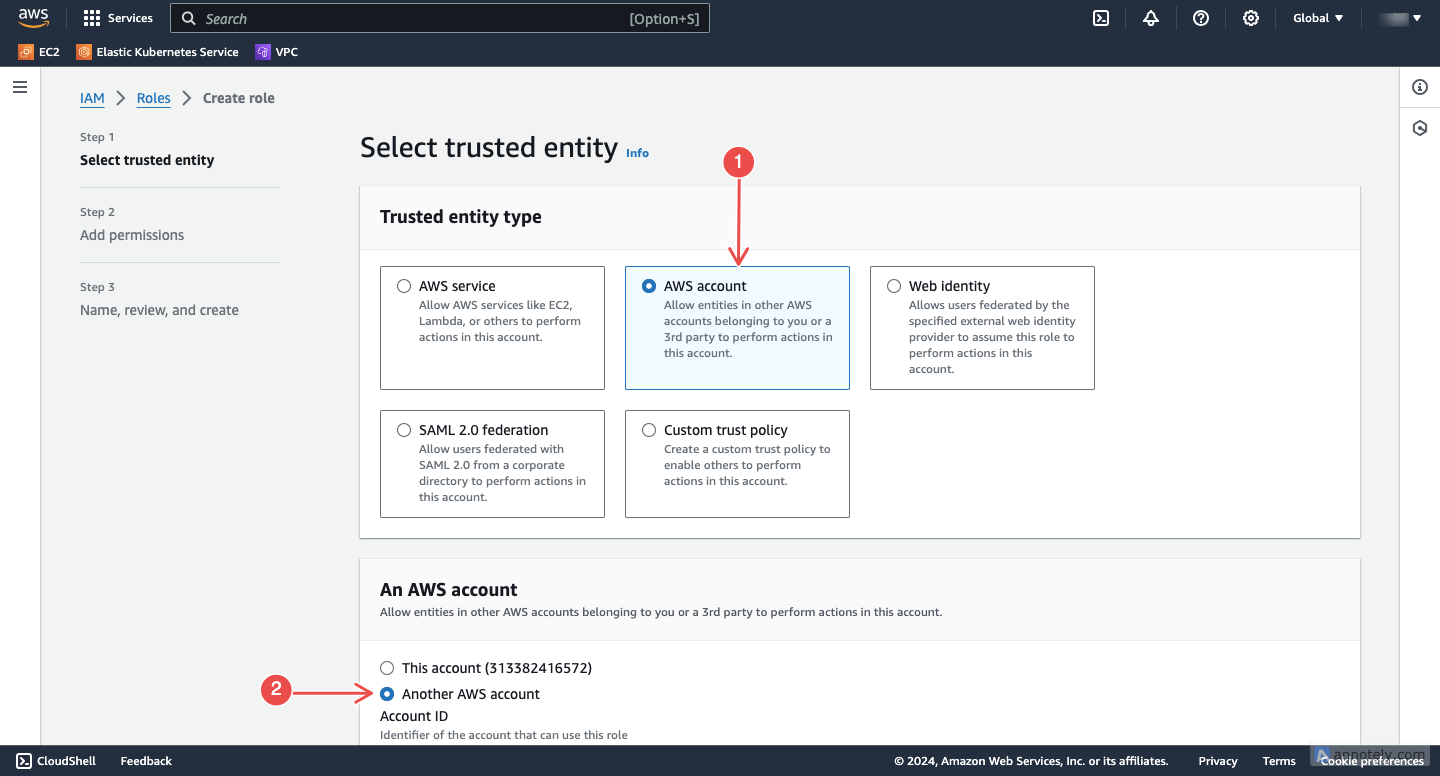
Choose trusted entity: Select Another AWS account as the type of trusted entity.
-
Enter credentials:
- Account ID: Enter
905418326654(NeuBird’s AWS account) - External ID: Copy the External ID from the NeuBird connection dialog and paste it here
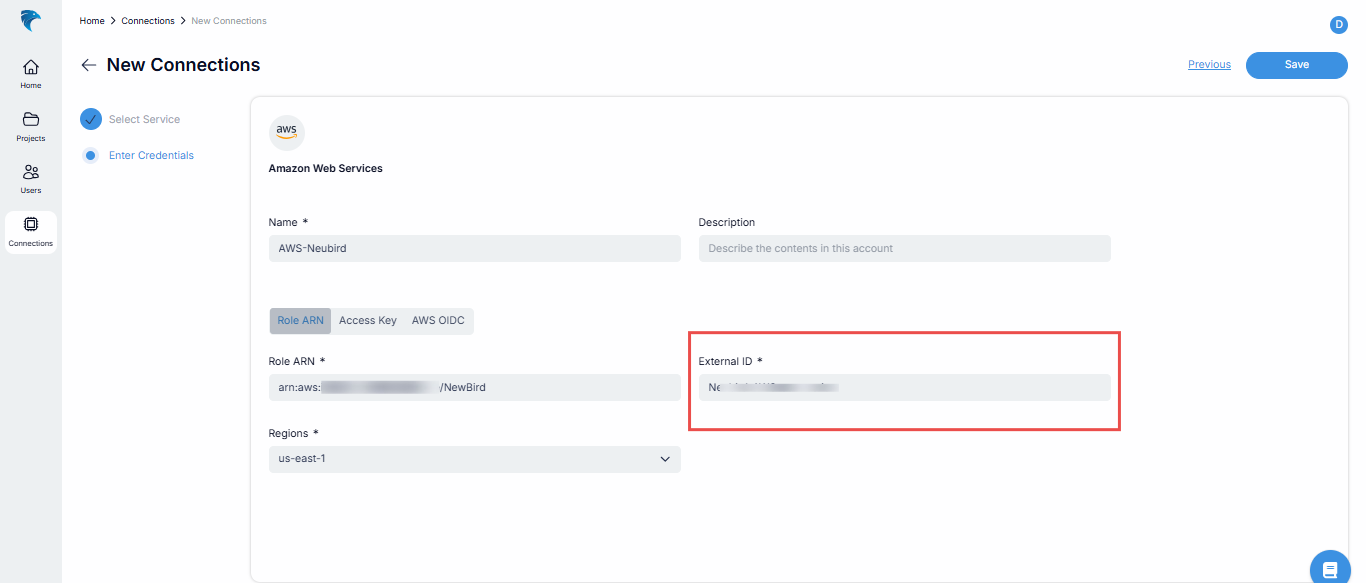
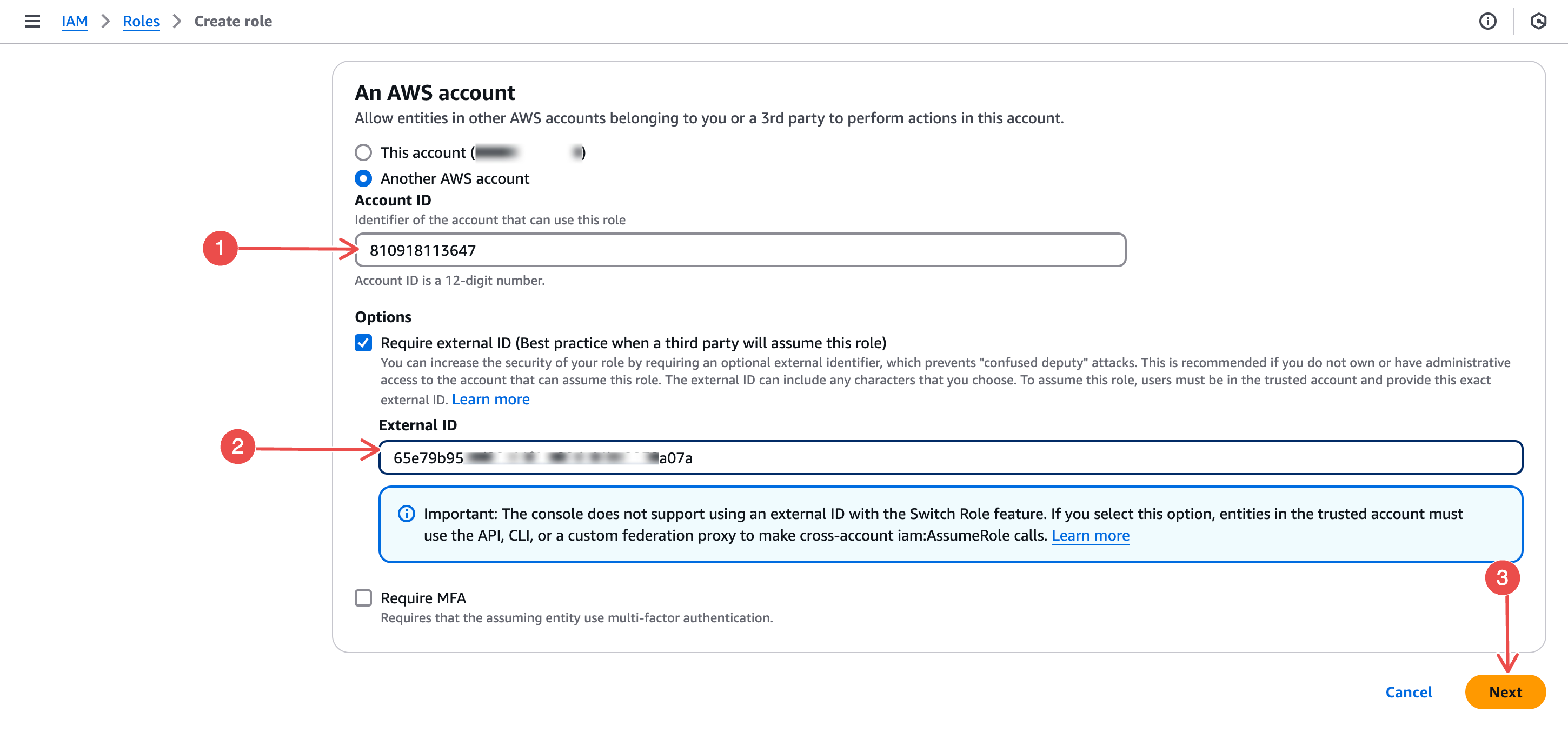
Click Next to continue.
- Account ID: Enter
-
Assign permissions: Filter by AWS managed - job function and select ReadOnlyAccess.
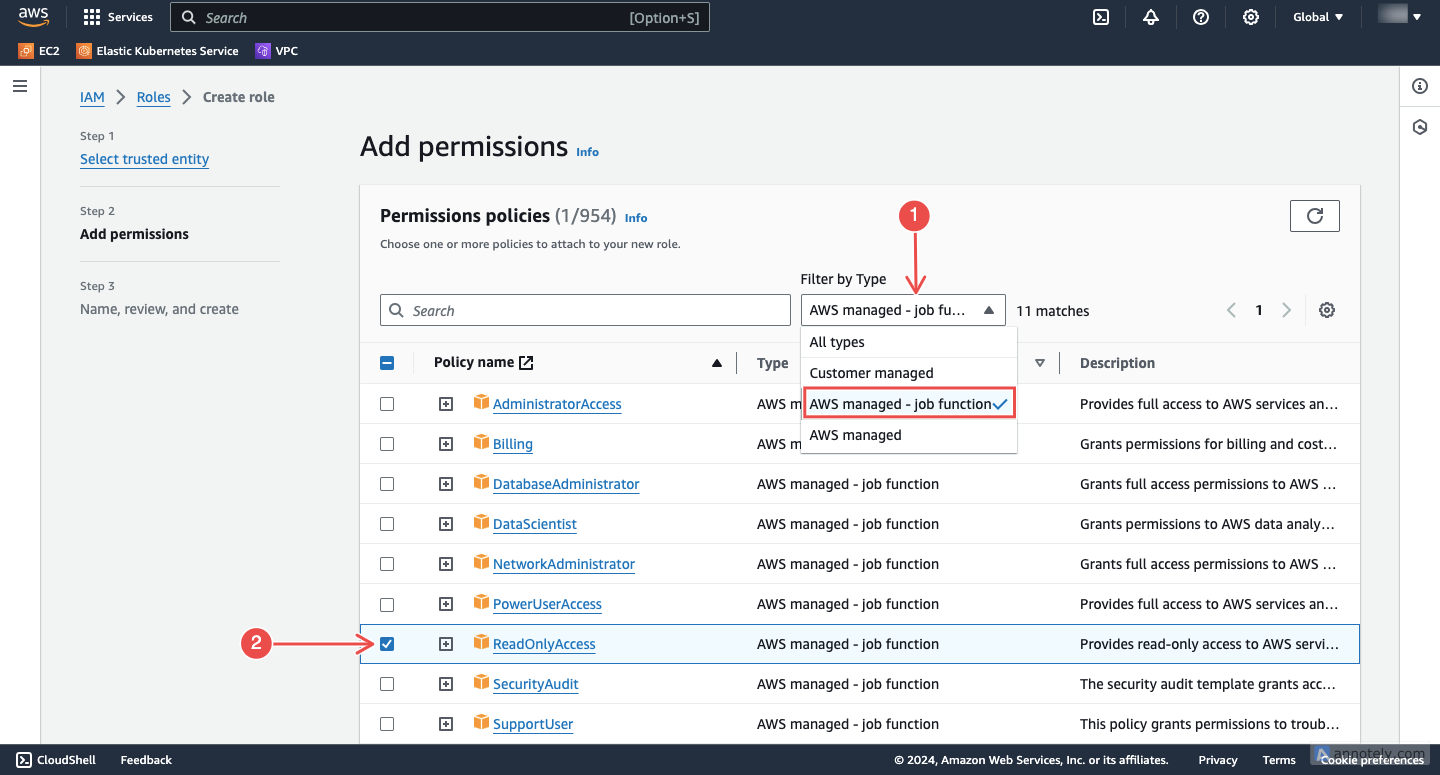
Click Next to continue.
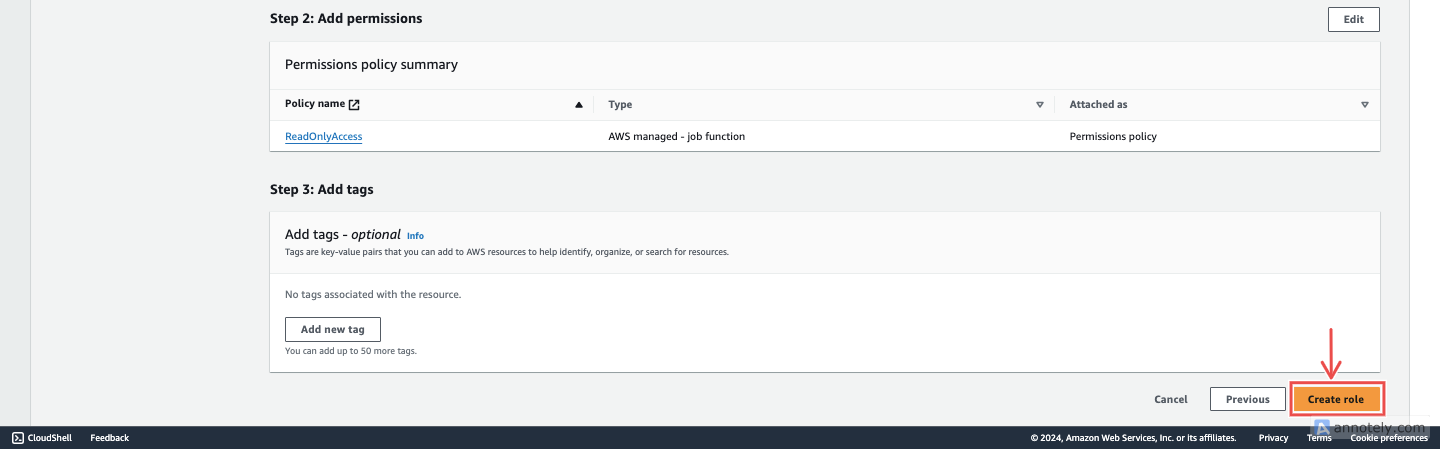
-
Review and create: Enter a name (e.g.
NeuBird) and description, review the configuration, then click Create role.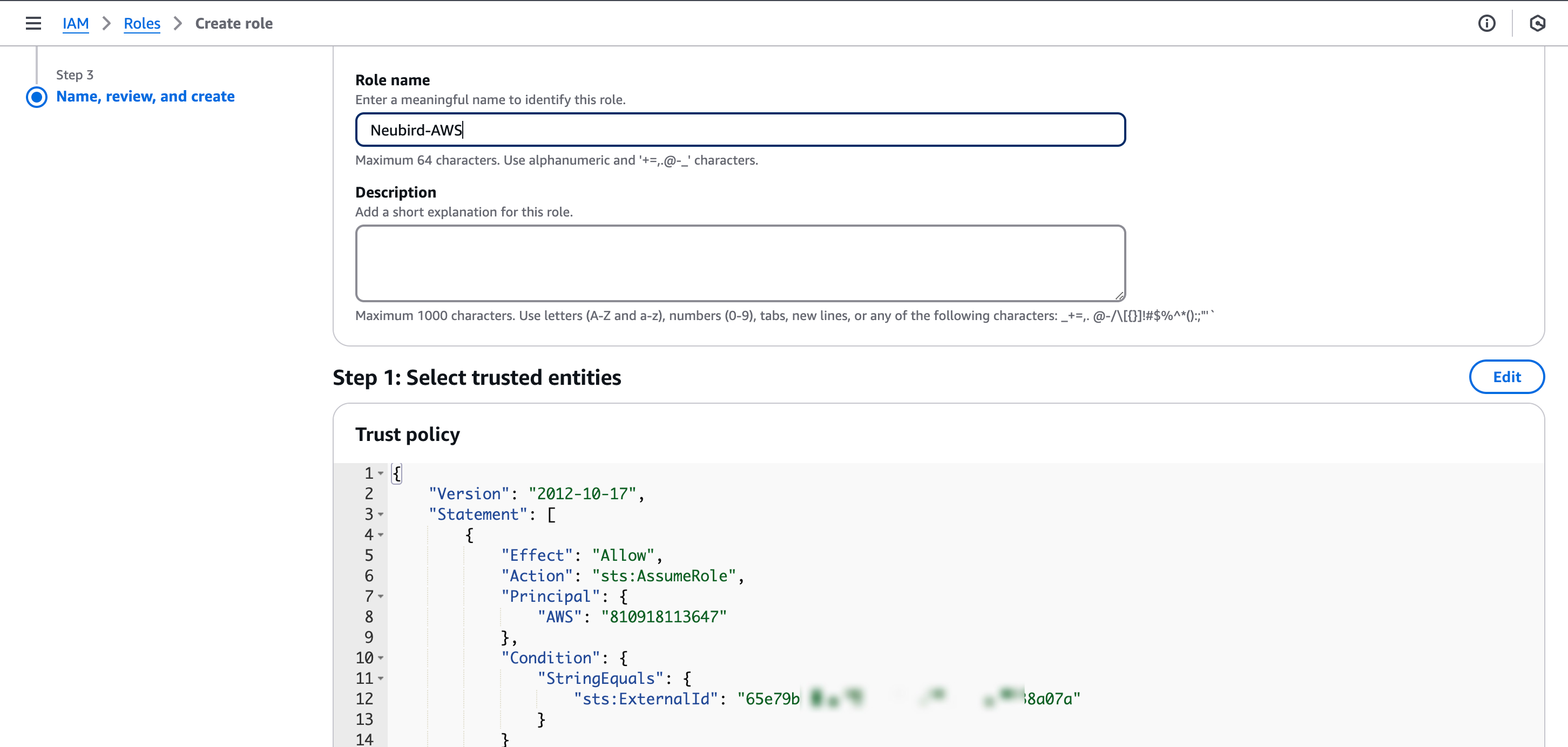
-
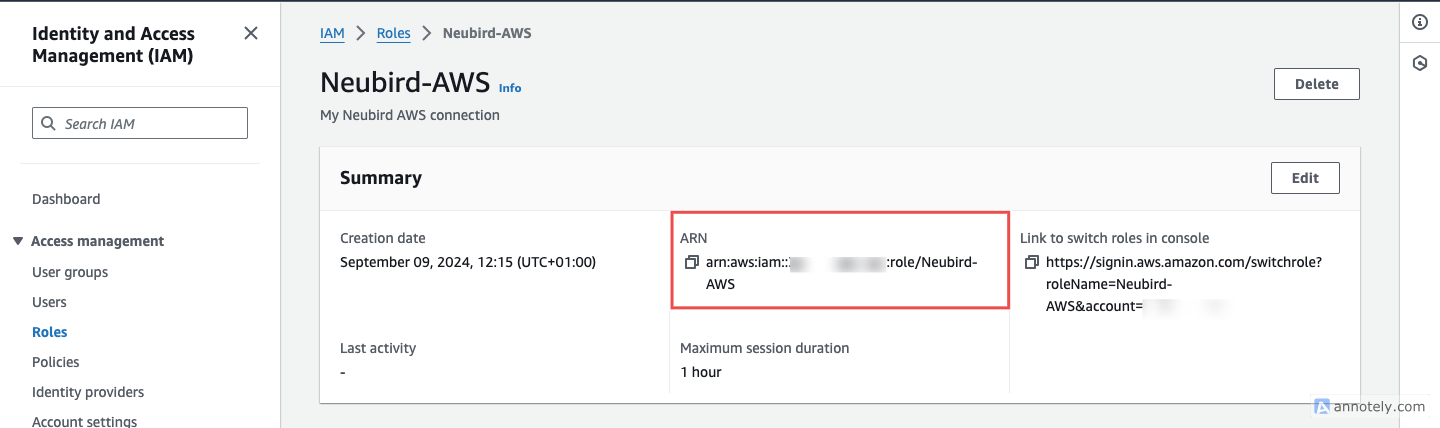
Copy the Role ARN: Open the newly created role and copy the Role ARN.
Step 2: Add Kubernetes (EKS) Access
Section titled “Step 2: Add Kubernetes (EKS) Access”Skip this step if you don’t use EKS.
NeuBird reads EKS through the AWS-managed EKS MCP service. This needs two grants: an IAM policy on the NeuBird role (once per account) and a Kubernetes access entry (once per cluster).
Step 2a: Attach the EKS MCP policy to the NeuBird role
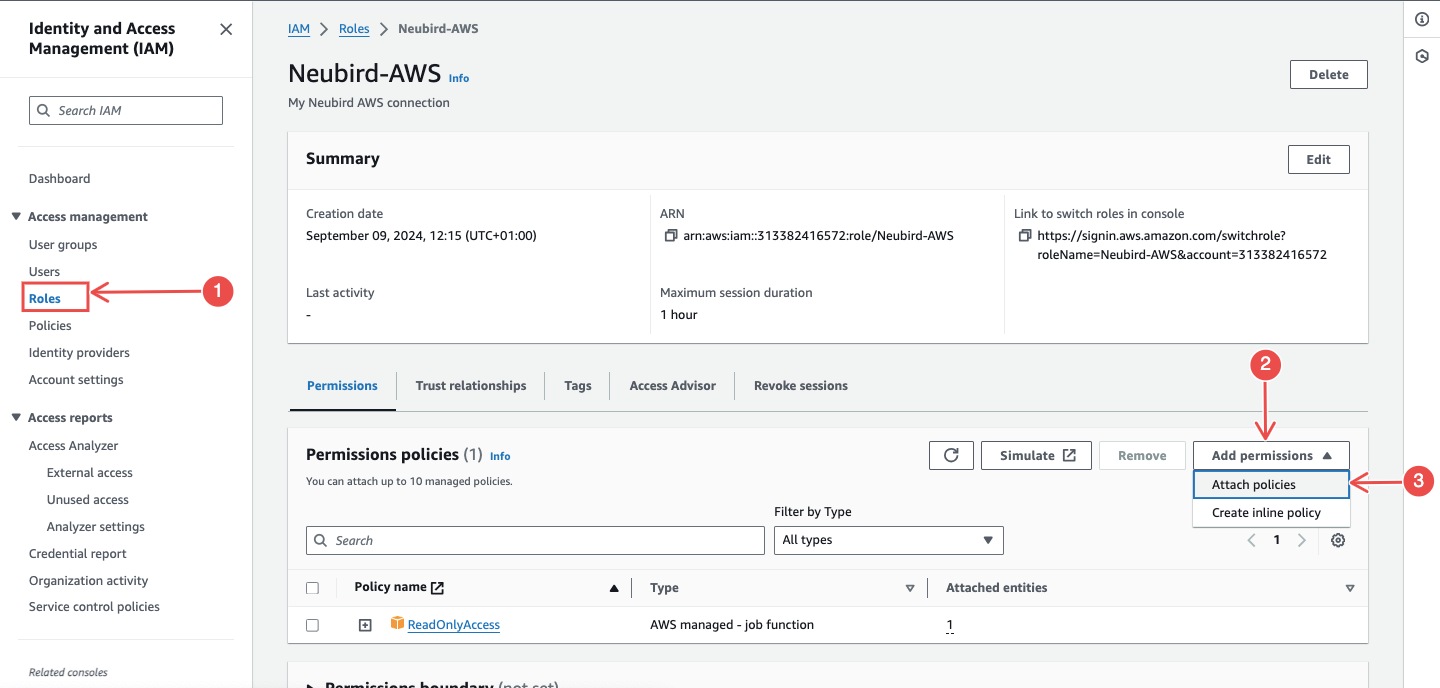
Section titled “Step 2a: Attach the EKS MCP policy to the NeuBird role”aws iam attach-role-policy \ --role-name NeuBird \ --policy-arn arn:aws:iam::aws:policy/AmazonEKSMCPReadOnlyAccessOr in the Console: IAM > Roles > NeuBird > Add permissions > Attach policies, then search for and select AmazonEKSMCPReadOnlyAccess.
Already connected AWS to NeuBird? The
ReadOnlyAccesspolicy from Step 1 does not include theeks-mcp:*actions. Add this policy to your existing NeuBird role — without it, NeuBird’s EKS tooling stops working. Your other AWS telemetry (CloudTrail, CloudWatch, resource configuration) is unaffected.
This policy grants read-only EKS MCP access (eks-mcp:InvokeMcp, eks-mcp:CallReadOnlyTool) plus the EKS, CloudWatch, and EC2 reads those tools call through to. It deliberately excludes eks-mcp:CallPrivilegedTool, so AWS itself blocks NeuBird from making any change to your clusters.
Step 2b: Create a cluster access entry
Section titled “Step 2b: Create a cluster access entry”The policy above lets NeuBird reach the EKS MCP service. Each cluster additionally needs an access entry granting read access to its Kubernetes API.
For each EKS cluster you want NeuBird to monitor:
-
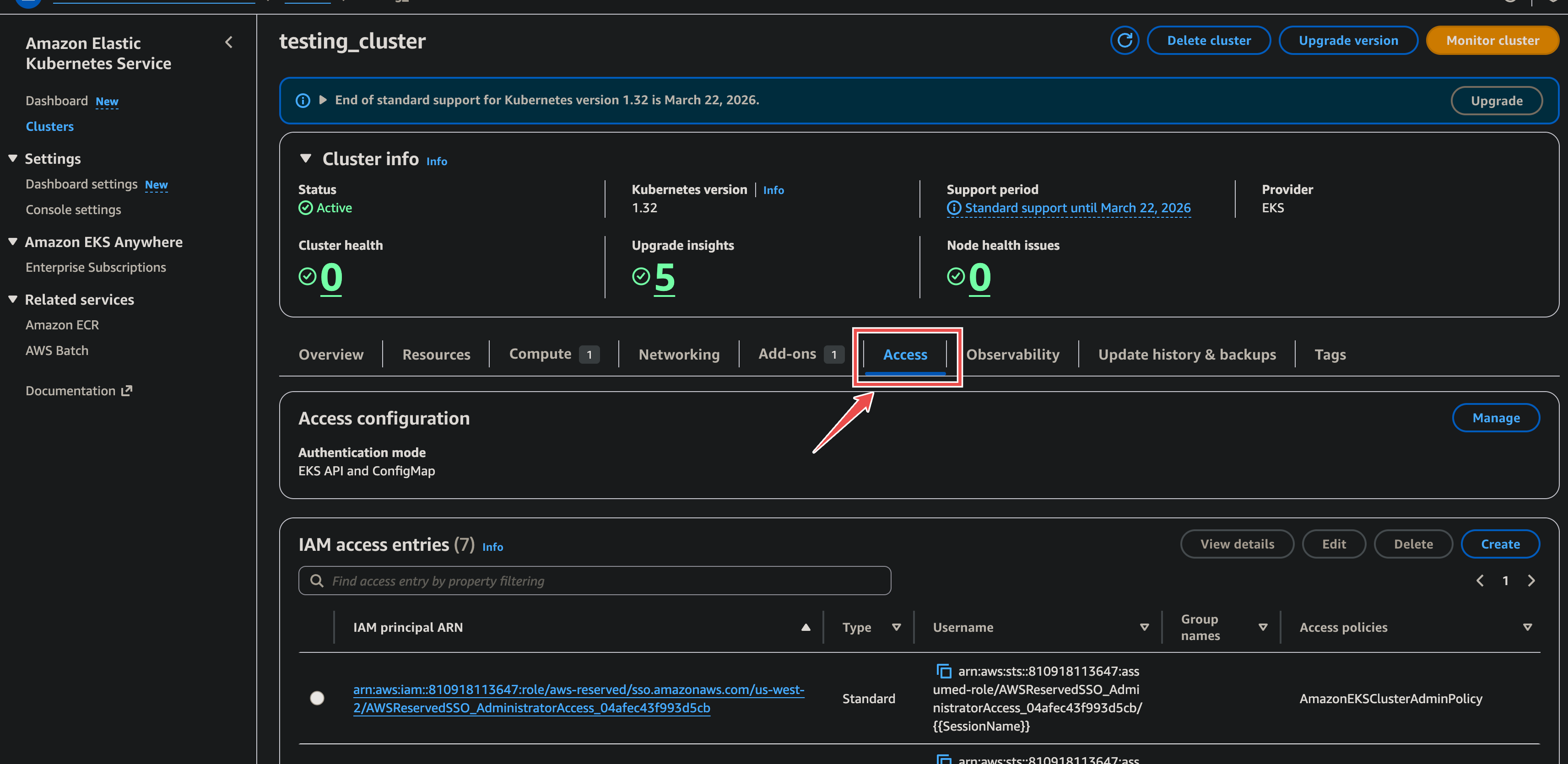
Go to Amazon EKS > select your cluster > Access tab. In IAM access entries, click Manage.
-
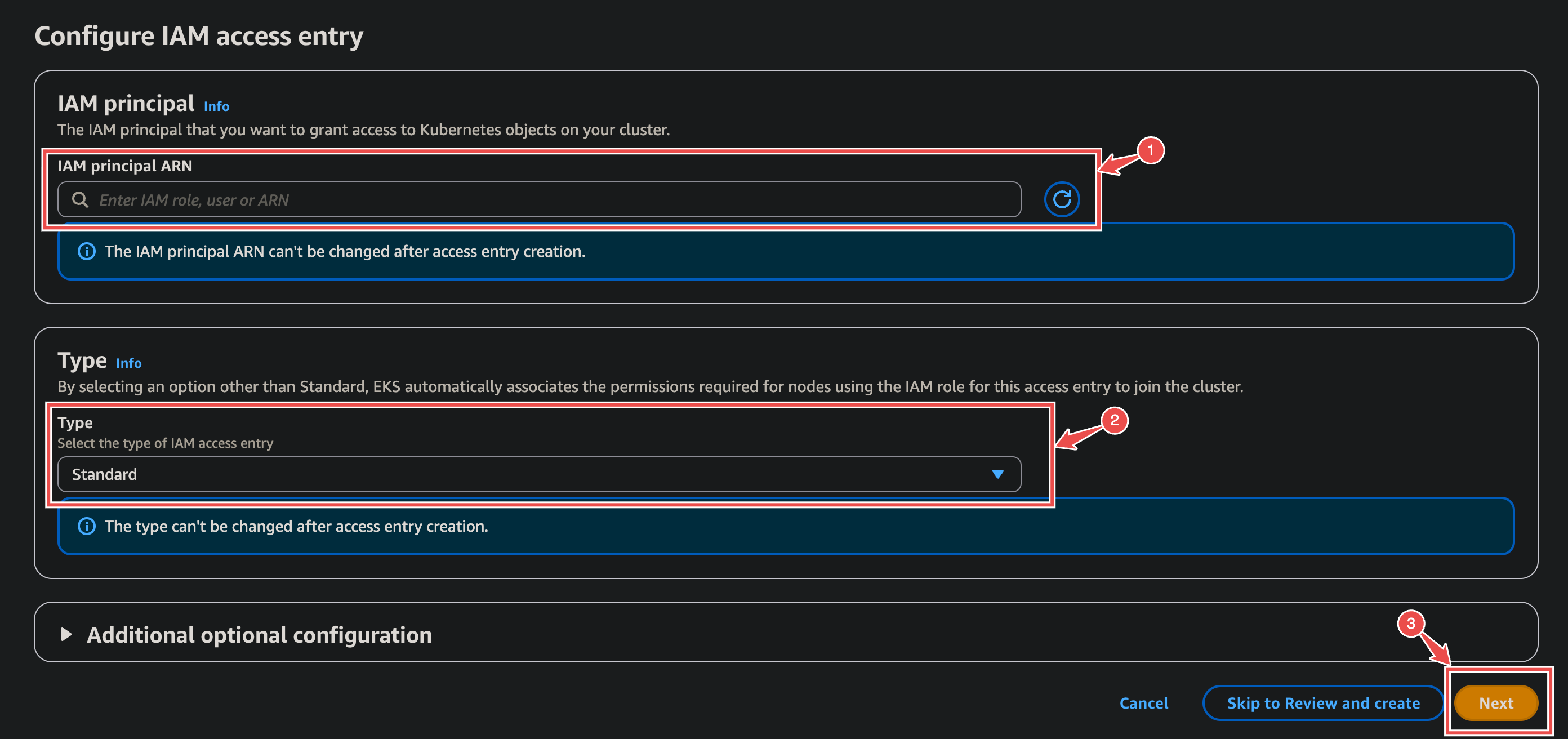
Create access entry: Enter the NeuBird role ARN as the IAM principal, type Standard, click Next.
-
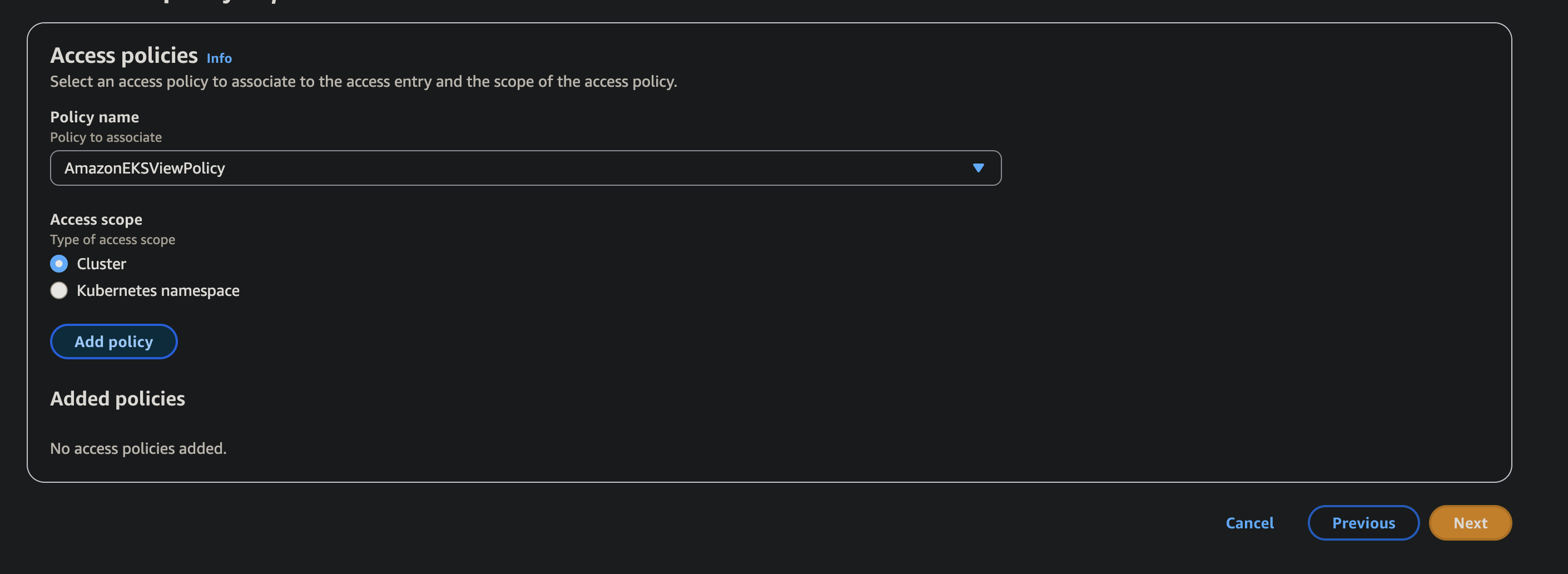
Add access policy: Select AmazonEKSViewPolicy (minimum required) with Cluster scope.
-
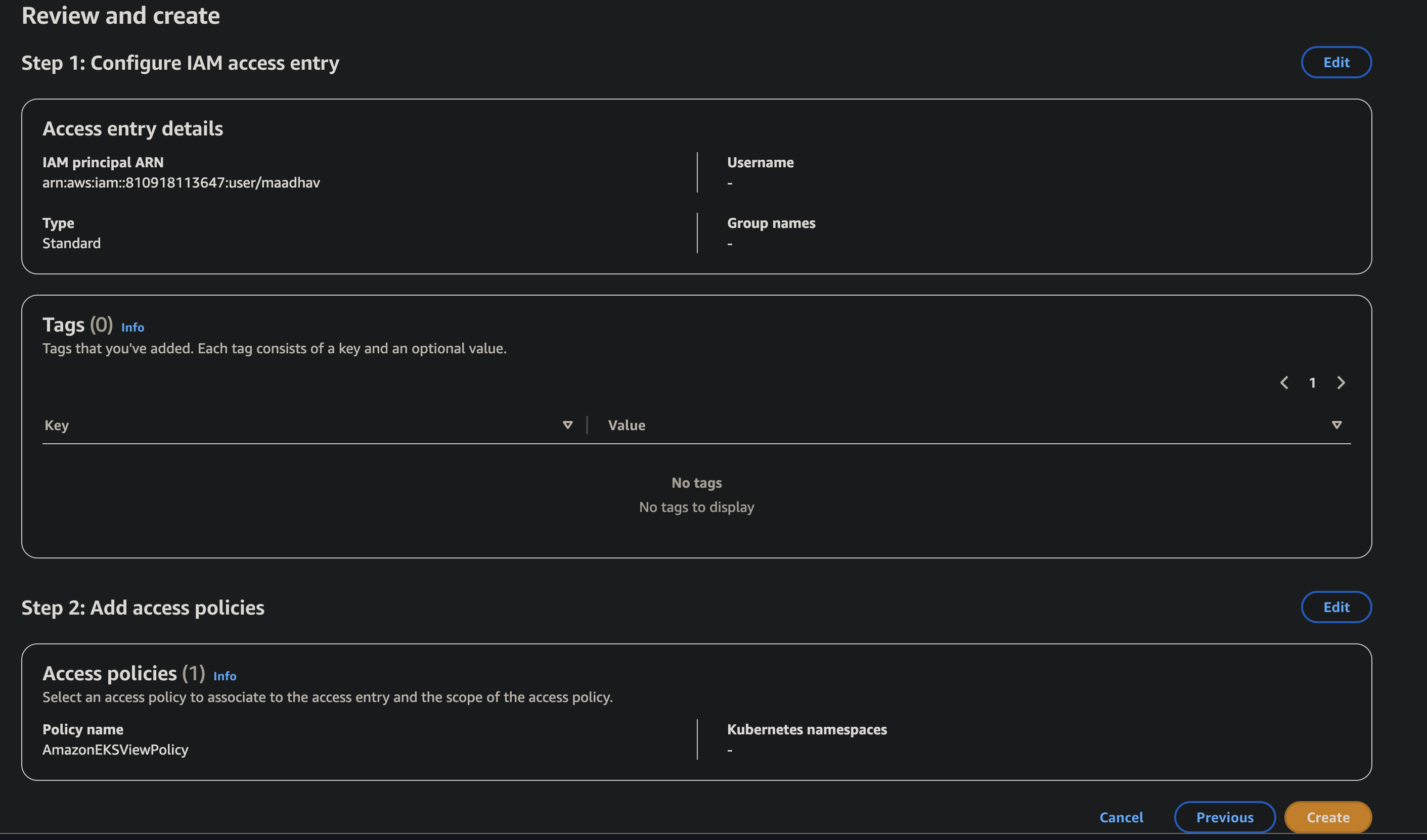
Review and create.
Network Access
Section titled “Network Access”If your EKS cluster endpoint has CIDR restrictions (not 0.0.0.0/0), add NeuBird’s IP:
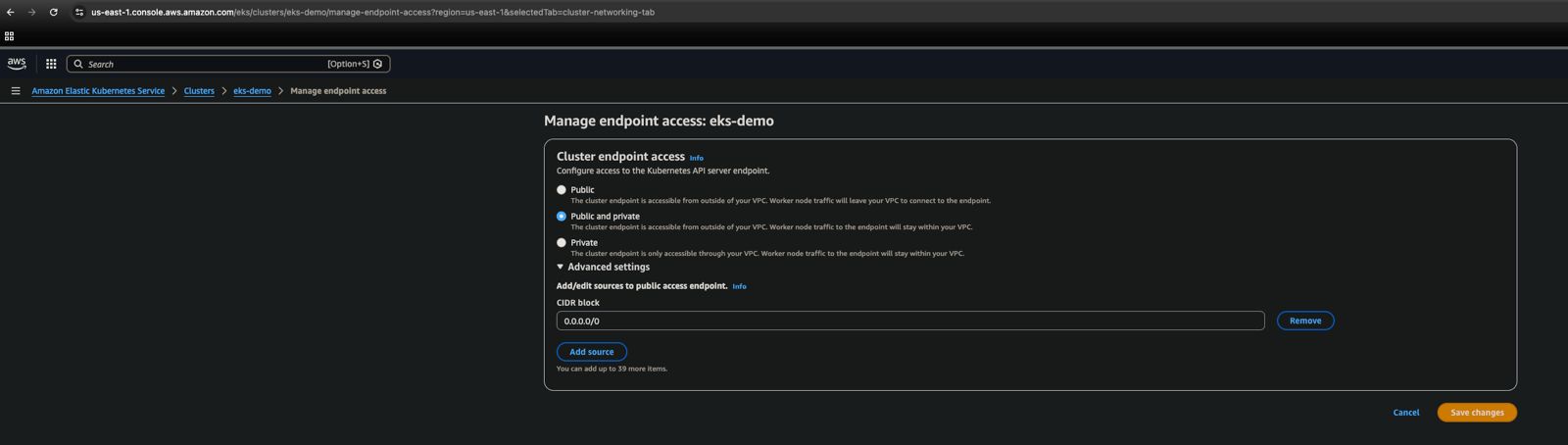
Add the following CIDR block:
54.236.215.157/32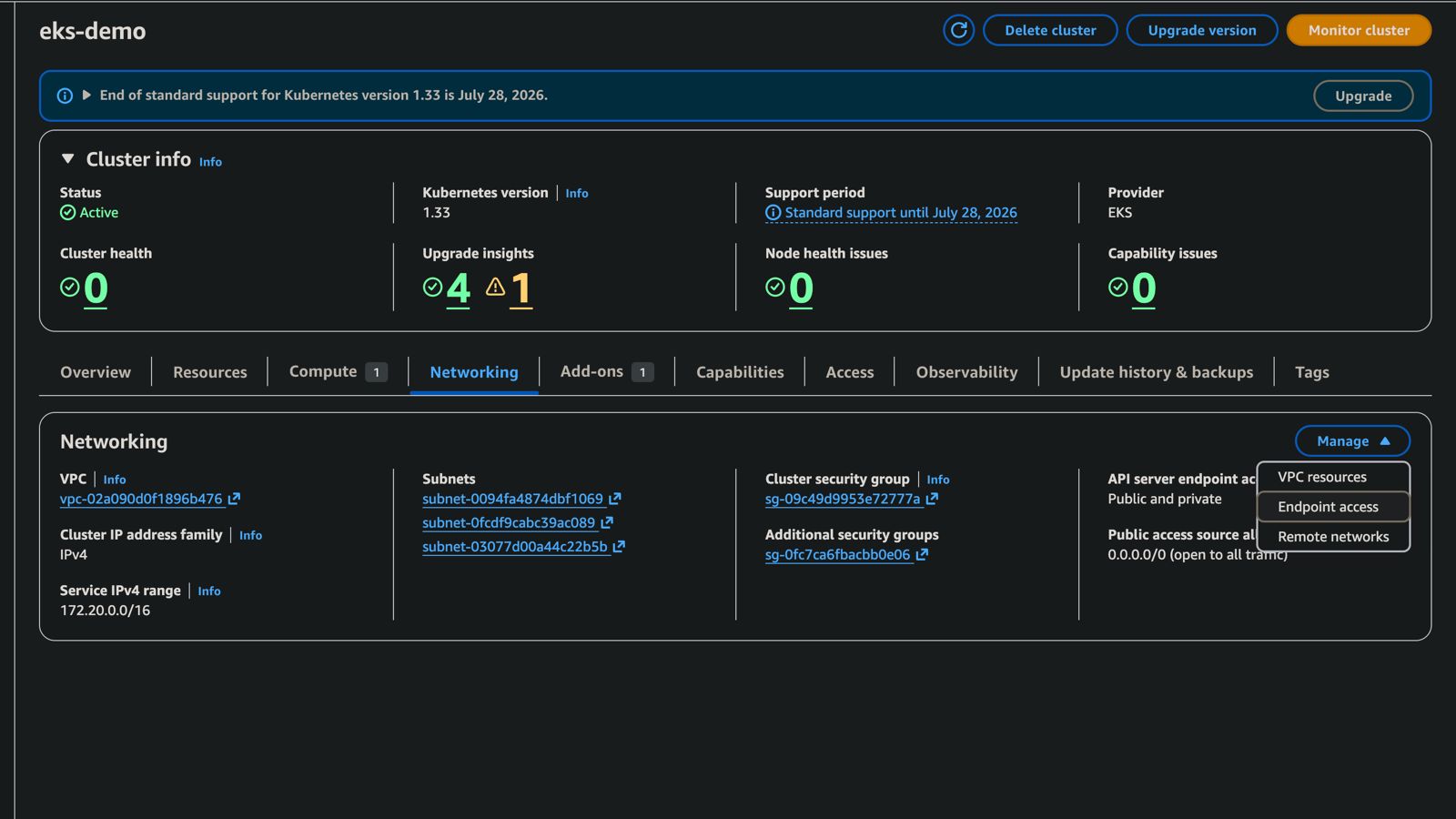
Or via CLI:
aws eks update-cluster-config --resources-vpc-config endpointPublicAccess=true,publicAccessCidrs=<your-existing-cidrs>,54.236.215.157/32Step 3: Enable Configuration Change Telemetry
Section titled “Step 3: Enable Configuration Change Telemetry”Skip this step if you already have CloudTrail delivering to a CloudWatch Log Group.
NeuBird uses CloudTrail to monitor configuration changes across your AWS resources.
Create a CloudWatch Log Group
Section titled “Create a CloudWatch Log Group”-
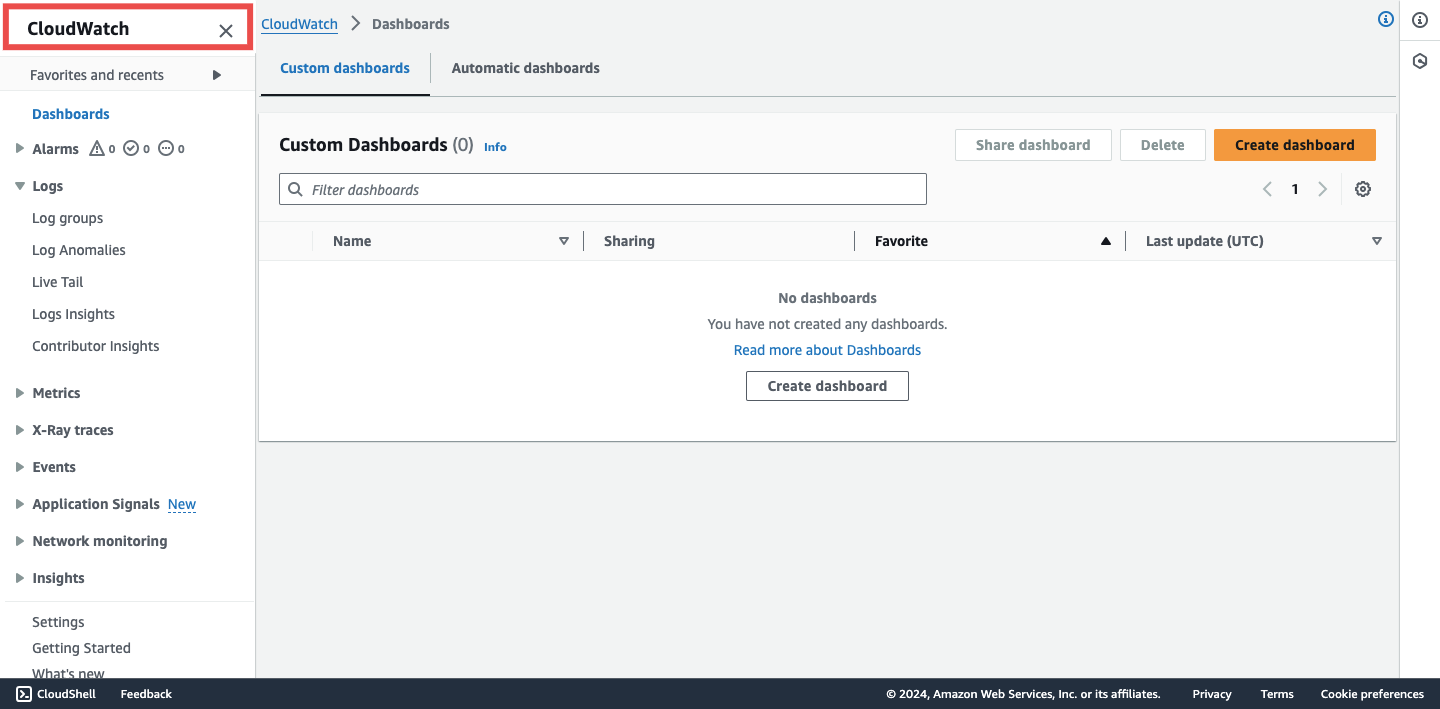
Navigate to CloudWatch in the AWS Console.
-
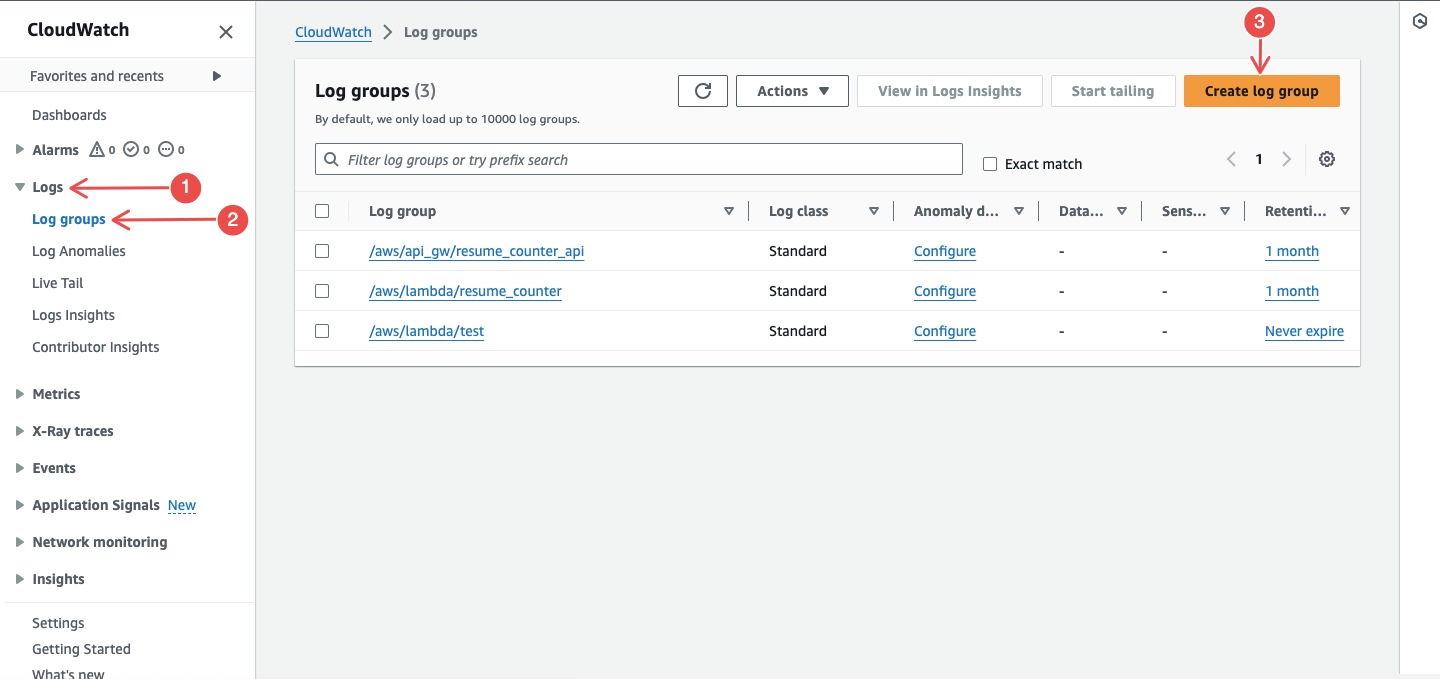
Go to Logs > Log groups > Create log group.
-
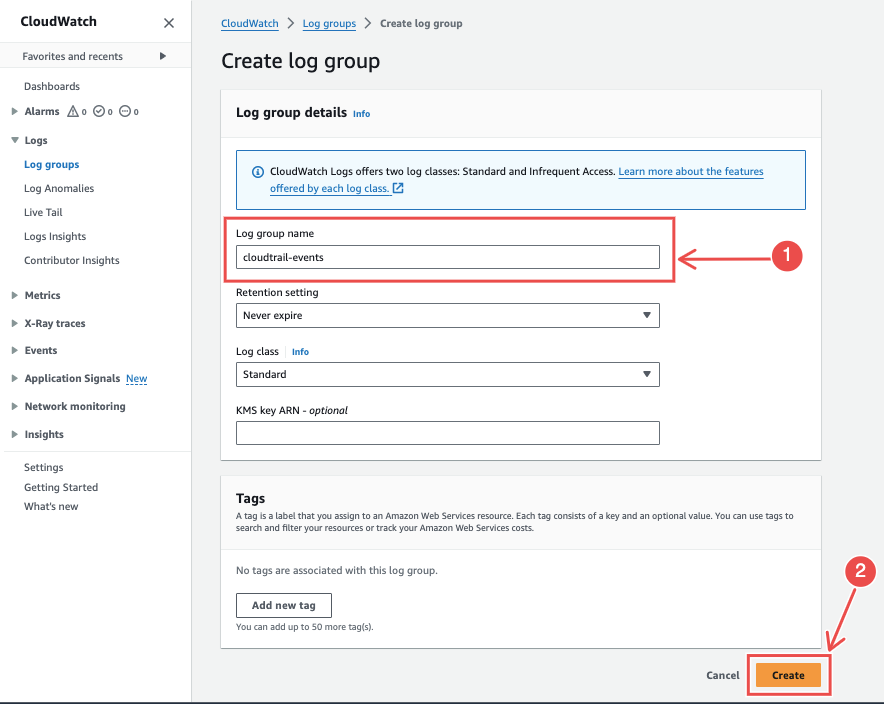
Enter a log group name and click Create.
Create a CloudTrail Trail
Section titled “Create a CloudTrail Trail”-
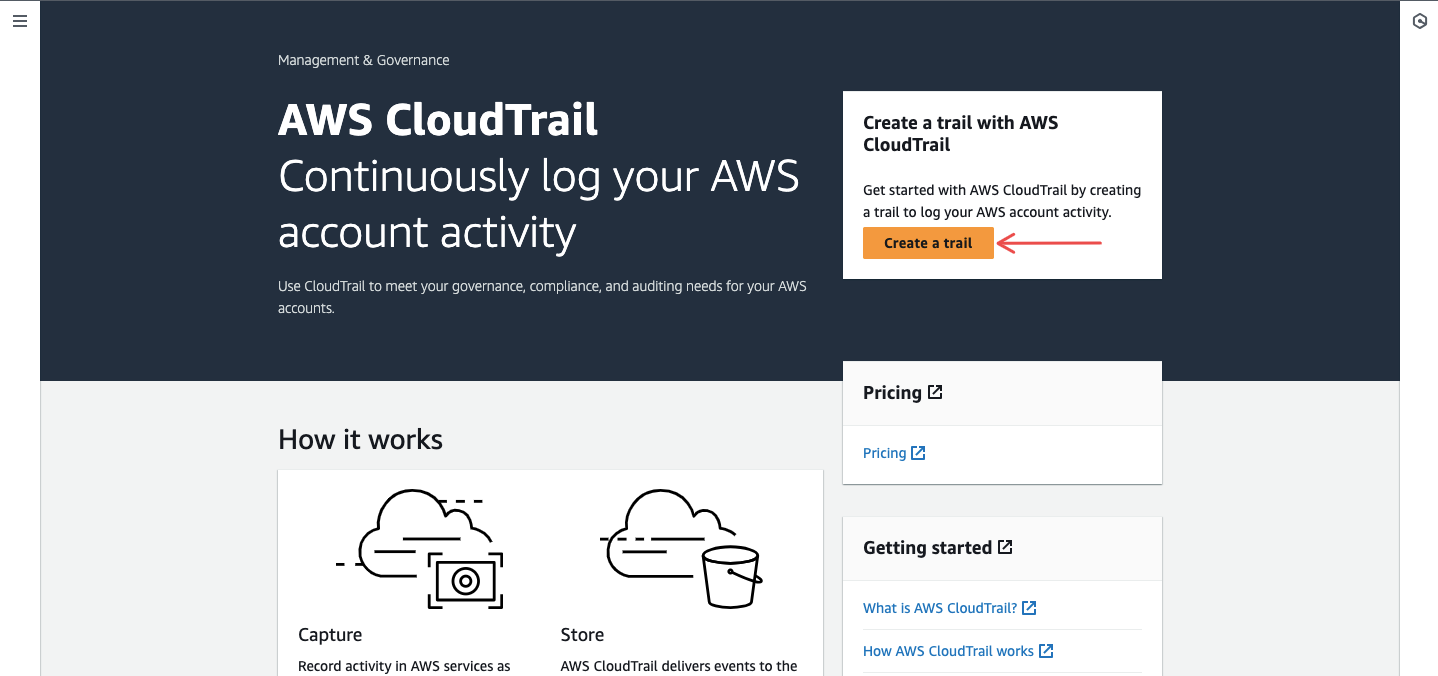
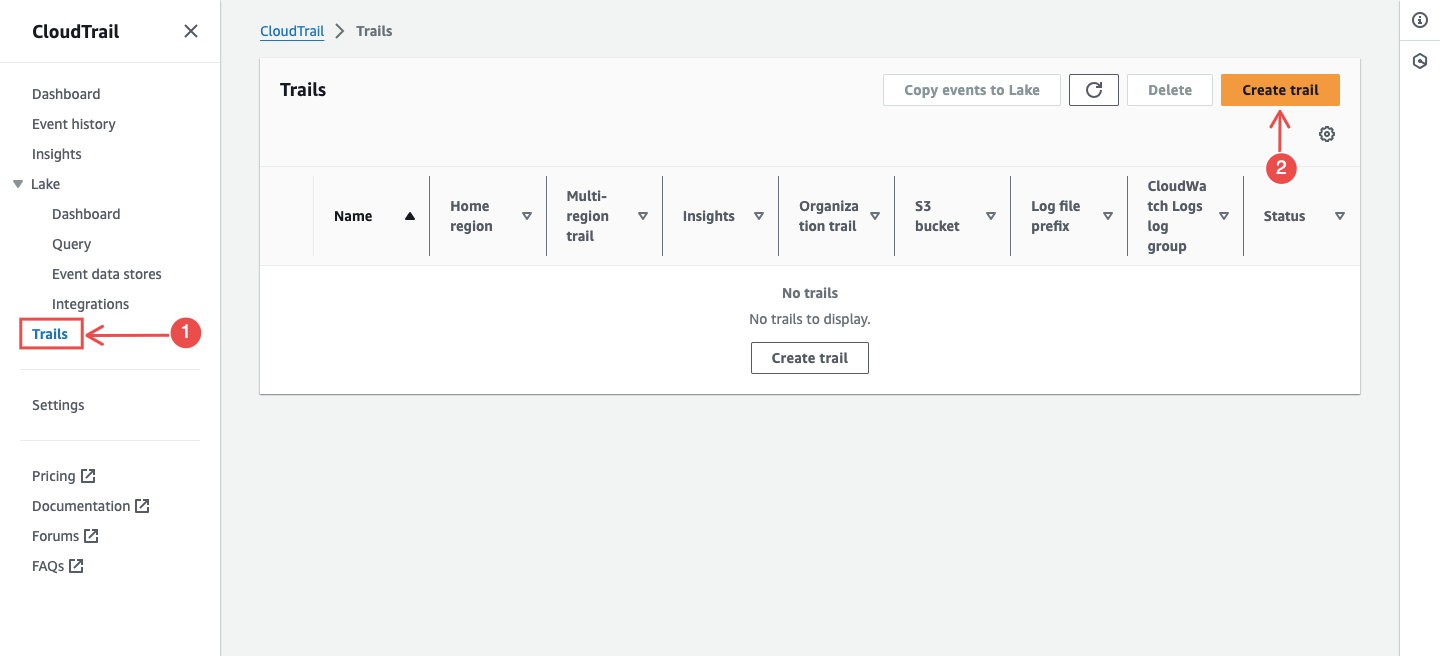
Navigate to CloudTrail and click Create trail.
-
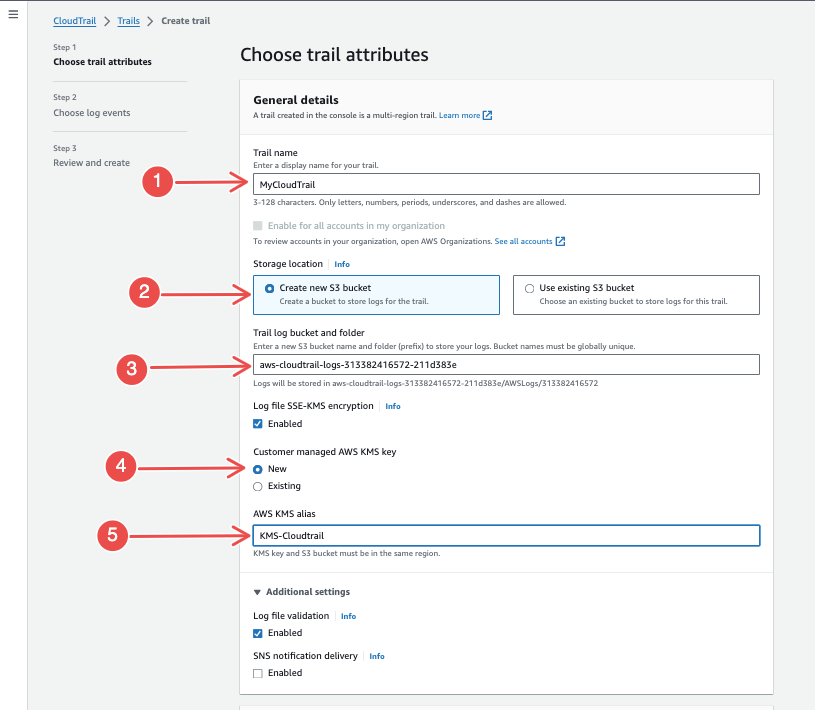
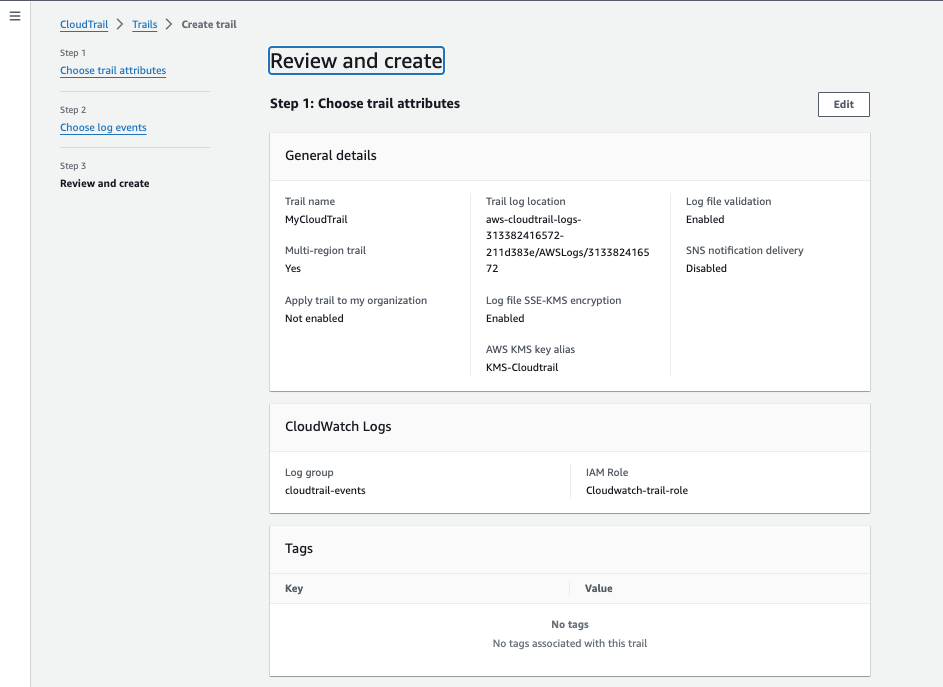
Enter a trail name and create a new S3 bucket for storage.
-
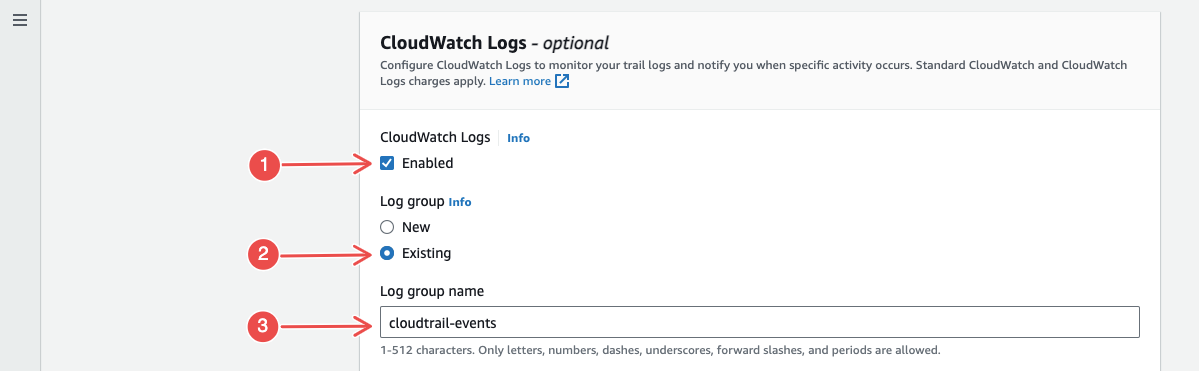
Enable CloudWatch Logs and select the log group you created.
-
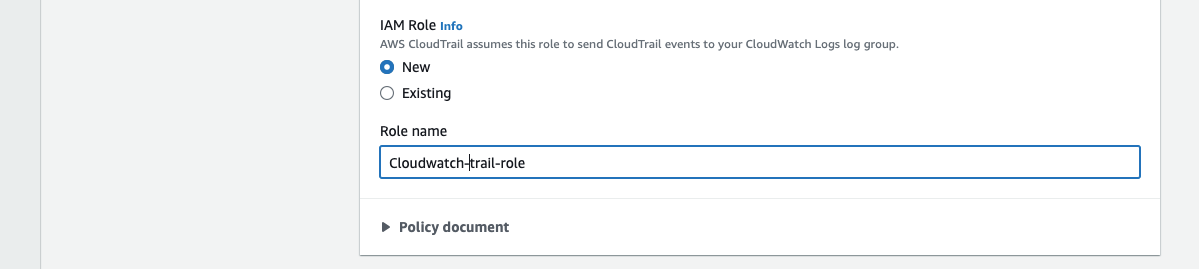
For IAM Role, choose New or select an existing role. Click Next.
-
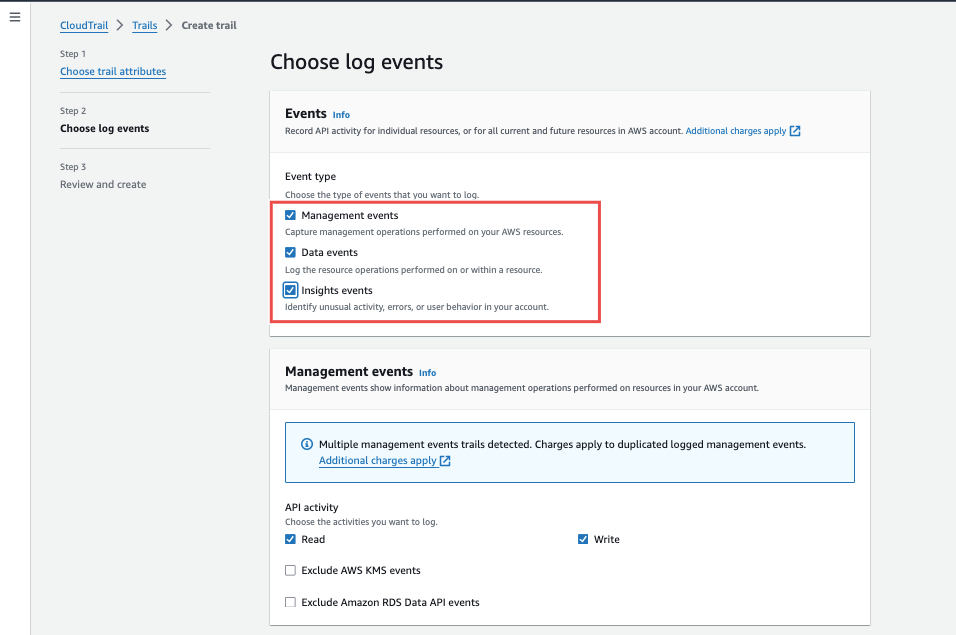
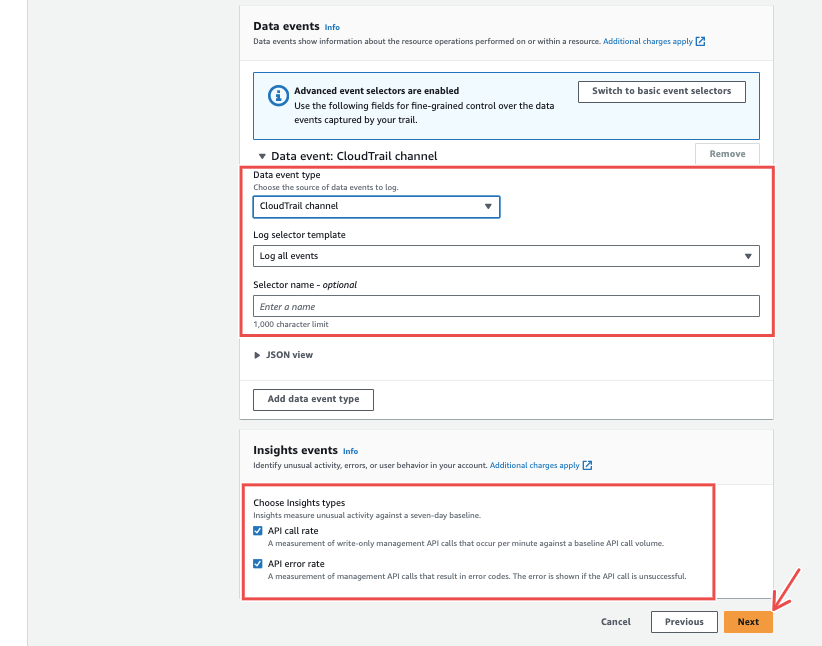
Select all event types and proceed.
-
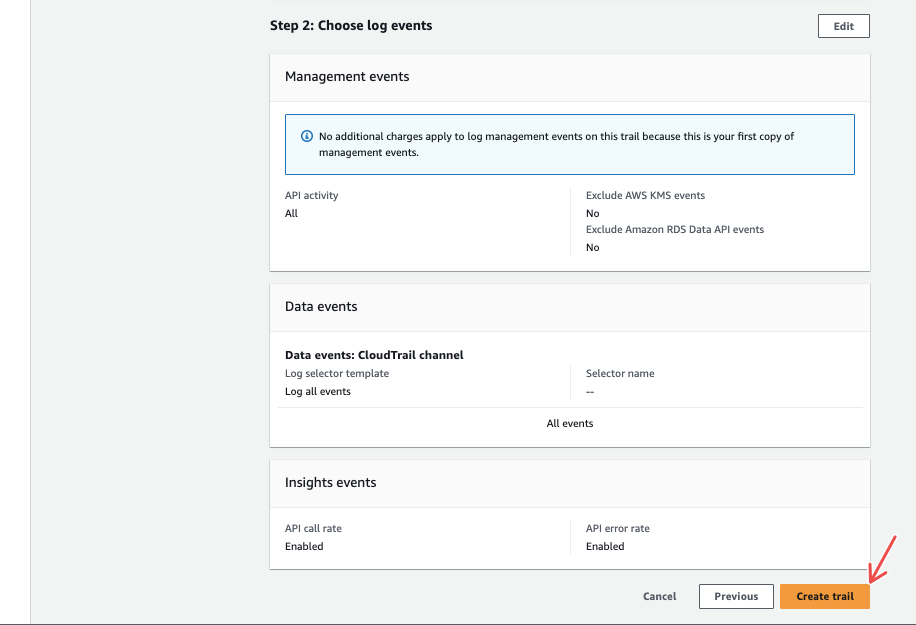
Review and click Create trail.
Configure Permissions
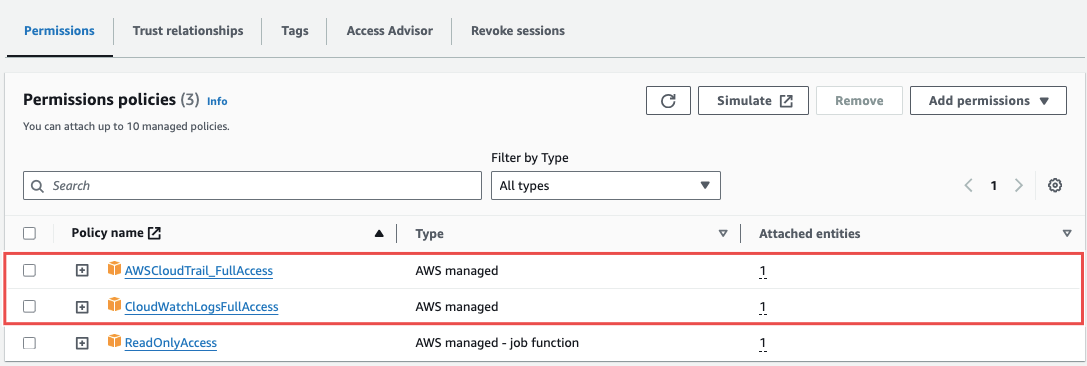
Section titled “Configure Permissions”In IAM, find the role attached to your CloudTrail and attach these policies:
- AWSCloudTrail_FullAccess
- CloudWatchLogsFullAccess
Verify Log Delivery
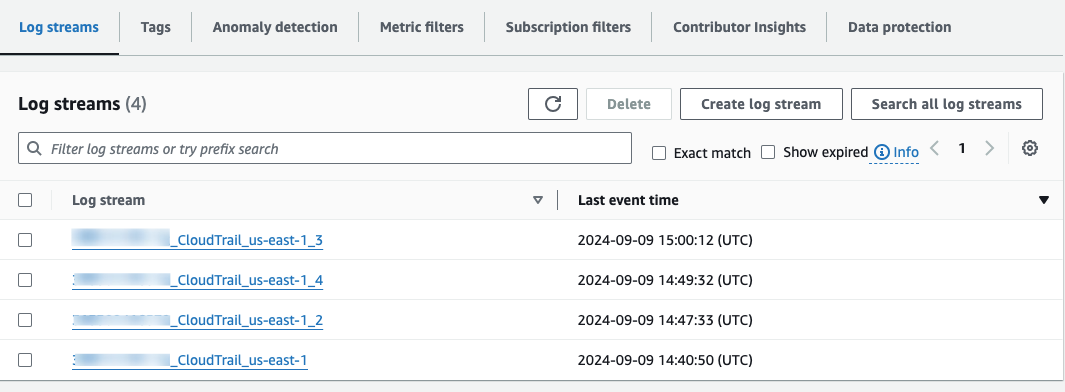
Section titled “Verify Log Delivery”Check your CloudWatch log group to confirm logs from CloudTrail are being delivered.
CloudWatch Alarms (Optional)
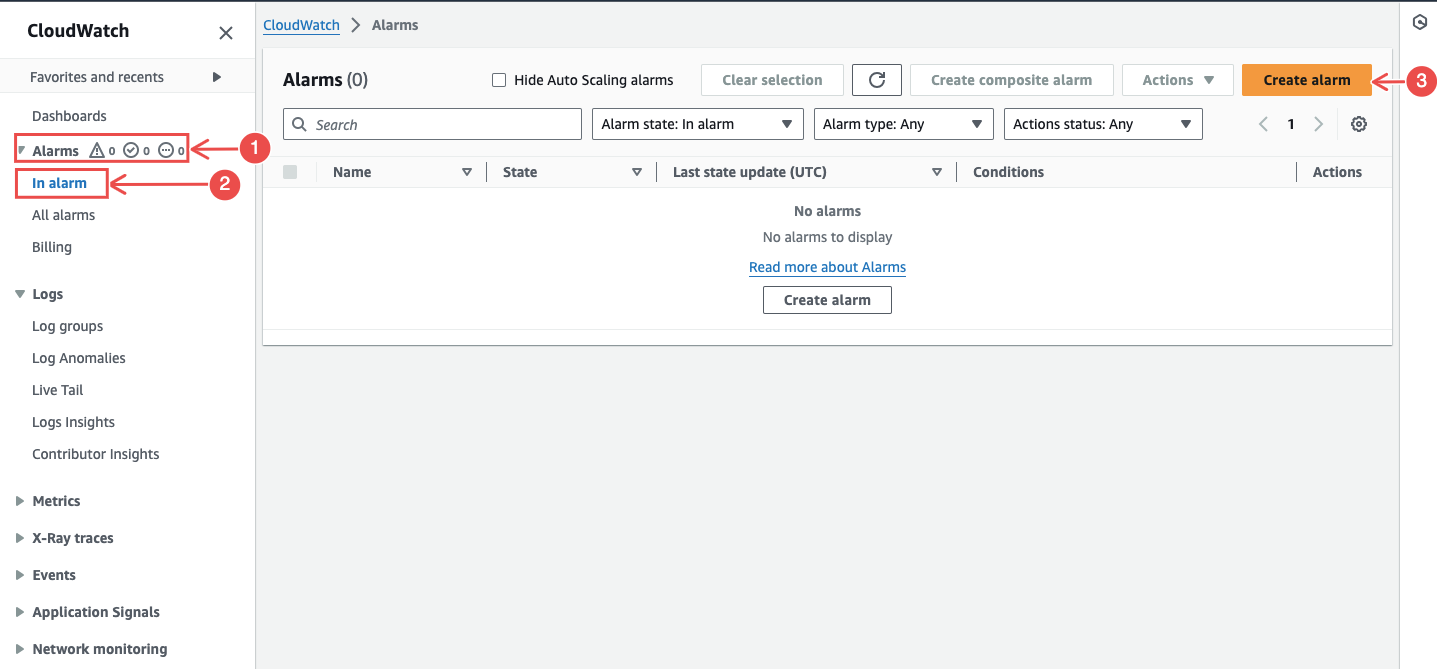
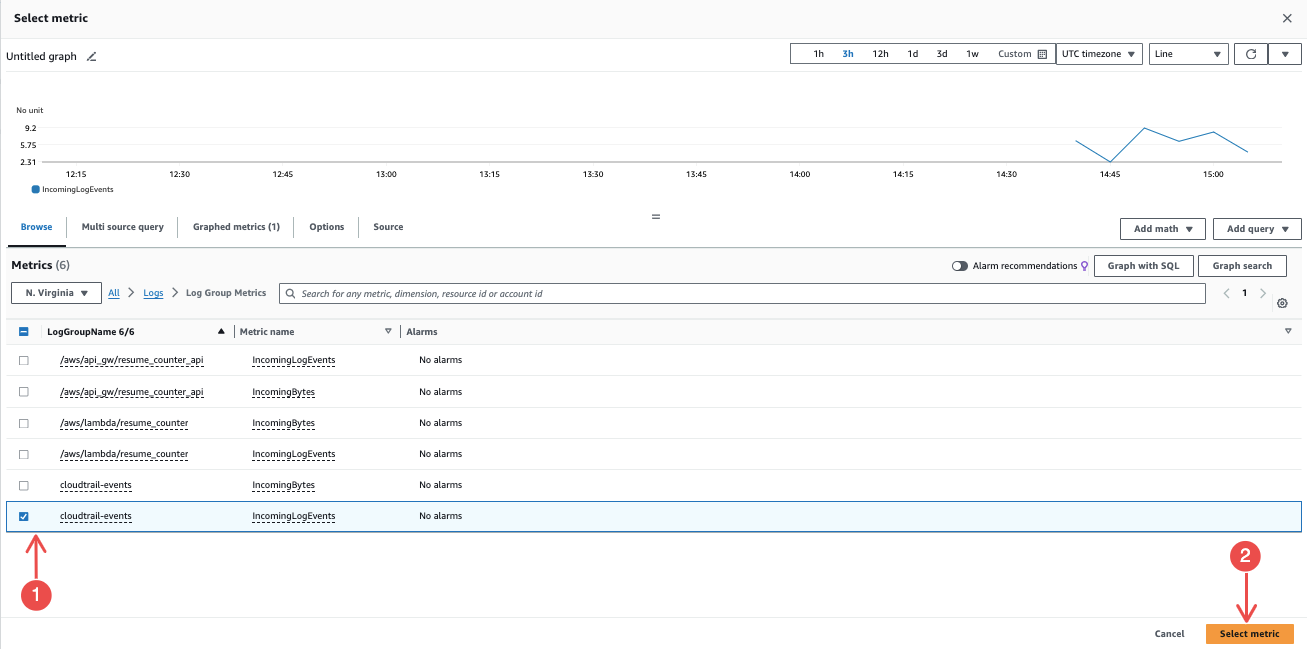
Section titled “CloudWatch Alarms (Optional)”In CloudWatch, go to Alarms > Create alarm and choose metrics related to CloudTrail logs.
Connection Fields
Section titled “Connection Fields”NeuBird supports two authentication methods:
Role ARN (recommended)
Section titled “Role ARN (recommended)”| Field | Required | Description |
|---|---|---|
| Name | Yes | A descriptive name for this connection |
| Description | No | Optional note about what this connection is for |
| Connect All Organization Accounts | No | Enable to create an AWS Organization connection and automatically discover member accounts |
| Role ARN | Yes | The ARN of the IAM role created in Step 1 |
| External ID | No | The external ID used in the role’s trust policy |
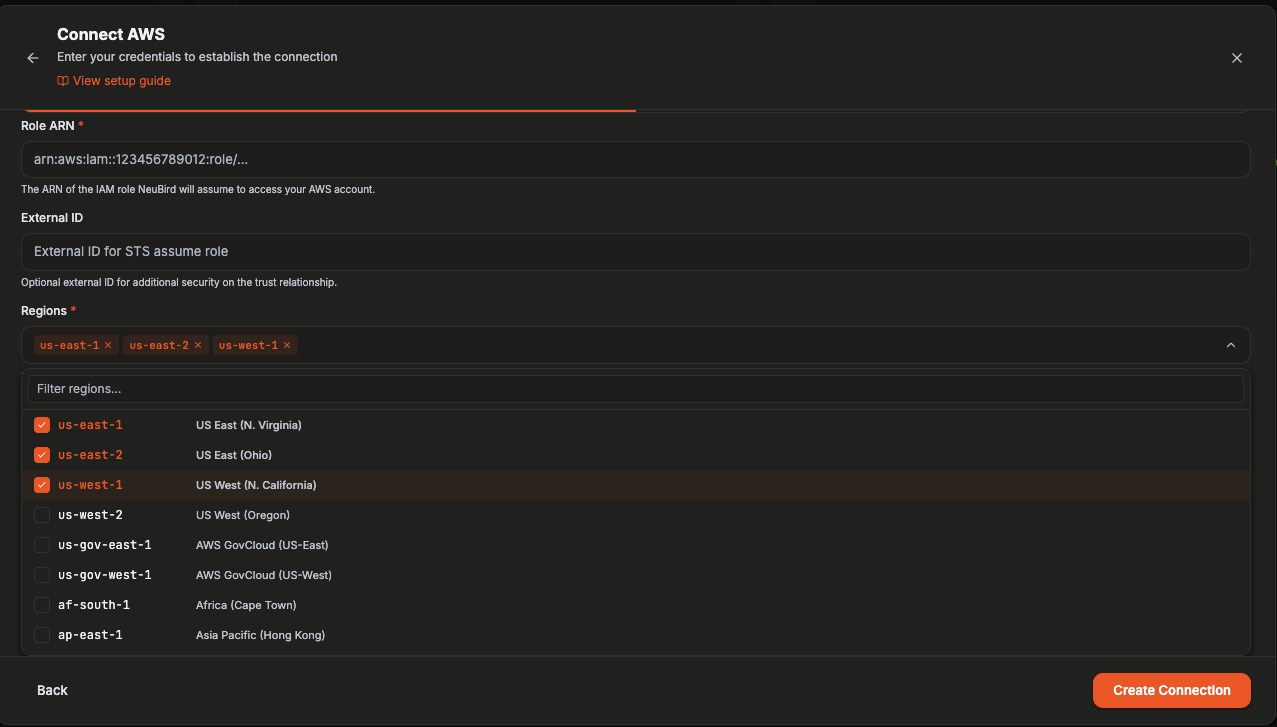
| Regions | Yes | AWS regions to collect telemetry from |
Selecting regions
Section titled “Selecting regions”Use the Regions field to multi-select every region you want NeuBird to collect telemetry from. Click into the field, check as many regions as needed, and remove one at any time with its ×.
Connecting an entire AWS Organization
Section titled “Connecting an entire AWS Organization”Instead of connecting accounts one at a time, check Connect All Organization Accounts to have NeuBird create an AWS Organization connection and automatically discover every member account.
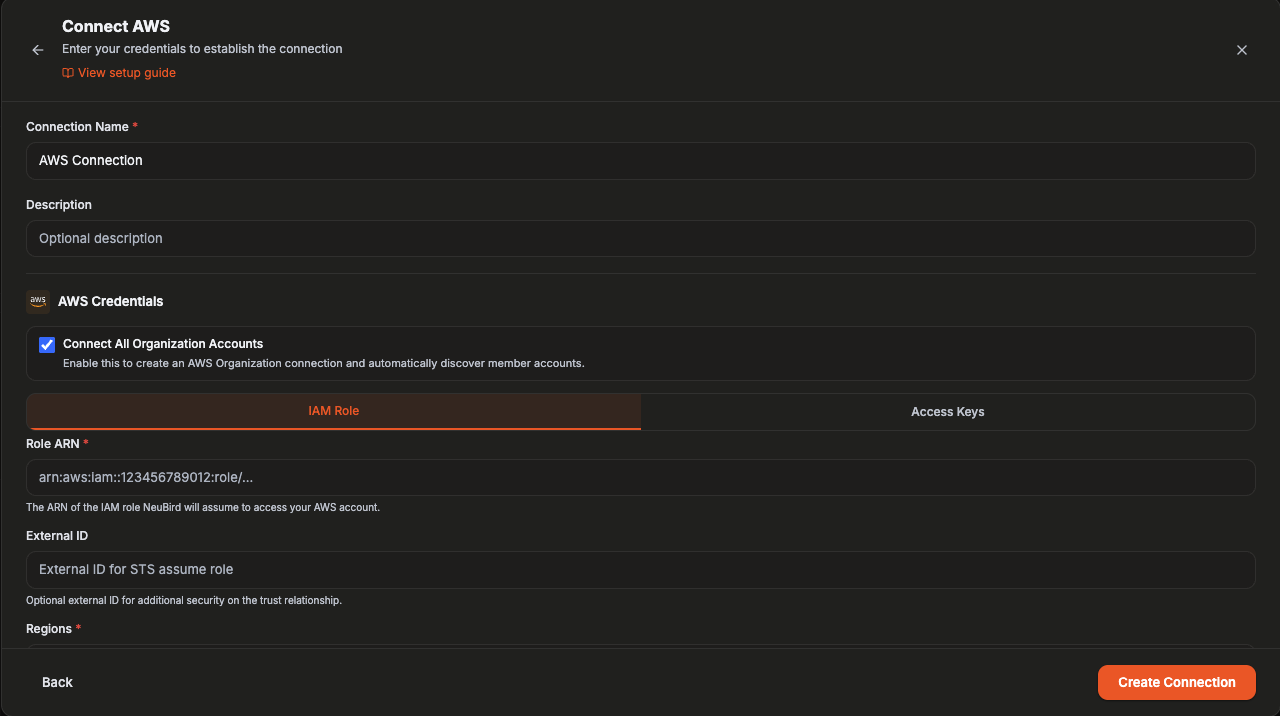
When this box is checked, NeuBird assumes the same IAM role in each discovered member account, so the Role ARN you provide is treated as a template rather than a single account-specific ARN:
- The role name (the part after
role/in the ARN) must exist and be identical in every account in the organization — create it in each account using the same name (for example, via AWS CloudFormation StackSets or Organizations-wide IAM role deployment), following the same steps as Step 1: Create an IAM Role above. - The External ID must also be the same value across all accounts, since NeuBird uses a single external ID when assuming the role in each discovered account.
If the role name or external ID differ between accounts, NeuBird will fail to assume the role in any account where they don’t match.
AWS OIDC
Section titled “AWS OIDC”| Field | Required | Description |
|---|---|---|
| Name | Yes | A descriptive name for this connection |
| Description | No | Optional note about what this connection is for |
| Regions | Yes | AWS regions to collect telemetry from |
The OIDC method redirects you to authenticate directly with your AWS account.
For general instructions on creating and managing connections, see the Connections Overview.