

New Relic
Connecting to New Relic allows NeuBird to collect application and infrastructure telemetry, including metrics, traces, and logs for real-time monitoring and alerting.
You’ll need a New Relic User key and your Account ID.
Prerequisites
Section titled “Prerequisites”New Relic has two families of API key, and only one of them works here:
- User keys query data and manage configuration. This is what NeuBird needs. They begin with
NRAK-. - Ingest keys (License, Browser, Mobile) send data into New Relic. They will not authenticate a query.
Create a New Relic User Key
Section titled “Create a New Relic User Key”-
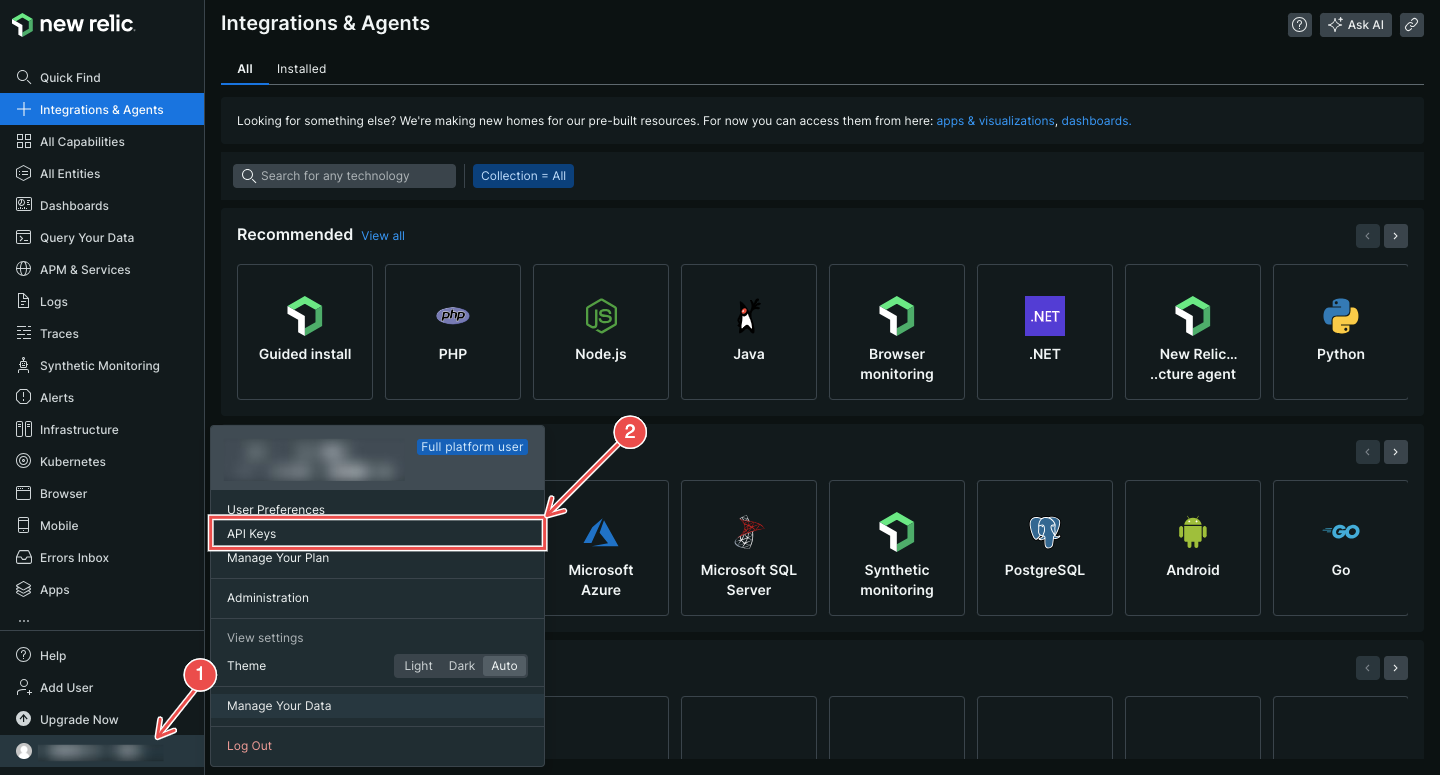
Open API keys: sign in to New Relic, click your user avatar, and choose API Keys under User Preferences.
-
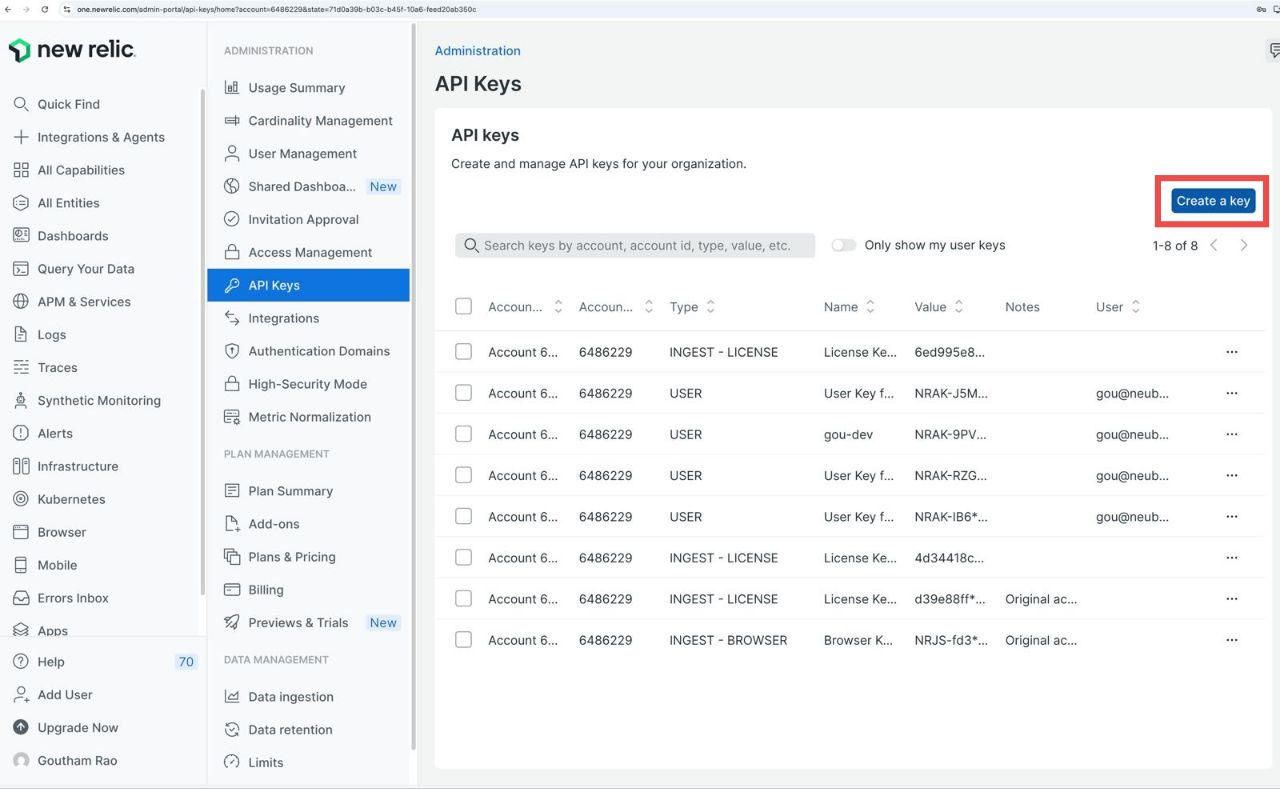
Create a key: on the API Keys page, click Create a key.
-
Choose the key type: select the account you want NeuBird to read, set Key type to User, and give the key a name such as
neubird-api-access. Click Create a key.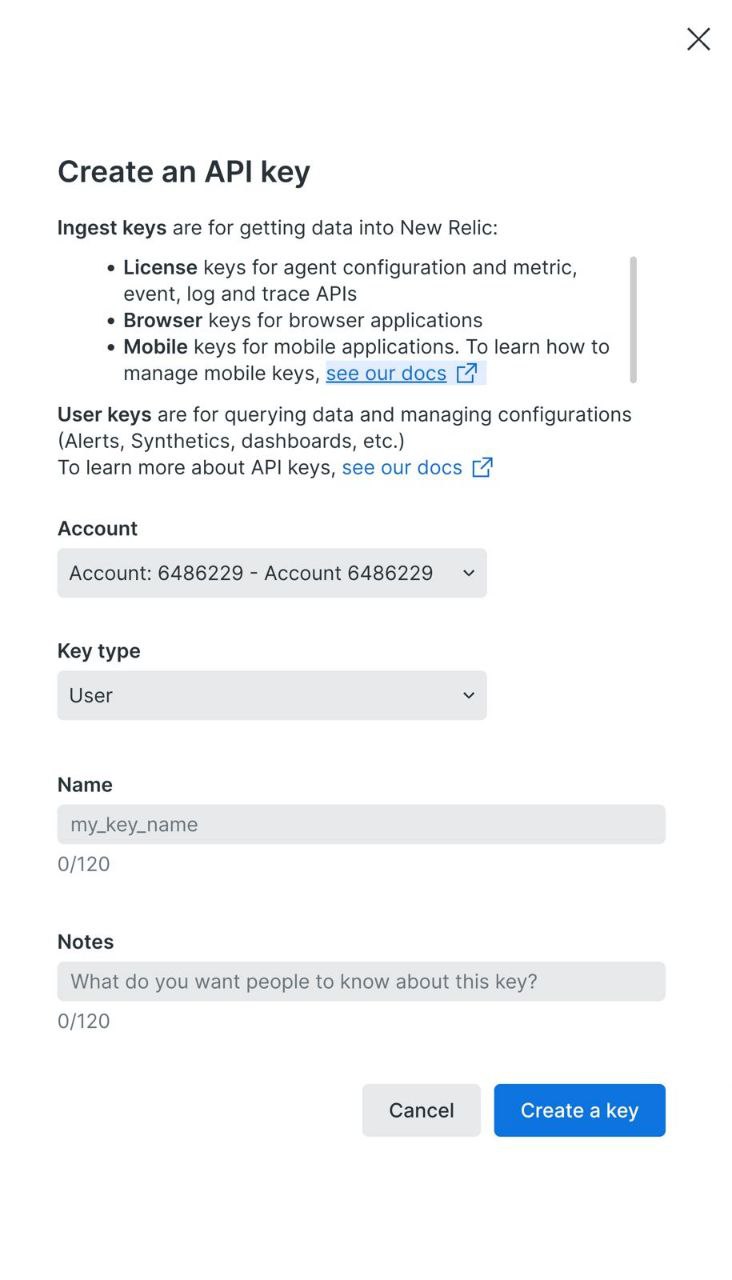
-
Copy the key immediately: New Relic displays the full value once, in the banner at the top of the list. Click Copy Key before navigating away.
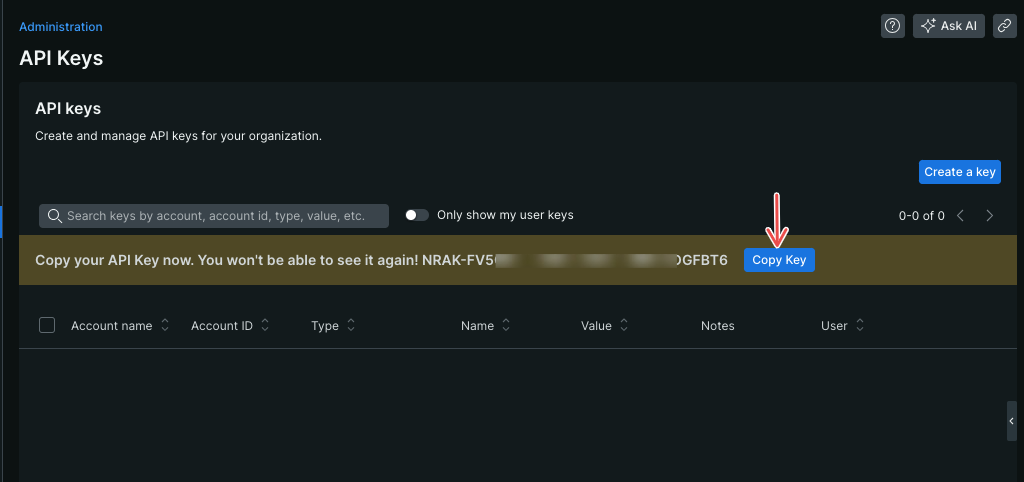
This is the only time the value is shown. Afterwards the list masks it as
NRAK-8PH********, and the row’s ⋯ menu offers only Copy key ID — a different value that identifies the key rather than authenticating it. If you lose the key, create a new one. -
Retrieve Account ID: in the Account Settings section, locate your New Relic Account ID.
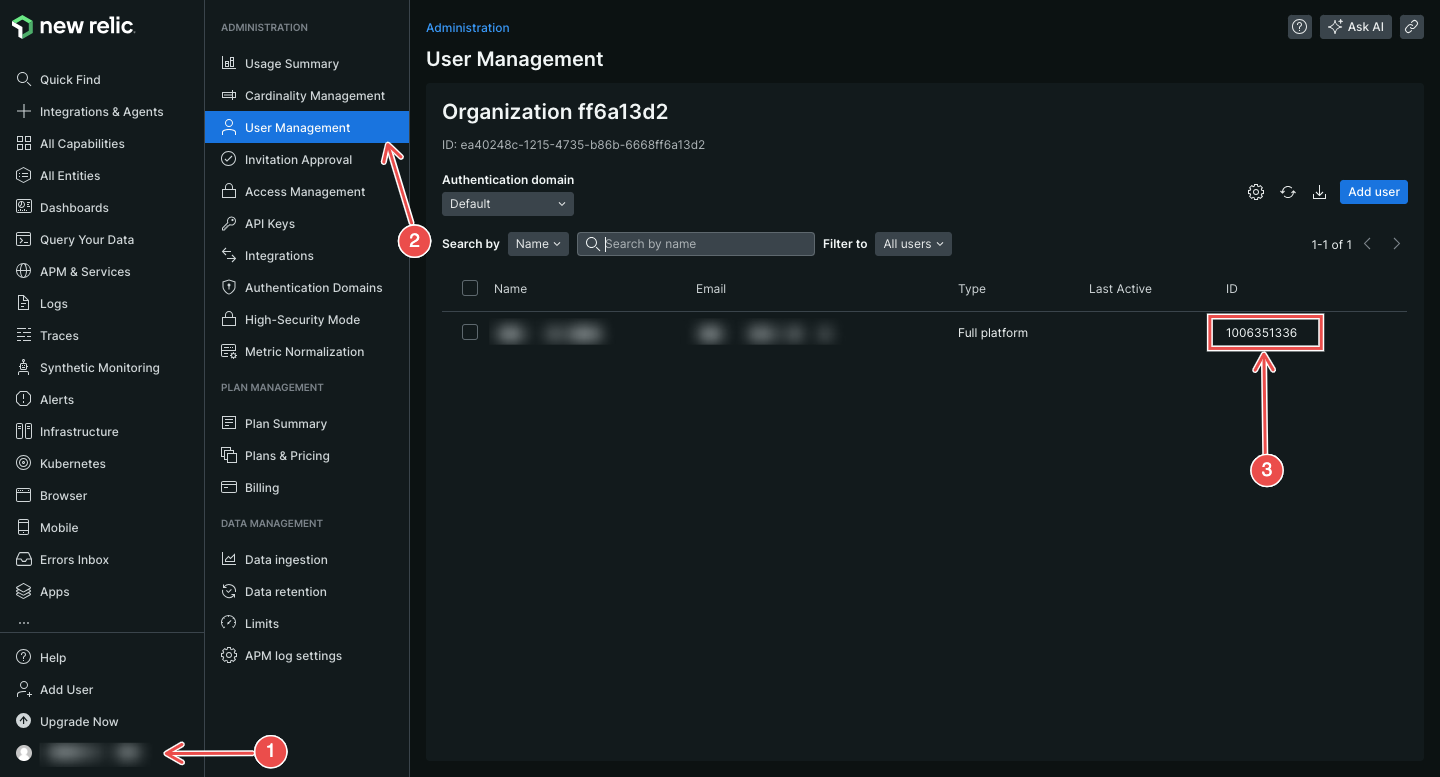
Connection Fields
Section titled “Connection Fields”| Field | Required | Description |
|---|---|---|
| Name | Yes | A descriptive name for the connection |
| Description | No | Optional description of the integration |
| API Key | Yes | The New Relic User key, beginning with NRAK- |
| Account ID | Yes | Your New Relic Account ID from account settings |
If validation fails with
invalid API key or insufficient permissions, check the value you pasted before changing permissions — that message covers both causes. A User key begins withNRAK-; a 64-character hexadecimal string with no prefix is the key ID, not the key. If the key itself is correct, confirm its owner has access to the account whose Account ID you entered.
For general instructions on creating and managing connections, see the Connections Overview.