

Sumo Logic
Connecting Sumo Logic to NeuBird makes your logs, metrics, and traces available to investigations.
NeuBird authenticates with a Sumo Logic access key, which is an Access ID and Access Key pair created under your account’s security settings.
Step 1: Create an Access Key
Section titled “Step 1: Create an Access Key”-
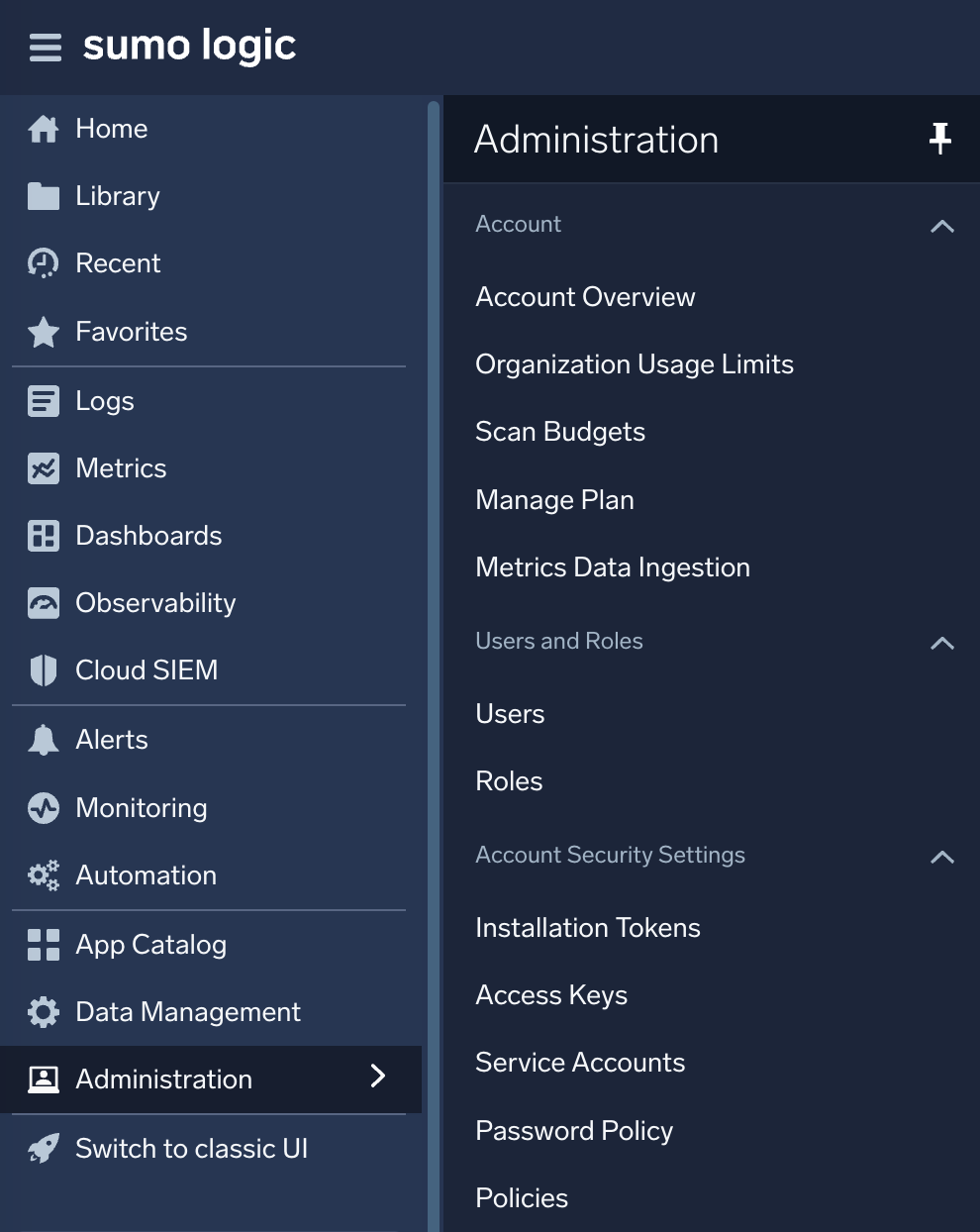
Open Access Keys: in Sumo Logic, go to Administration, and under Account Security Settings select Access Keys.
-
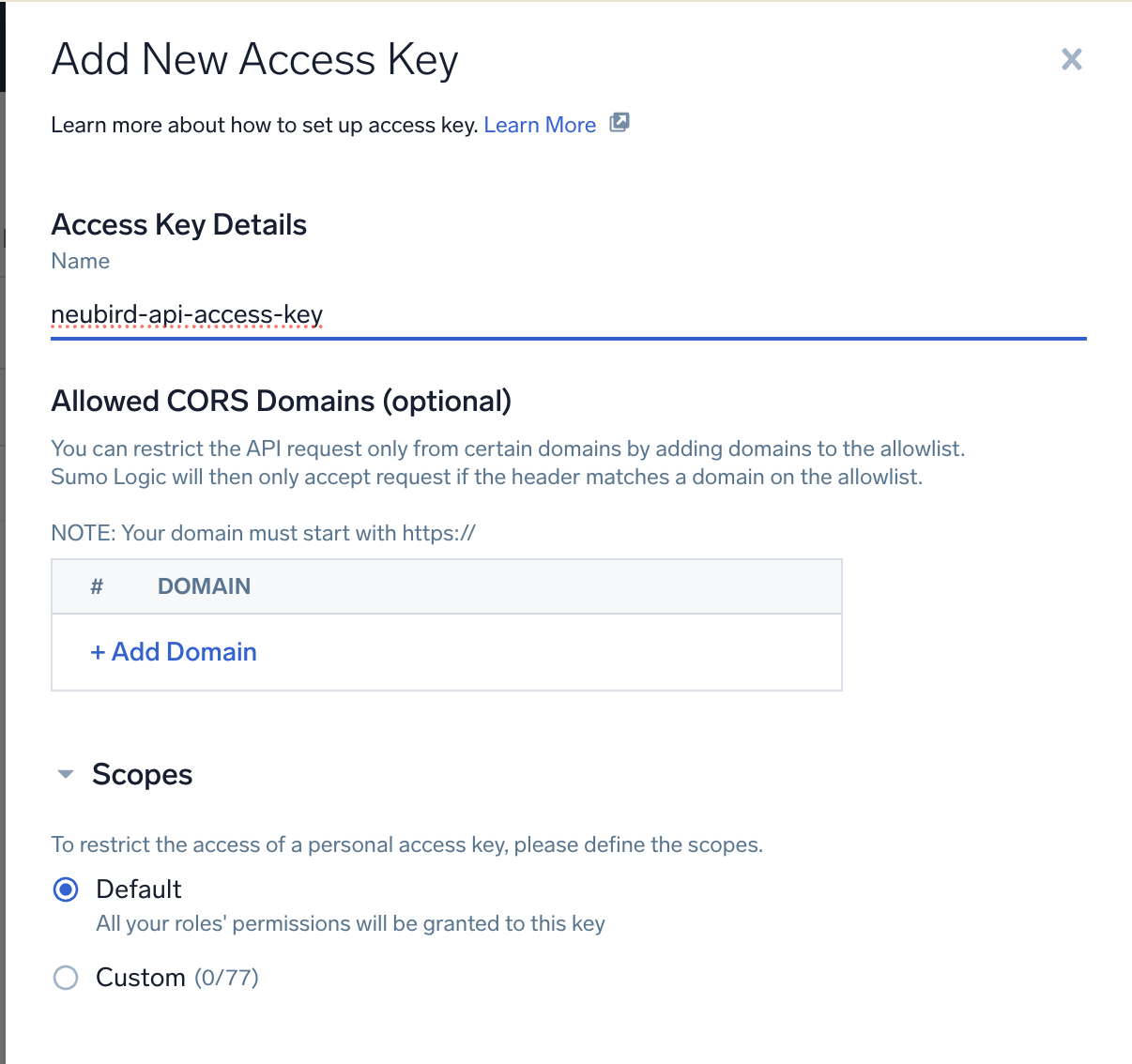
Add a key: click + Add Access Key and complete the dialog.
- Name: a descriptive name, for example
neubird-api-access-key. - Allowed CORS Domains: leave empty. NeuBird calls the API from its own backend, not from a browser.
- Scopes: Default grants the key everything your roles allow. To narrow it, choose Custom and grant read access to the data you want NeuBird to search.
- Name: a descriptive name, for example
-
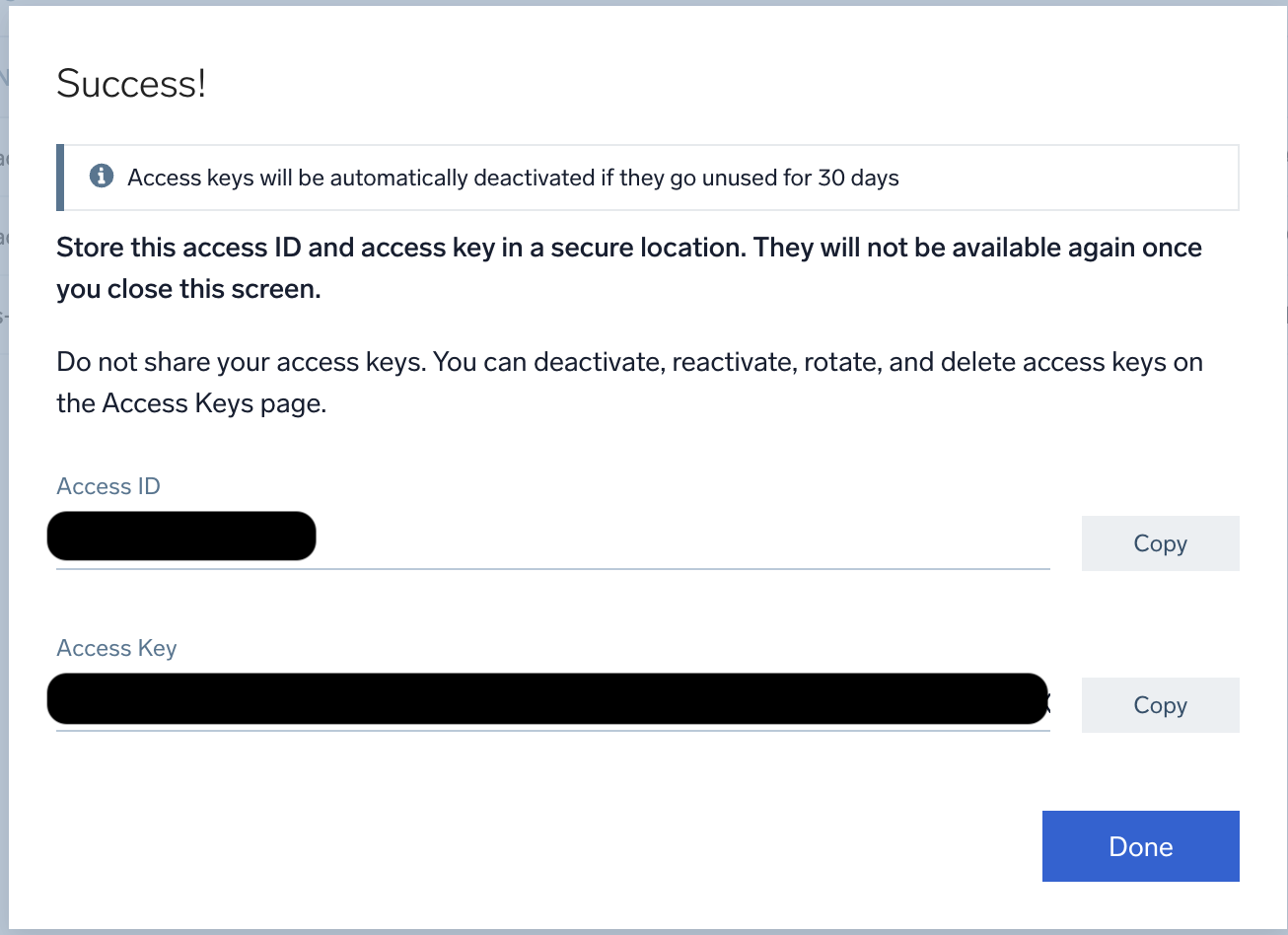
Copy both values: Sumo Logic shows the Access ID and Access Key once. Copy both before closing the dialog, then click Done.
Step 2: Find your API Endpoint
Section titled “Step 2: Find your API Endpoint”Sumo Logic runs separate deployments per region, and the API endpoint differs for each. The address bar of your Sumo Logic session tells you which one you are on: https://service.sumologic.com is the default deployment, whose API endpoint is https://api.sumologic.com. Other regions carry a prefix — https://service.us2.sumologic.com corresponds to https://api.us2.sumologic.com.
You can paste either form. NeuBird rewrites service. to api. and adds the api. prefix when it is missing, so both of these resolve to the same endpoint:
https://service.sumologic.comhttps://api.sumologic.com
Any path you include is ignored — NeuBird appends the API paths it needs.
Add the Connection in NeuBird
Section titled “Add the Connection in NeuBird”- In NeuBird, go to Settings > Connections and click Add Connection.
- Select Sumo Logic.
- Enter a Name and, optionally, a Description.
- Fill in the connection fields below and click Save.
NeuBird validates the credentials by calling Sumo Logic’s account owner endpoint, so a key that cannot reach it fails immediately rather than at first search.
Connection Fields
Section titled “Connection Fields”| Field | Required | Description |
|---|---|---|
| Name | Yes | A descriptive name for this connection |
| Description | No | Optional note about what this connection is for |
| API Endpoint | Yes | Your deployment’s endpoint, for example https://api.sumologic.com |
| Access ID | Yes | The Access ID from Step 1 |
| Access Key | Yes | The Access Key from Step 1 |
Troubleshooting
Section titled “Troubleshooting”| Symptom | Likely cause |
|---|---|
| Validation fails on the URL | The endpoint is missing a scheme or a host. Include https:// |
| Validation fails with an authentication error | The Access ID or Access Key is wrong, or the key was deactivated after 30 days unused |
| The connection worked and then stopped | The access key was auto-deactivated for inactivity, or deleted on the Access Keys page |
| Searches return nothing | The key’s scopes, or the roles behind them, do not grant read access to the data you are searching |
For general instructions on creating and managing connections, see the Connections Overview.