



Slack
Connecting NeuBird to your Slack workspace enables alert notifications and incident communication directly in Slack channels. You can also trigger investigations, ask NeuBird questions, and receive investigation summaries without leaving Slack. The connection uses OAuth authentication via a Slack App.
Set Up the Connection
Section titled “Set Up the Connection”-
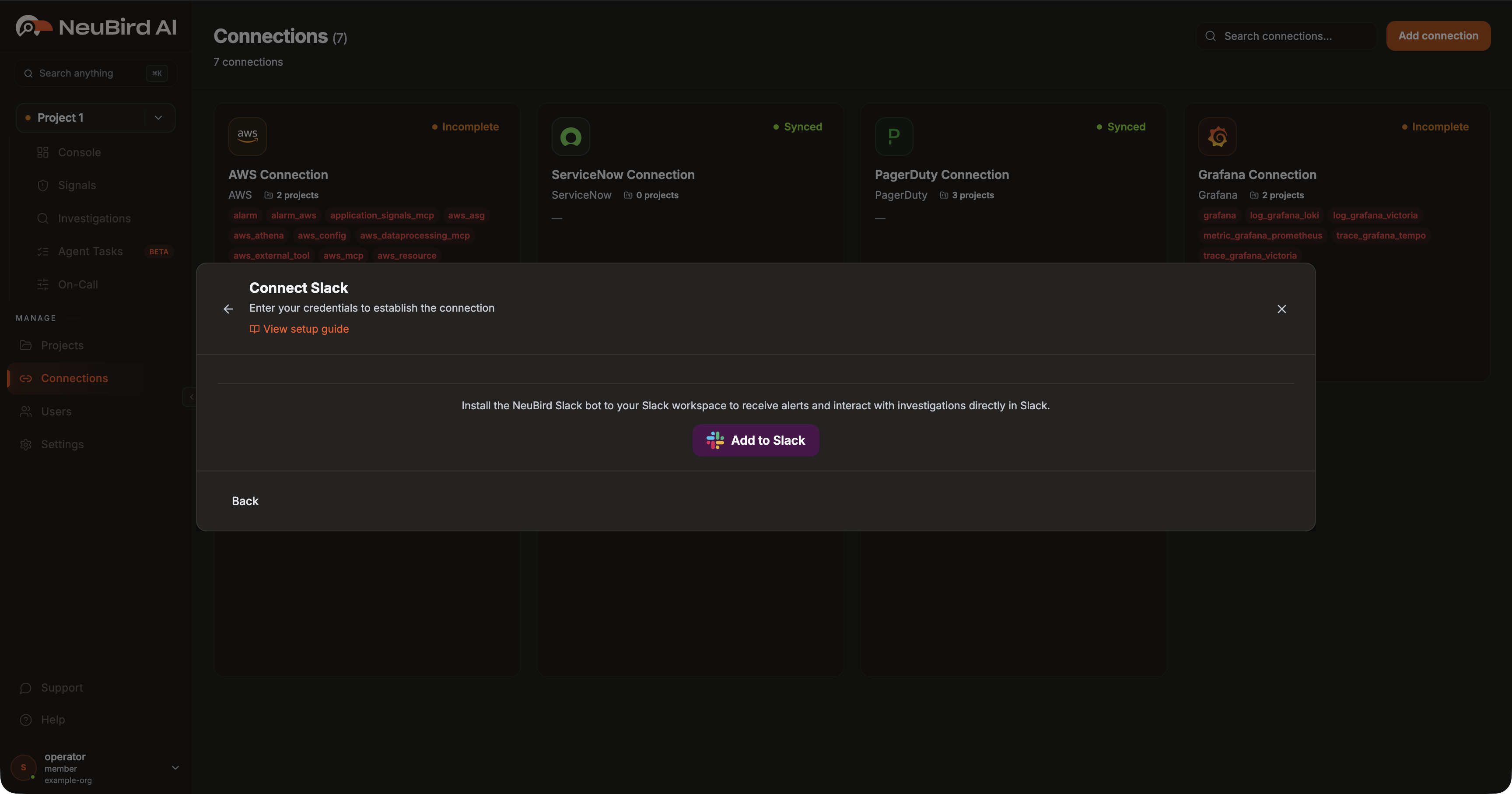
Start the connection: In the Platform, go to Connections → Add connection → Slack, then click Add to Slack.
-
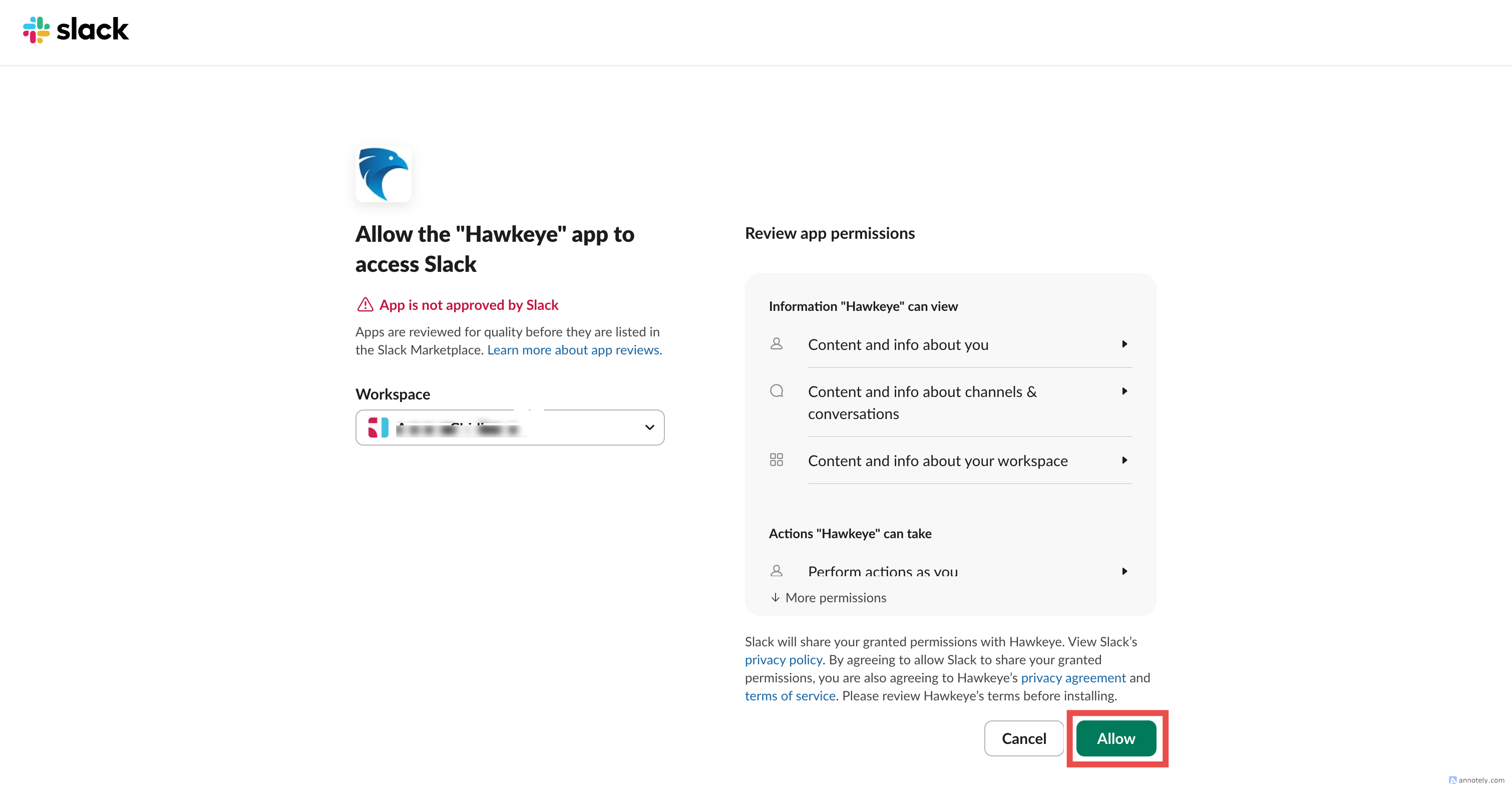
Authorize the connection: On the Slack authorization page, select the target workspace in the workspace selector, then click Allow to grant NeuBird access.
-
Sign in: If prompted, enter your NeuBird email address and password, then click Continue to finalize authentication.
-
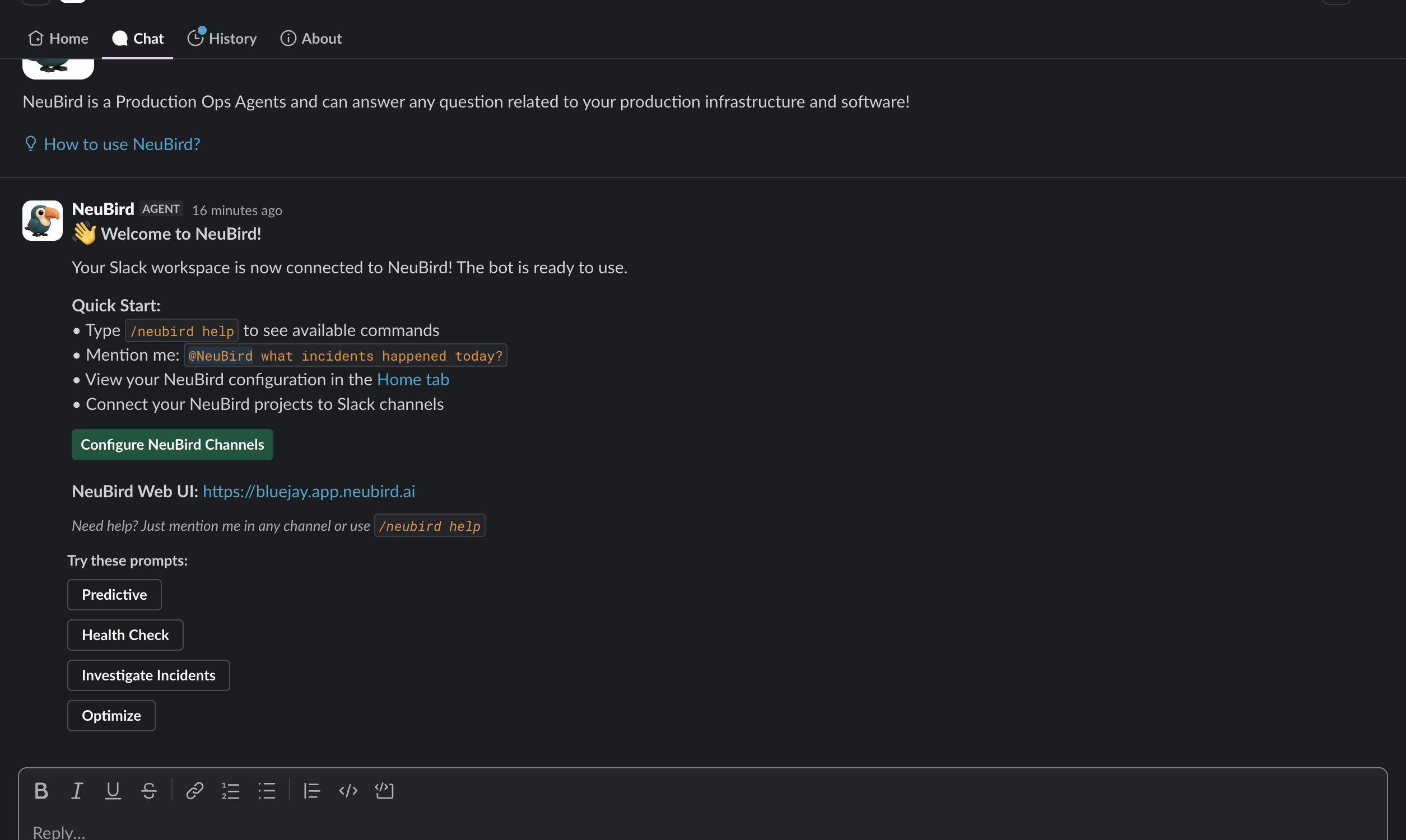
You’re connected: NeuBird sends you a direct message with quick-start tips as soon as the workspace is connected.
Using NeuBird in Slack
Section titled “Using NeuBird in Slack”Once connected, you can interact with NeuBird directly from your Slack workspace.
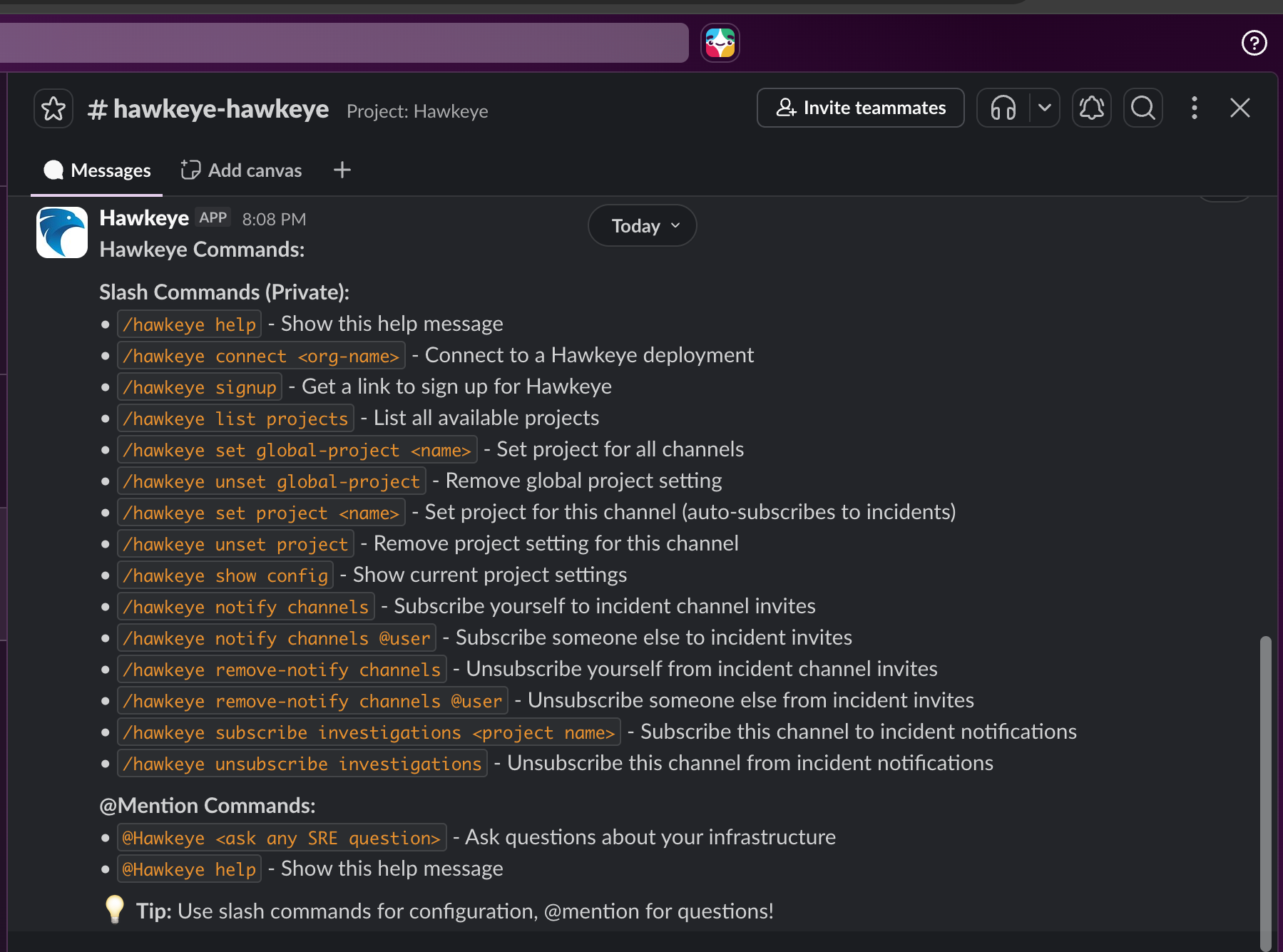
View all commands: In any channel where NeuBird is connected, type /neubird help and press Enter to see the full list of available commands.

Note
To use NeuBird in a channel, the bot must be a member. Invite it with
/invite @NeuBirdfirst.
Slash Command Reference
Section titled “Slash Command Reference”| Command | Description |
|---|---|
/neubird help | Show the full list of available commands. |
/neubird list projects | List all projects available in your NeuBird account. |
/neubird set project | Open the project picker and choose from the list. Run inside a channel to preselect it; tick Set as global project to make it the default for every channel. unset project / unset global-project remove them. |
/neubird show config | Show the current project settings for the channel. |
/neubird summarize [days] | Catch up on this channel’s conversation (default 3 days, max 14). |
/neubird notify channels [@user] | Subscribe yourself (or someone else) to incident channel invites. remove-notify channels unsubscribes. |
/neubird subscribe investigations <project name> | Receive notifications in this channel when investigations are created for the project. unsubscribe investigations stops them. |
Set a Project for a Channel or the Workspace
Section titled “Set a Project for a Channel or the Workspace”NeuBird answers questions and runs investigations against a project. Each channel can have its own project, and the workspace can have a global project that applies to every channel without one.
-
To see the list of all projects available in your NeuBird account:
Terminal window /neubird list projects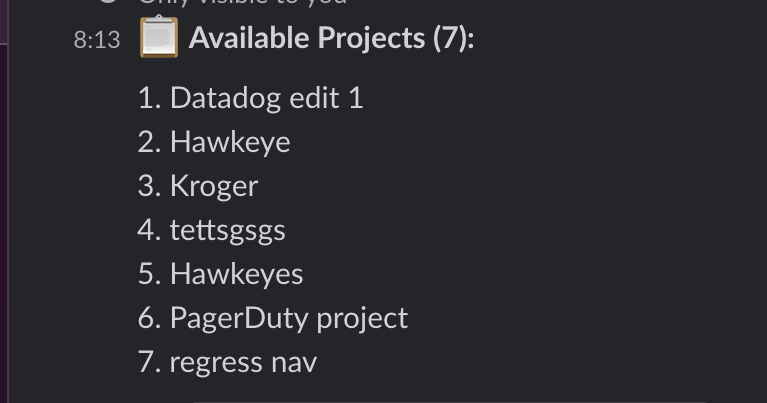
-
To pick a project, run the command in the channel you want to configure:
/neubird set projectA picker opens with that channel preselected. Choose the project and click Save.
- Tick Set as global project to also make it the default for every channel. It is ticked automatically the first time, when the workspace has no global project yet.
- Run the command from a direct message with NeuBird, or click Set up channels in the welcome message or the Home tab, to pick the channel yourself.
-
/neubird unset projectremoves the channel’s project;/neubird unset global-projectremoves the global one.
@Mentioning NeuBird
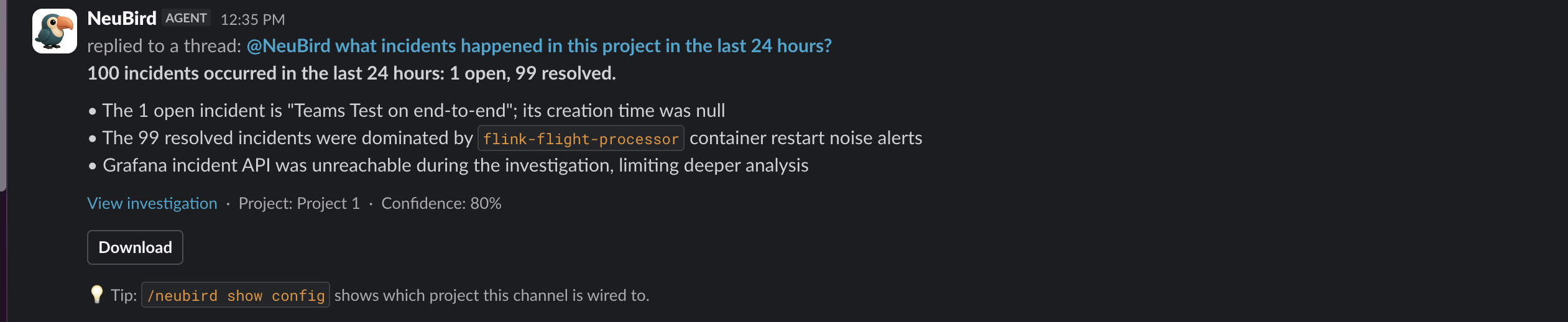
Section titled “@Mentioning NeuBird”Instead of a slash command, you can @mention the bot in any channel it belongs to. Mention NeuBird to ask a question or trigger an investigation in plain language:
@NeuBird why is the payments API latency spiking?NeuBird replies in a thread on your message, and also broadcasts the answer to the channel so the rest of the channel sees the response in context.
Investigation Summaries in Slack
Section titled “Investigation Summaries in Slack”When an investigation completes, NeuBird posts a summary card to the configured channel. The summary includes:
- The key findings from the investigation
- NeuBird’s confidence in the result
- A link back to the Platform for the full investigation, chain of thought, and supporting evidence
The card format is the same as the investigation replies shown above. Whether the summary is posted thread-only (as a reply on the triggering message) or broadcast to the channel is controlled by the connection’s summary setting. Use thread-only to keep channels quiet and broadcast to make results visible to everyone in the channel.
Upgrading the Connection
Section titled “Upgrading the Connection”When NeuBird ships features that need additional Slack permissions, older installs keep their original grant, so new commands or capabilities can fail or stay invisible until you re-authorize. To upgrade, simply re-run the install: go to Connections → Add connection → Slack → Add to Slack and click Allow again for the already-connected workspace. This re-grants NeuBird’s Slack access with the latest scopes and updates the existing connection in place — for example, the read scopes (such as channel history) that let NeuBird use Slack as a data source during investigations.
Connection Fields
Section titled “Connection Fields”| Field | Required | Description |
|---|---|---|
| N/A | - | Slack uses OAuth authentication; no manual fields are needed |
Privacy
Section titled “Privacy”For details on how NeuBird handles data received through the Slack integration, see the NeuBird Data Processing Addendum.
For general instructions on creating and managing connections, see the Connections Overview.