



Project Instructions
Project instructions let you tell NeuBird precisely what a project is for, which alerts it should pay attention to, when it should investigate automatically, and how it should investigate and report. This gives the agent the context it needs to deliver more relevant, higher-quality analysis for that project.
Project instructions are configured from the project editor, which is organized into four areas: Project Details, Connections, Agent Config, and Skills.
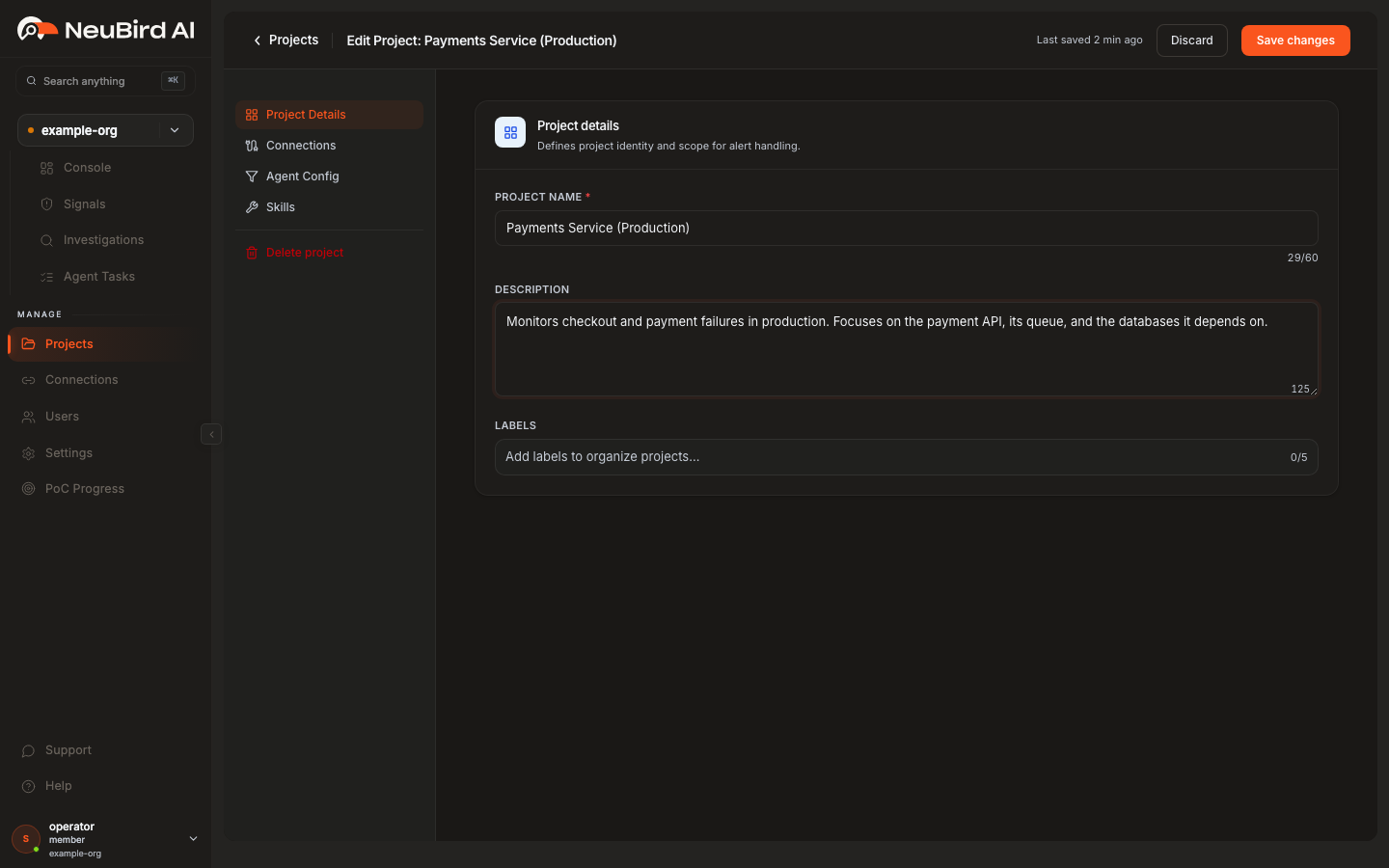
Configuration areas
Section titled “Configuration areas”-
Project Details The project’s identity and scope: name, description, and labels.
-
Connections The integrations (AWS, GitHub, Datadog, and others) the project uses for alerts and telemetry.
-
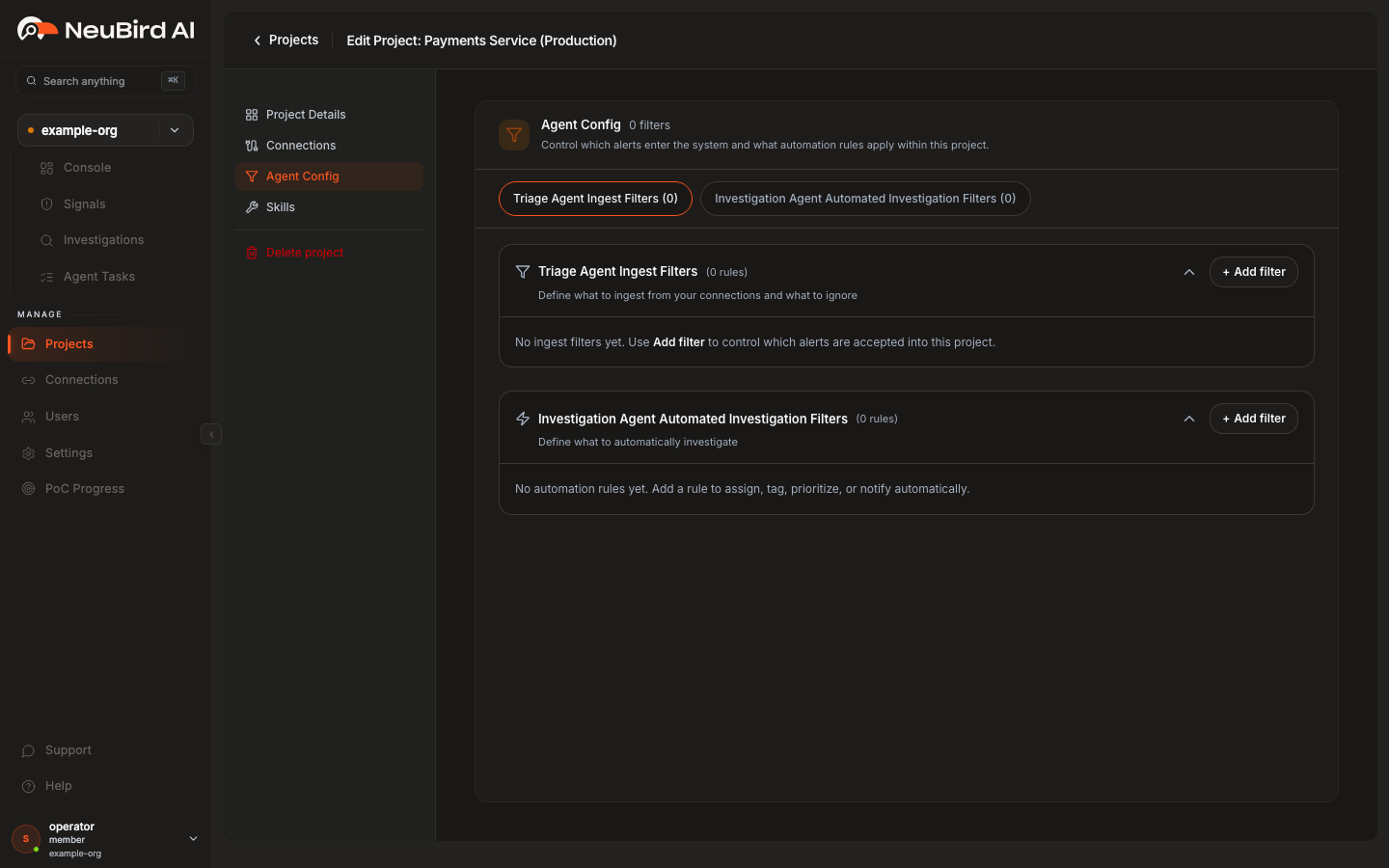
Agent Config Rules that control which alerts enter the project and what the agent does automatically. Agent Config has two kinds of filter:
- Triage Agent Ingest Filters — define what to ingest from your connections and what to ignore, so the project only keeps alerts that match your conditions.
- Investigation Agent Automated Investigation Filters — define what should be investigated automatically when matching alerts occur.
-
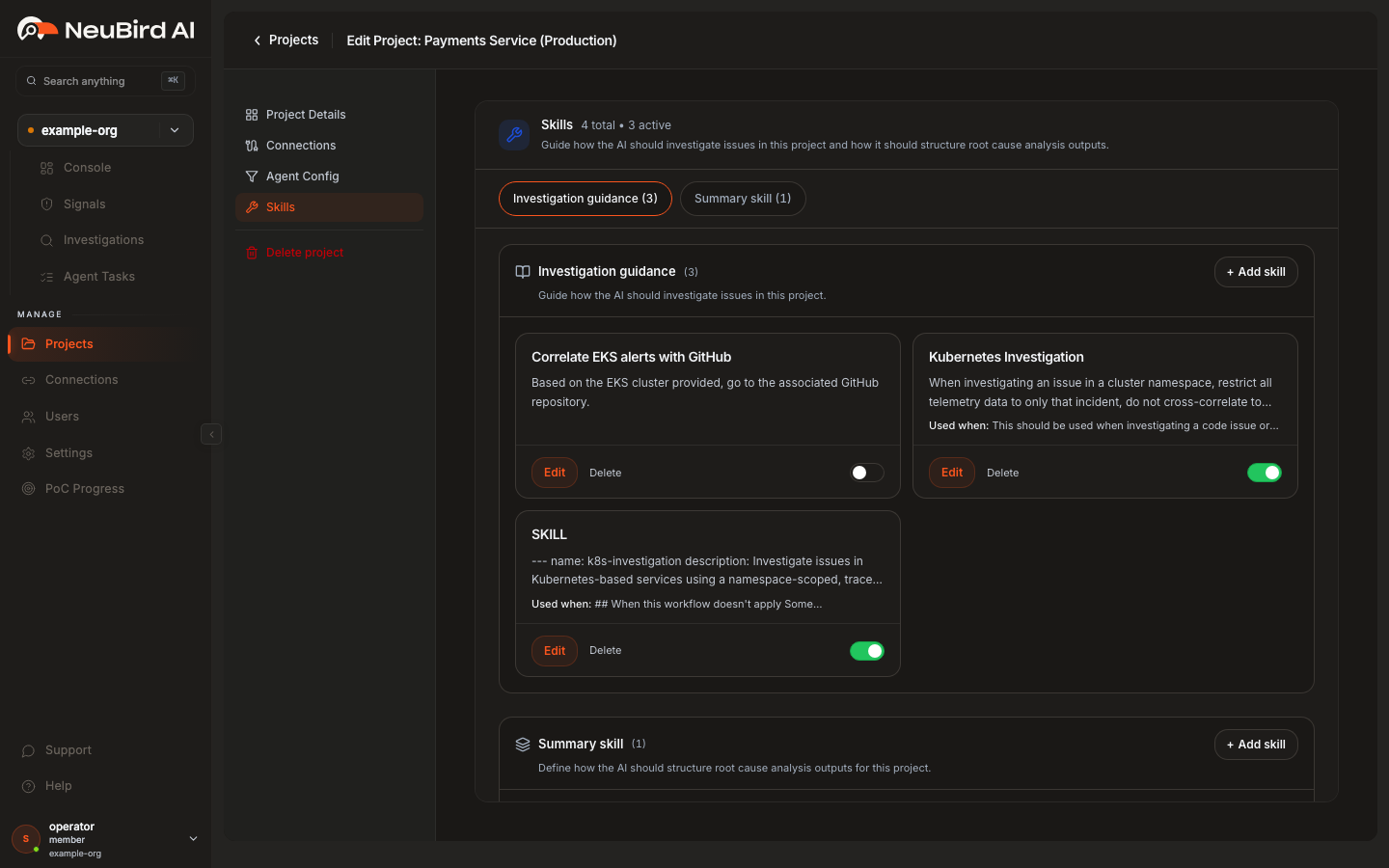
Skills Guidance that shapes how the agent works. Skills come in two kinds:
- Investigation guidance — guide how the AI investigates issues in this project (for example, which correlations to make or which namespaces to prioritize).
- Summary skill — define how the AI should structure its root cause analysis (RCA) output.
Where to configure project instructions
Section titled “Where to configure project instructions”You can configure project instructions in two places:
- When creating a new project — as an optional step in the create-project flow.
- From an existing project — by editing the project at any time.
Adding instructions to a new project
Section titled “Adding instructions to a new project”While creating a new project you move through the following steps:
-
Project Details — give the project a name, description, and any labels.
-
Connections — choose the integrations the project should use for alerts and telemetry.
-
Agent Setup — optionally tune the ingest filters, automated investigation filters, and skills in one place. This step is optional; you can add or refine everything later from the project editor.
-
Review — confirm your choices and create the project.
Editing an existing project
Section titled “Editing an existing project”-
On the Projects page, find the project card and click Edit.
-
Use the left-hand navigation to move between Project Details, Connections, Agent Config, and Skills.
-
Add, edit, enable/disable, or remove filters and skills:
- In Agent Config, use + Add filter to create an ingest or automated investigation filter.
- In Skills, use + Add skill to add an investigation-guidance or summary skill. Each skill has a toggle so you can enable or disable it without deleting it.
-
Click Save changes to store your edits.
In Agent Config, the two filter kinds — Triage Agent Ingest Filters and Investigation Agent Automated Investigation Filters — each have their own + Add filter control:
In Skills, investigation-guidance and summary skills appear as cards you can add, edit, or toggle on and off:
Adding or editing a skill
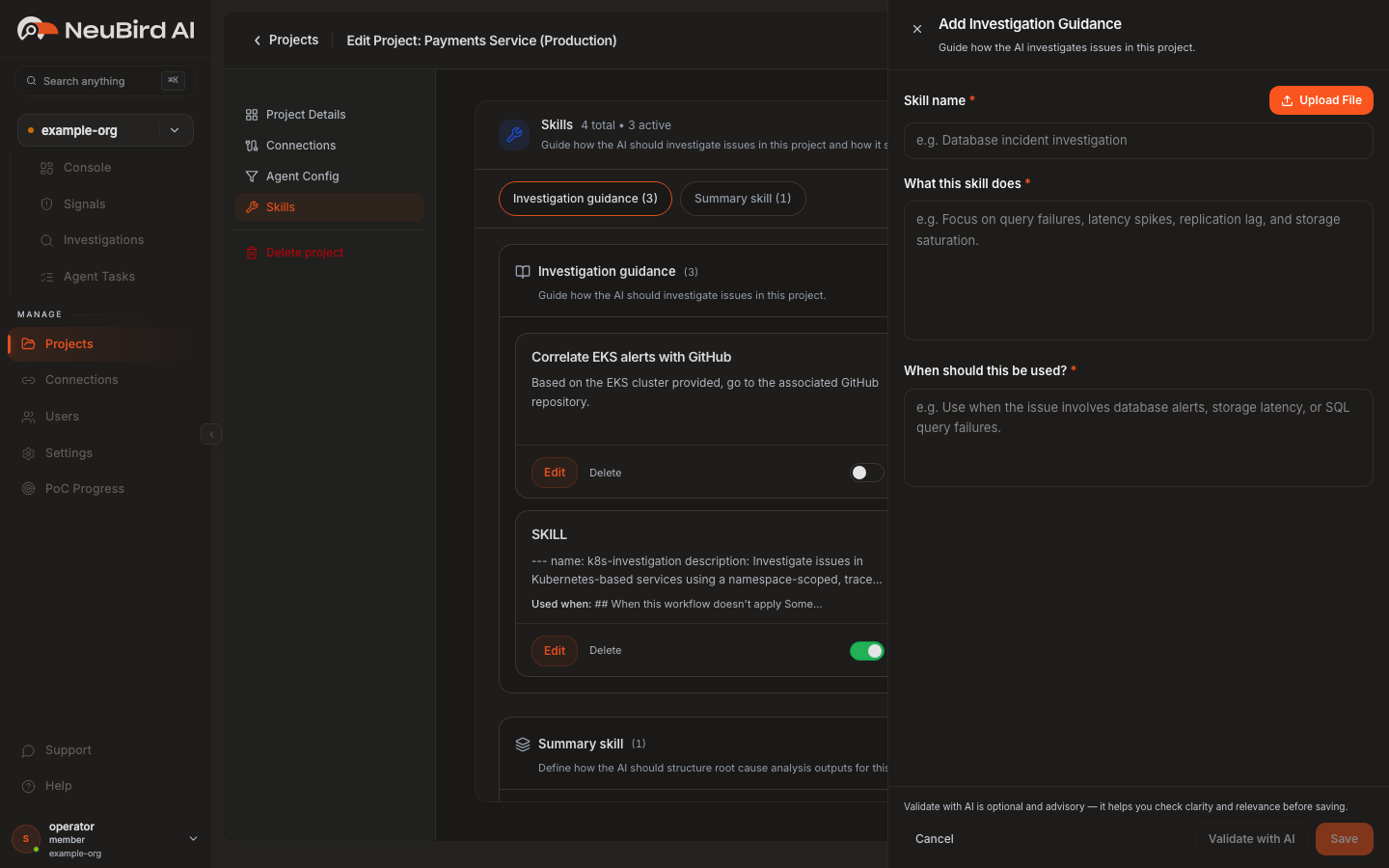
Section titled “Adding or editing a skill”When you add or edit a skill, describe two things:
- What the skill does — the guidance itself.
- When it should be used — the conditions under which the agent should apply it.
You can optionally click Validate with AI before saving. Validation is advisory: it checks your skill for clarity and relevance and suggests improvements, but it is not required. Click Save to store the skill whether or not you validated it.
Project session
Section titled “Project session”To see project instructions in action:
-
Open the project’s console.
-
In the prompt box, describe what you want to analyze. For example:
Are there any active log alerts relevant to this project? -
The agent responds using only the connections, filters, and skills configured for the project — so the analysis stays scoped to what matters for that project.