



Azure
Integrating NeuBird with your Azure environment enables real-time telemetry collection, including resource configurations, activity logs, metrics, and alerts. The data collected depends on the permissions set for the resources in your Azure subscription.
To connect Azure, you need to register an Azure application, generate a client secret, and assign the required roles to the service principal.
Step 1: Register an Azure application
Section titled “Step 1: Register an Azure application”Register an application within the Microsoft Entra ID directory so that NeuBird can interact securely with your Azure resources.
-
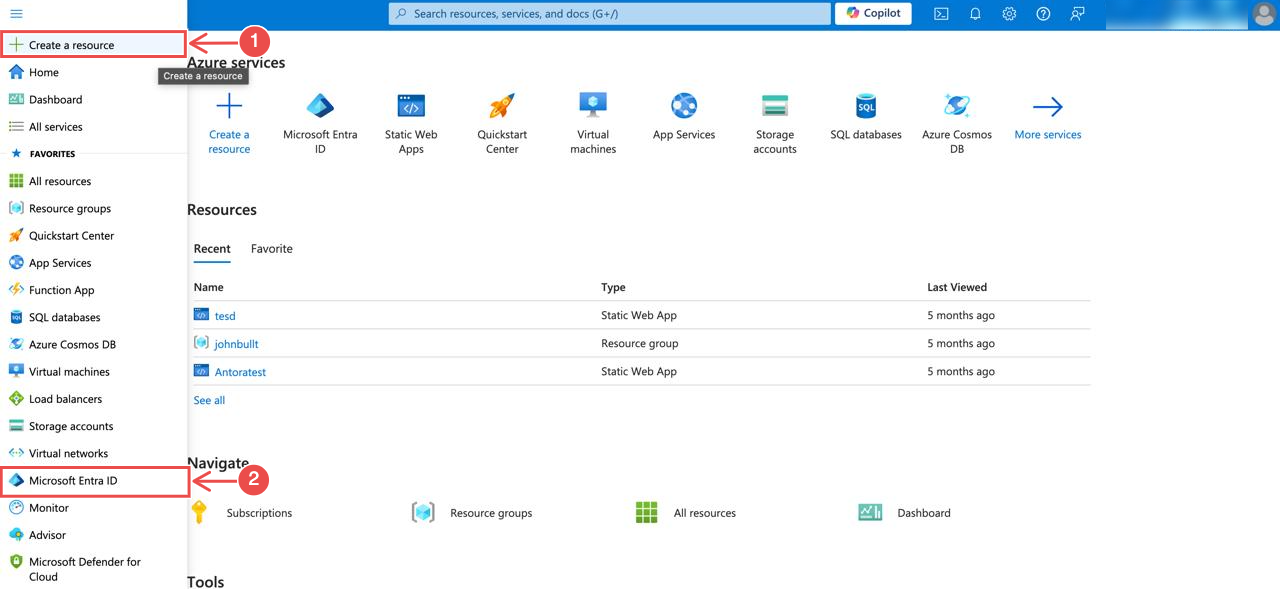
Access Microsoft Entra ID: Log in to the Azure portal and navigate to the Microsoft Entra ID section from the sidebar.
-
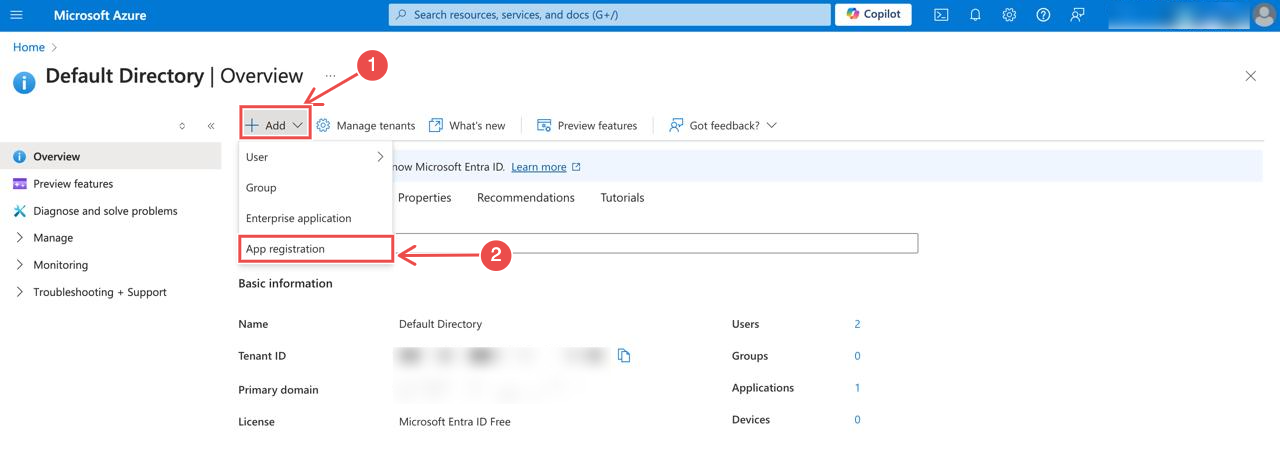
Create a new registration: In the overview of the Microsoft Entra ID section, click Add > App registration.
-
Fill in the application details: Provide a name for your application and select the supported account types.
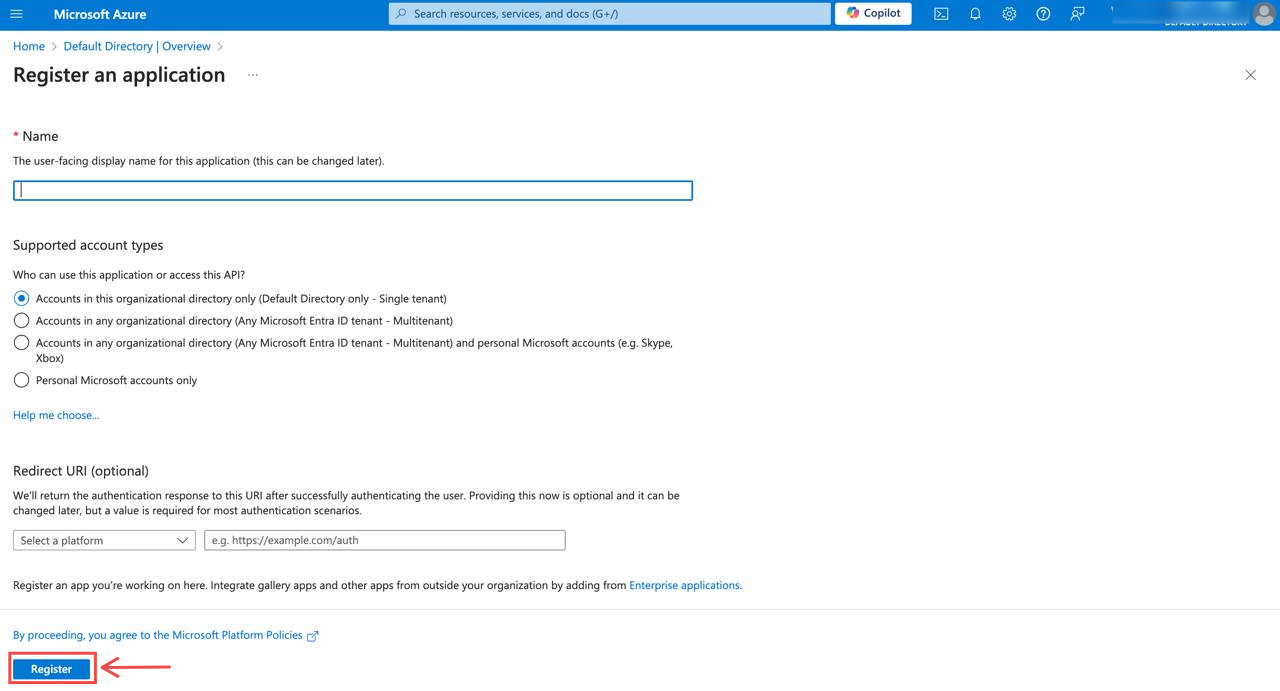
After completing the form, click Register to create the application.
Step 2: Generate client secret for authentication
Section titled “Step 2: Generate client secret for authentication”Now that your application is registered, create a client secret to authenticate NeuBird’s connection.
-
Navigate to Certificates & Secrets: On your application’s page, click on Add a certificate or secret as seen in pin 3 below:
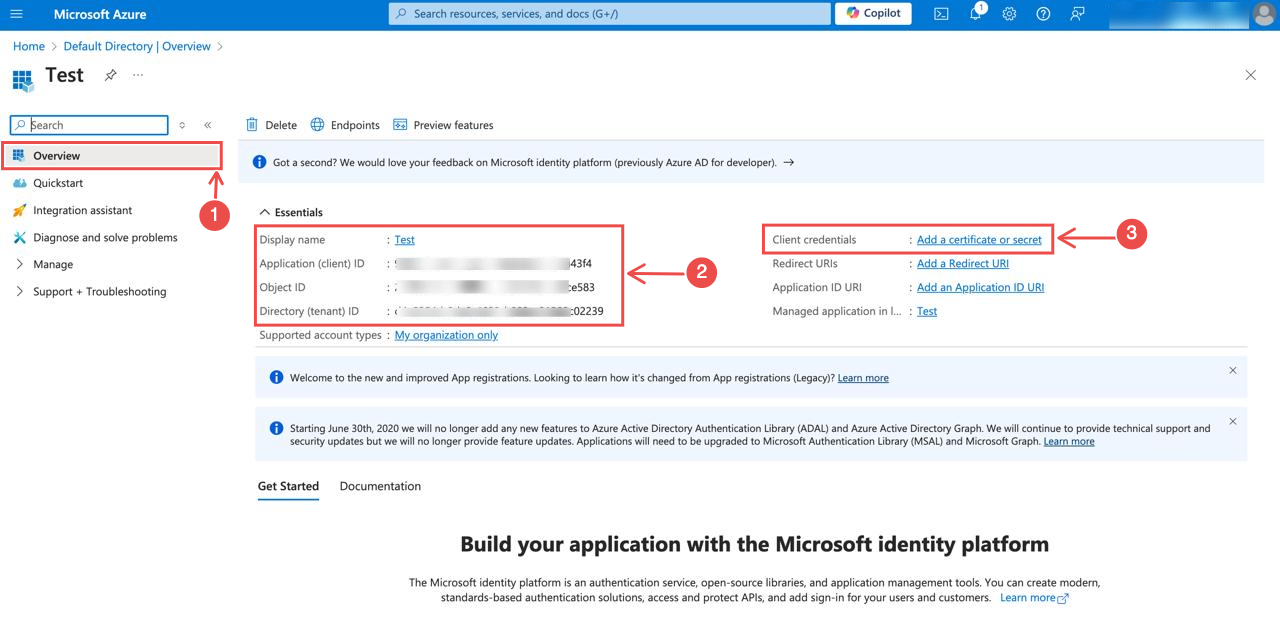
Meanwhile, copy the Client ID and Tenant ID. You will need them when configuring the connection.
-
Create a new client secret: On the Certificates & Secrets section, click Client secrets > New client secret.
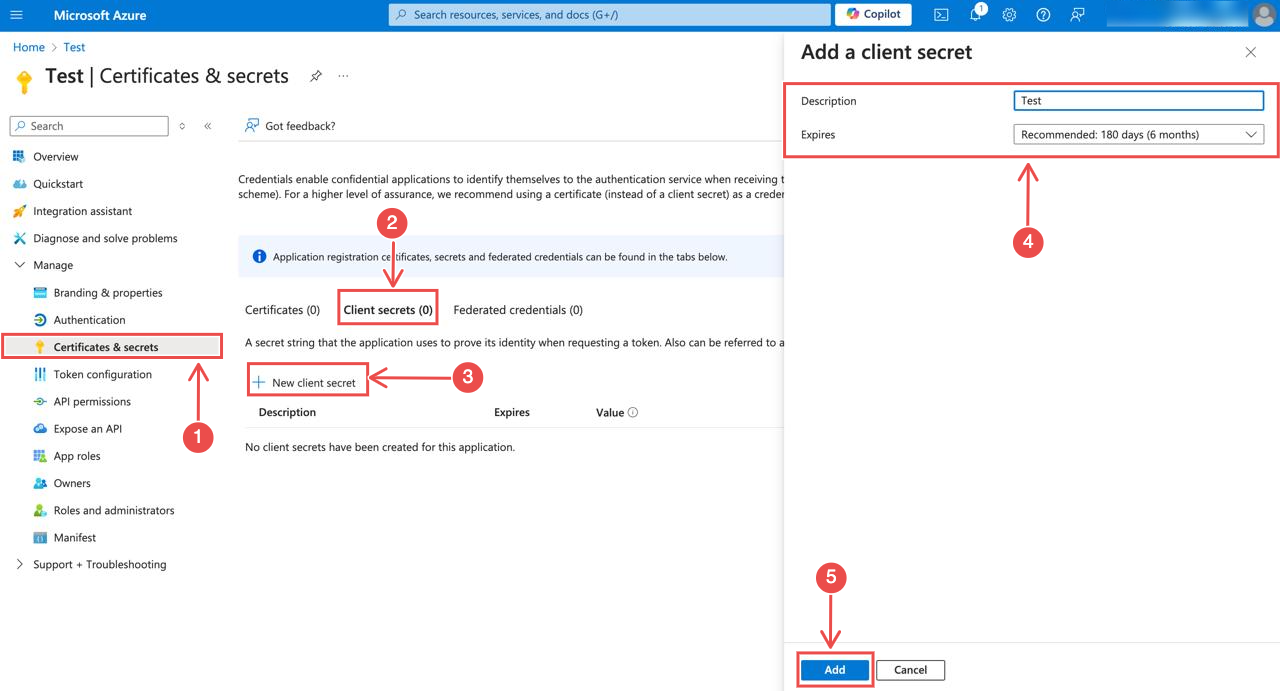
Add a description and select the expiration duration, then click Add to create the secret.
Note: The expiration duration determines when you will need to rotate the secret and update the connection in NeuBird.
-
Copy the client secret: After creating the secret, copy and save the value. This will be required when configuring the connection.
Step 3: Assign required roles to service principal
Section titled “Step 3: Assign required roles to service principal”To enable proper access for monitoring and cluster operations, assign the Reader, Azure Kubernetes Service Cluster User Role, and Azure Kubernetes Service RBAC Reader roles to your subscription.
-
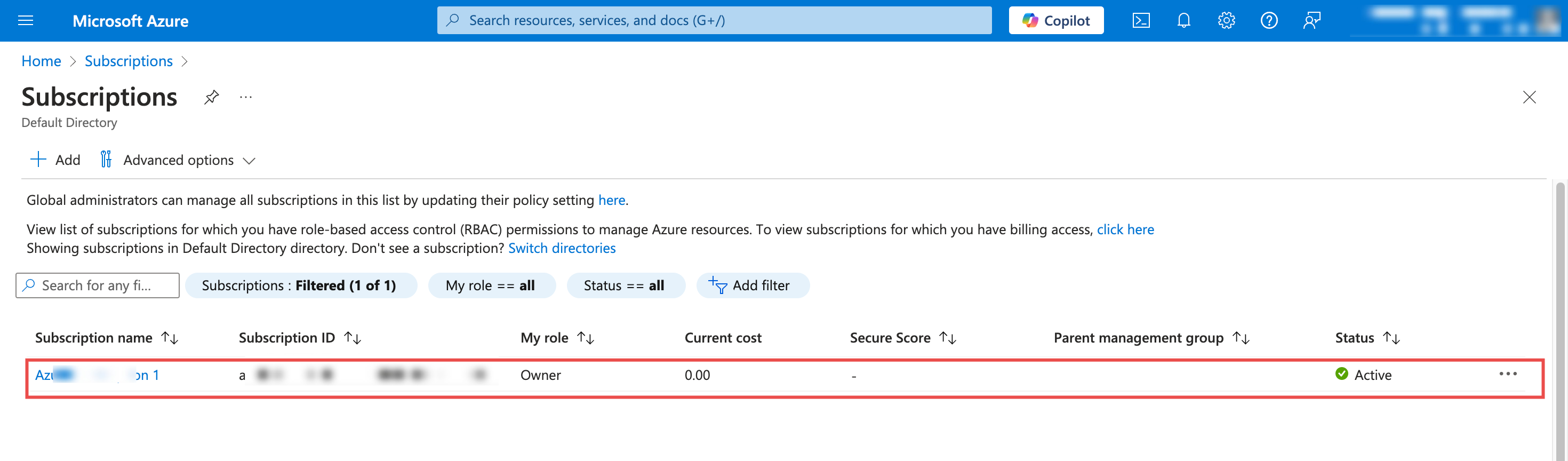
Access Azure subscriptions:
-
In the Azure portal, use the search bar to find and select Subscriptions
-
Choose the specific subscription where you want to assign roles
-
-
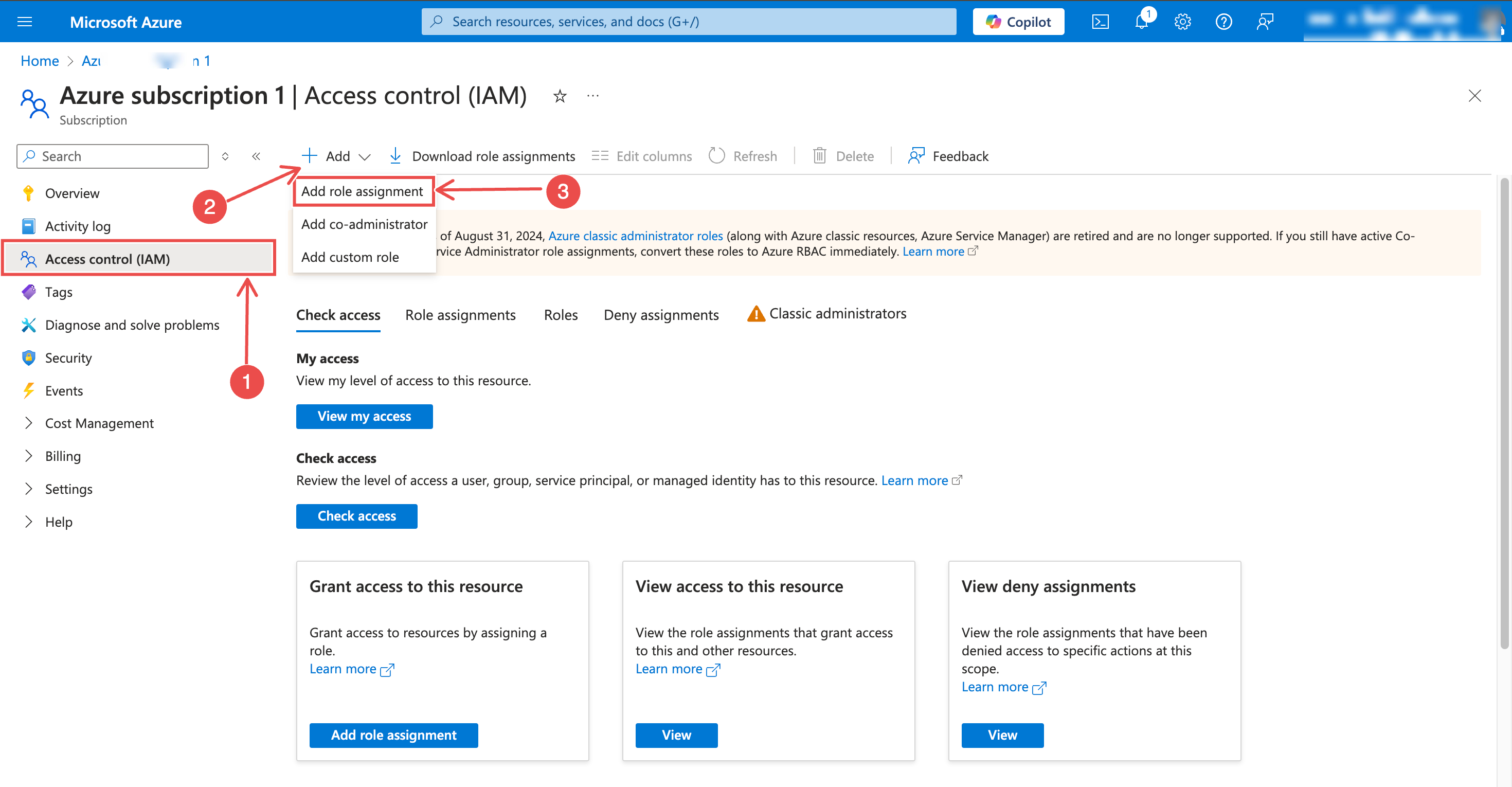
Open Access Control:
-
From the subscription navigation menu, select Access control (IAM)
-
Click + Add > Add role assignment
-
-
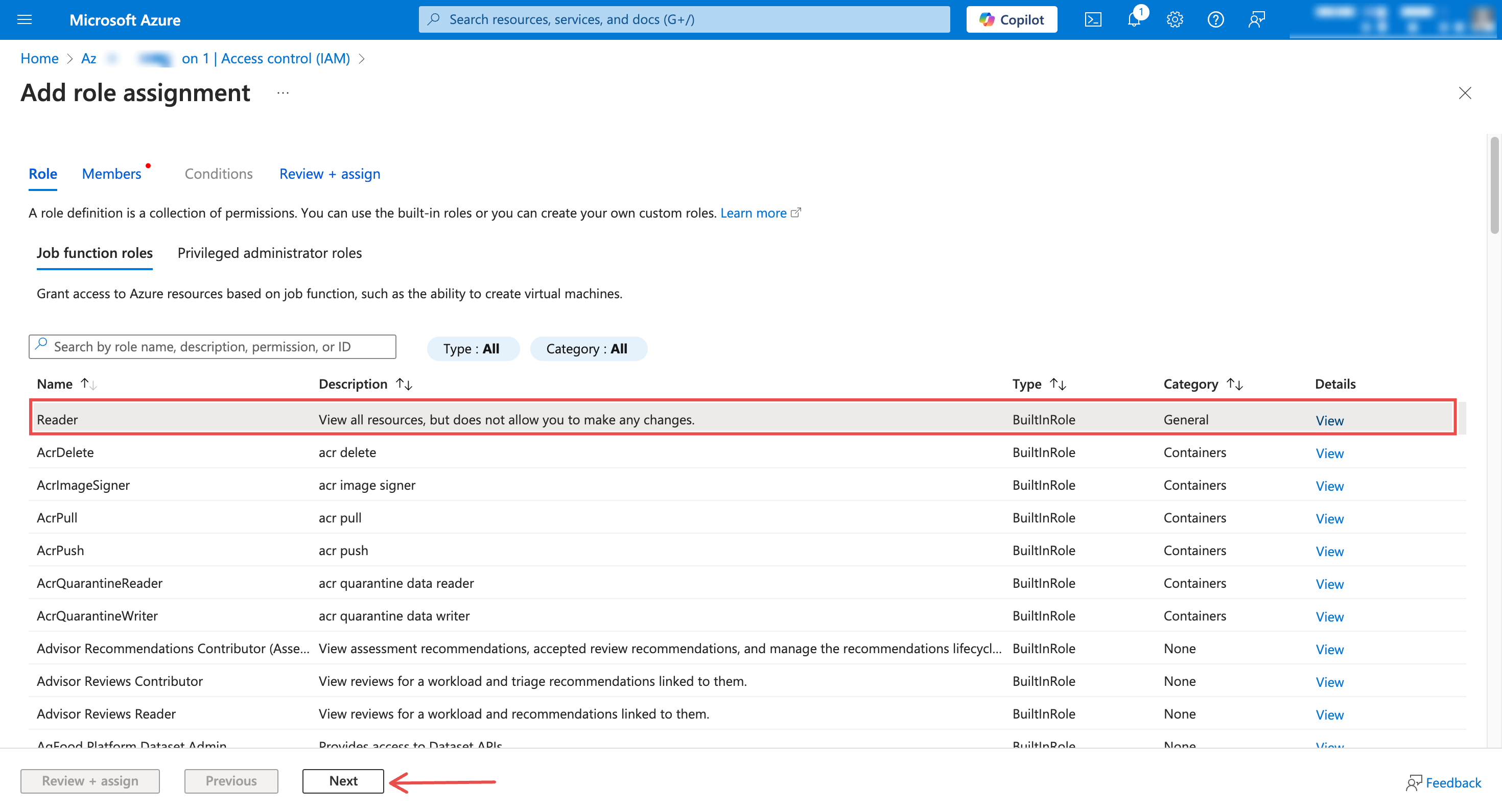
Assign Reader role:
-
In the Role dropdown, select Reader
-
Under Assign access to, choose User, group, or service principal. Then, click + Select members and search for your registered application
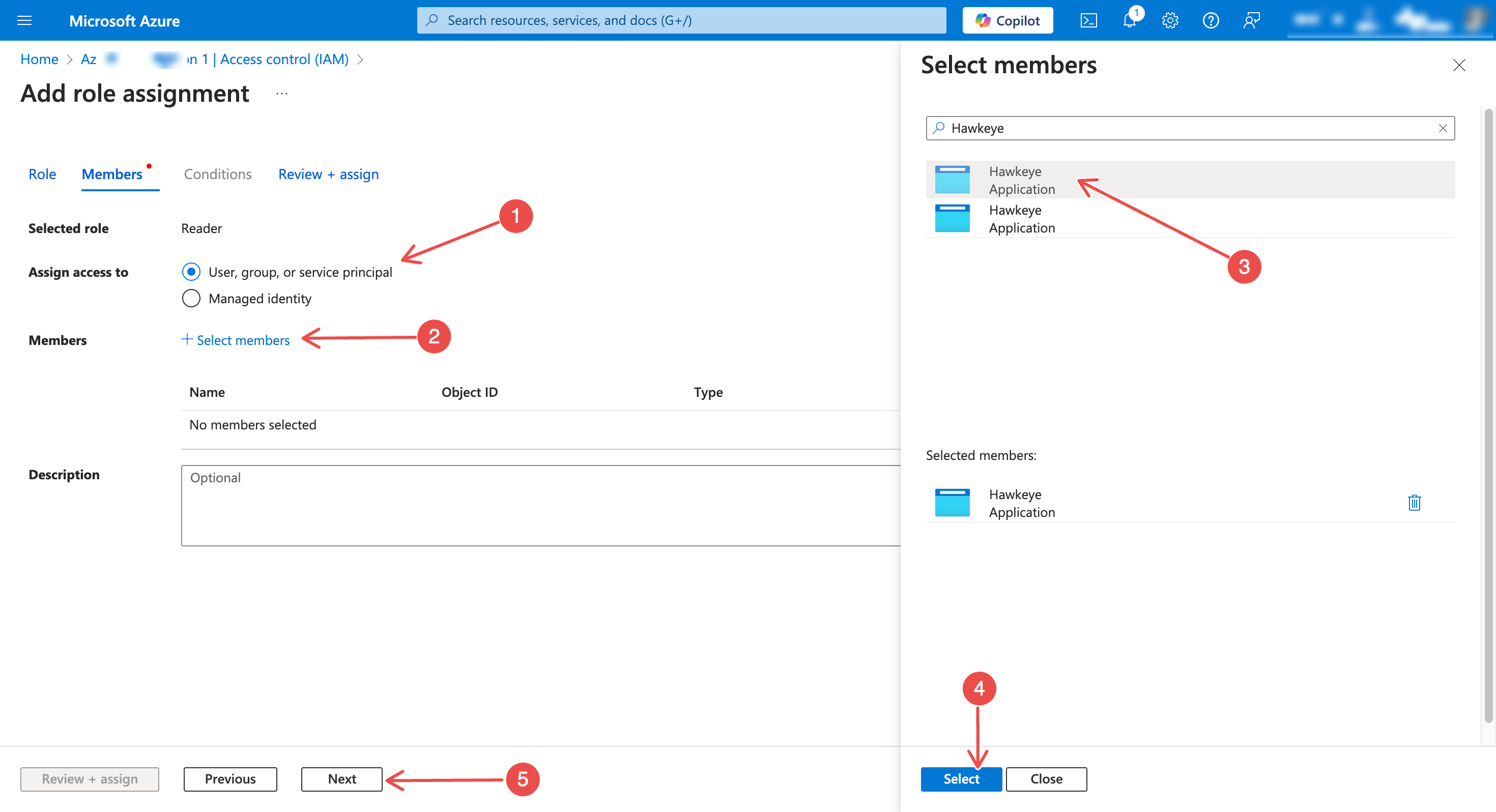
-
Confirm selection and click Review + assign
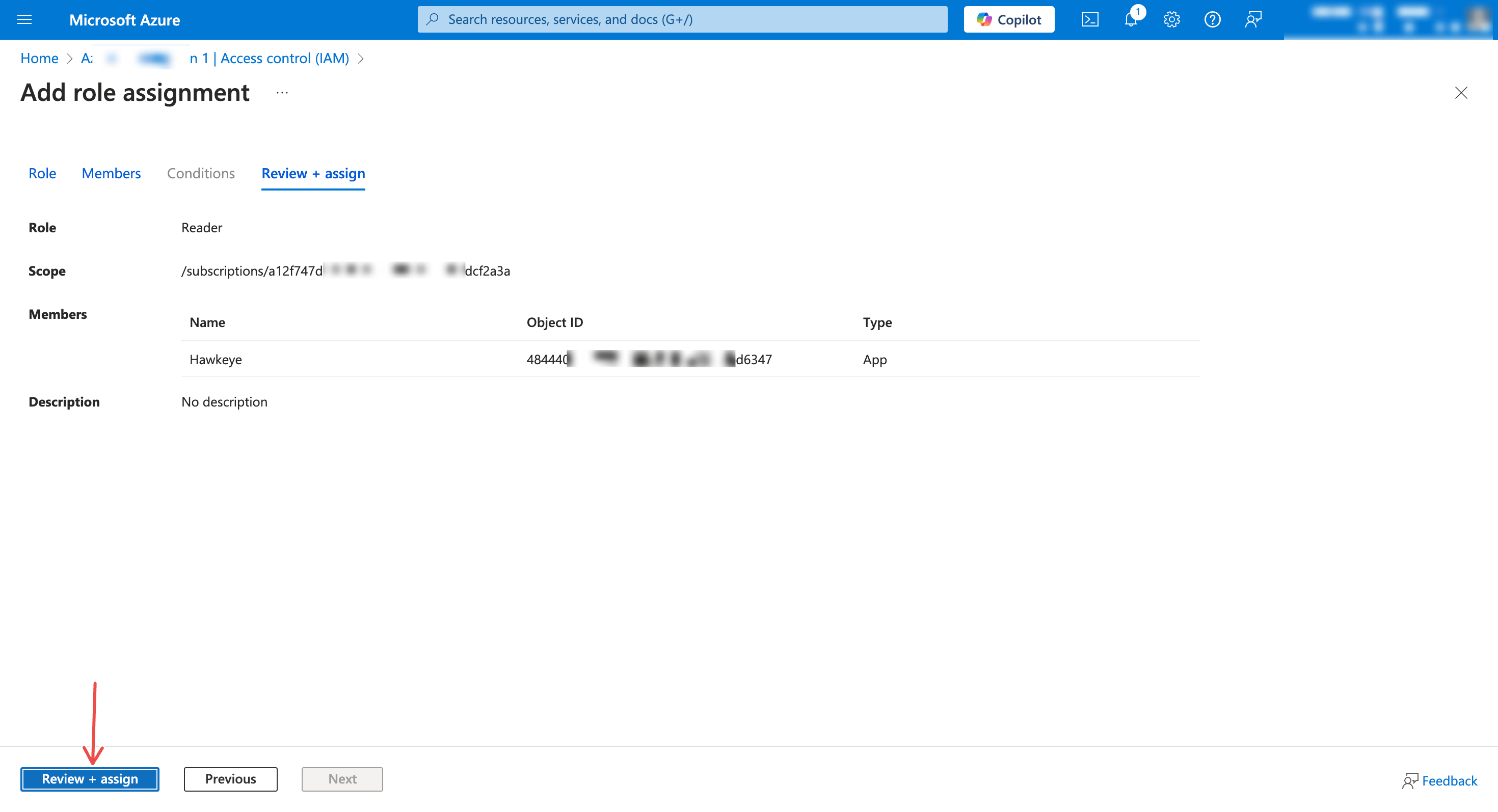
-
-
Add Azure Kubernetes Service RBAC Reader role:
-
Repeat the role assignment process
-
Select Azure Kubernetes Service RBAC Reader Role from the Role dropdown
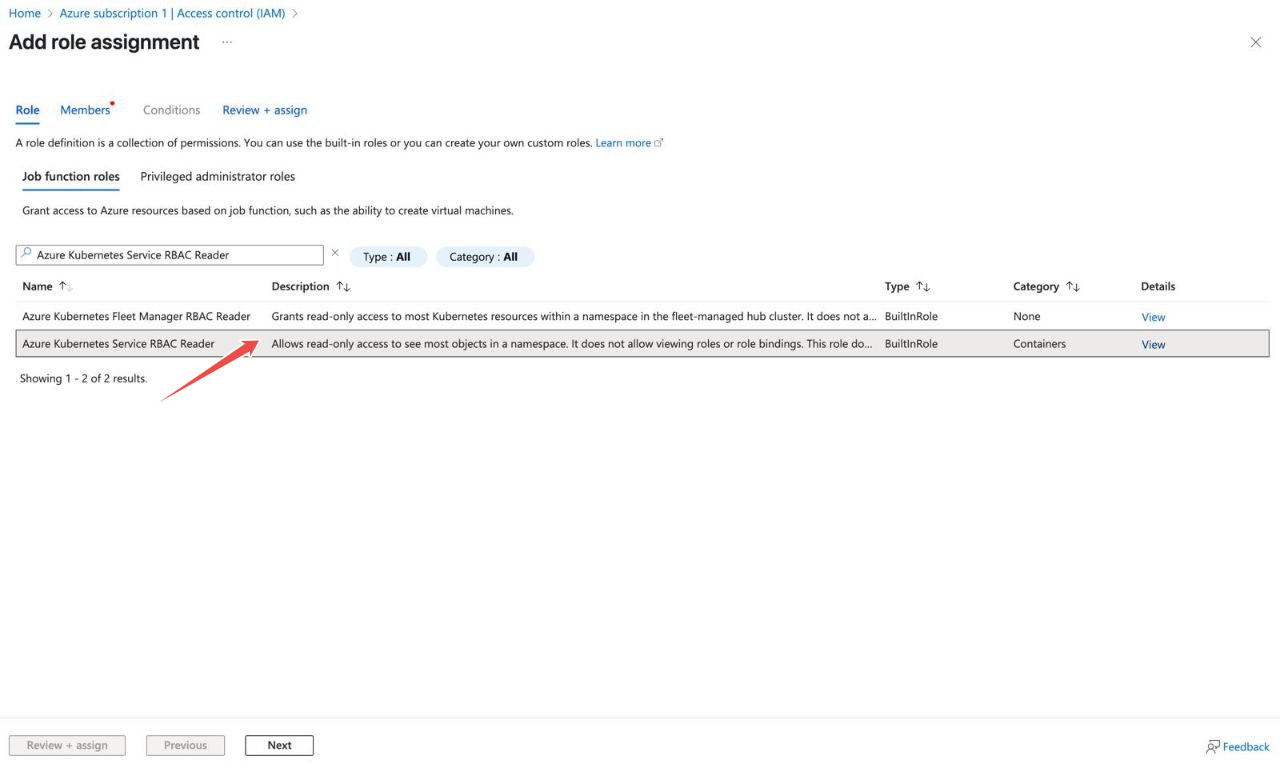
-
Choose the same service principal (your registered application)
-
Complete the assignment with Review + assign
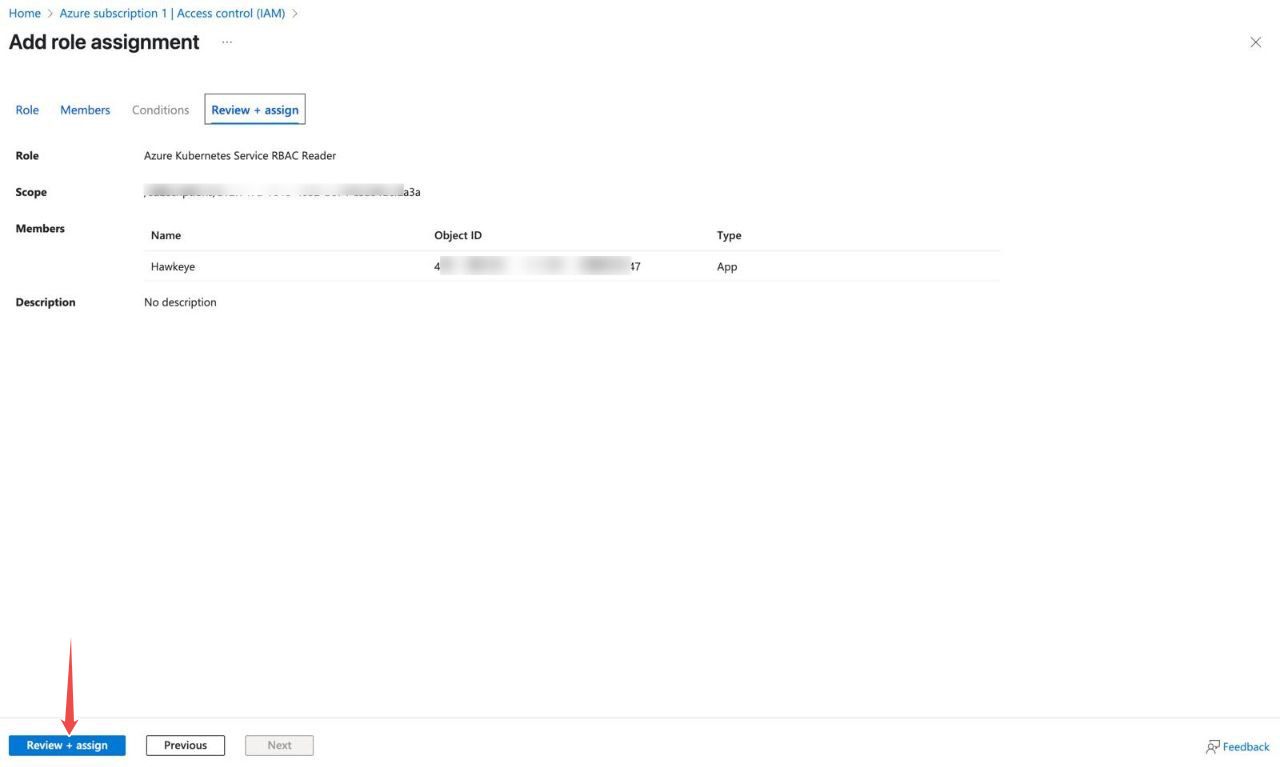
-
Note: These roles ensure NeuBird can read resource configurations and interact with AKS clusters while following least-privilege access principles.
Step 4: Configuring Kubernetes access
Section titled “Step 4: Configuring Kubernetes access”This section explains how to set up and verify permissions for an Azure Kubernetes Service (AKS) cluster using Role-Based Access Control (RBAC).
In AKS, access is managed through Azure role assignments. You assign an Azure service principal a role at the cluster level, and AKS propagates that permission into the Kubernetes cluster. This works similarly to Azure access policies, but the permissions are enforced through Kubernetes RBAC.
After the role is assigned, you can confirm that access is working by authenticating as the service principal and running Kubernetes commands using kubelogin.
For the official Microsoft guidance, see: Use a Service Principal with Azure Kubernetes Service (AKS)
Assign RBAC permissions in the Azure portal
Section titled “Assign RBAC permissions in the Azure portal”- Sign in to the Azure portal.
- Navigate to Kubernetes services.
- Select the AKS cluster you want to manage.
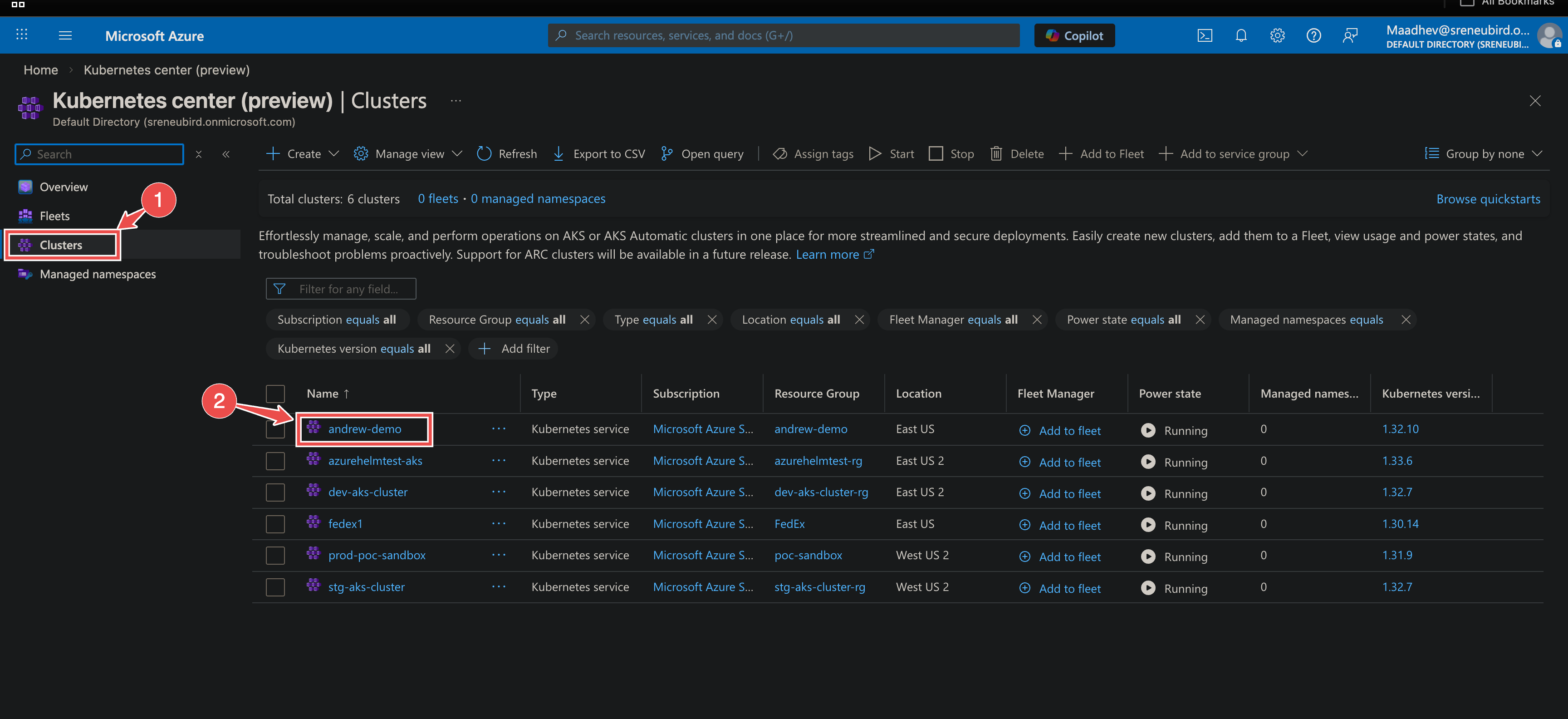
- In the left menu, select Access control (IAM).
- Click Add > Add role assignment.
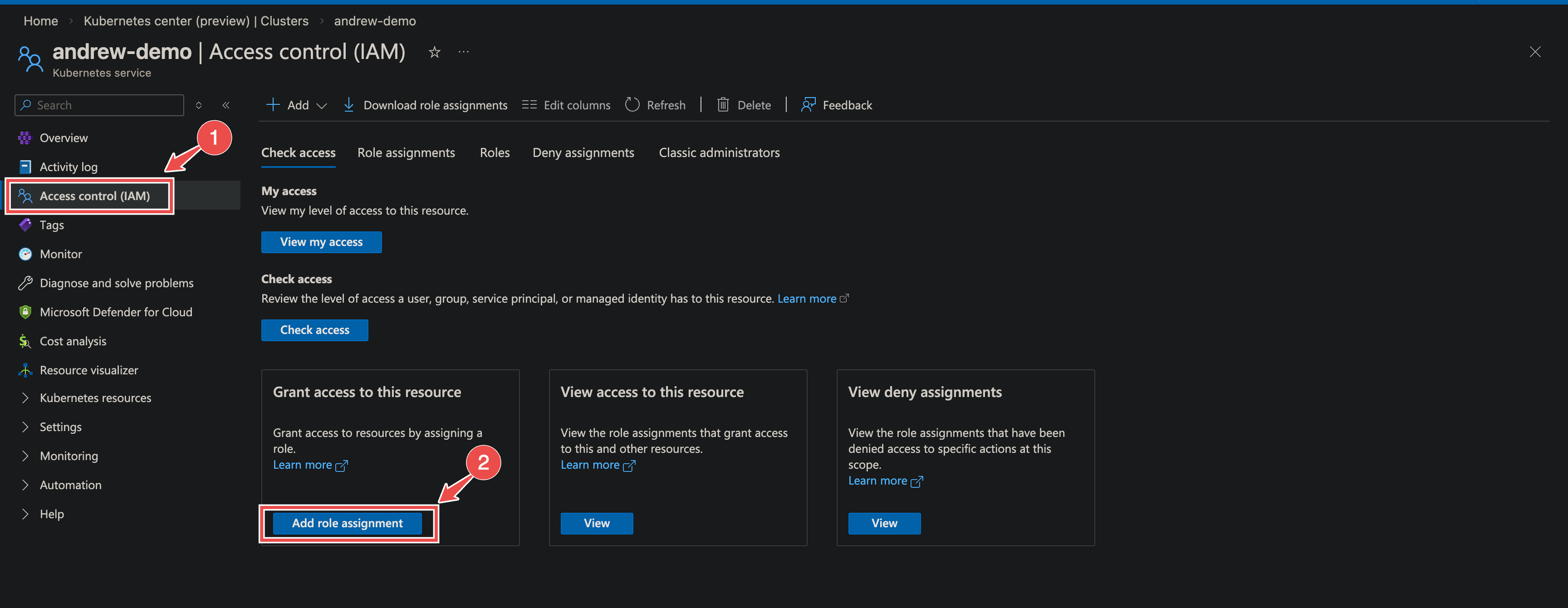
- Choose the appropriate role, for example Azure Kubernetes Service RBAC Cluster Admin or RBAC Reader, depending on the level of access required.
- Assign the role to the service principal.
- Save the role assignment.
Once this is complete, Azure will handle syncing the permissions to the Kubernetes cluster.
Verify access using kubelogin
Section titled “Verify access using kubelogin”Use the following commands to test that the service principal can authenticate and access the cluster.
# Log in with the service principalaz login \  --service-principal \  --username <sp_client_id> \  --password <sp_password> \  --tenant <tenant_id>
# Fetch AKS credentialsaz aks get-credentials \  --resource-group <resource_group> \  --name <aks_name>
# Convert kubeconfig to use service principal authenticationkubelogin convert-kubeconfig -l spn
# Export service principal credentialsexport AAD_SERVICE_PRINCIPAL_CLIENT_ID=<sp_client_id>export AAD_SERVICE_PRINCIPAL_CLIENT_SECRET=<sp_password>
# Run a kubectl command to confirm accesskubectl get pods
If the setup is correct, the command should run without triggering a device login or interactive authentication prompt.
Configuring Prometheus Metrics for Azure Kubernetes (K8s)
Section titled “Configuring Prometheus Metrics for Azure Kubernetes (K8s)”When setting up a new project and integrating an Azure connection, ensure you select the appropriate Prometheus Workspace to collect metrics for your AKS clusters.
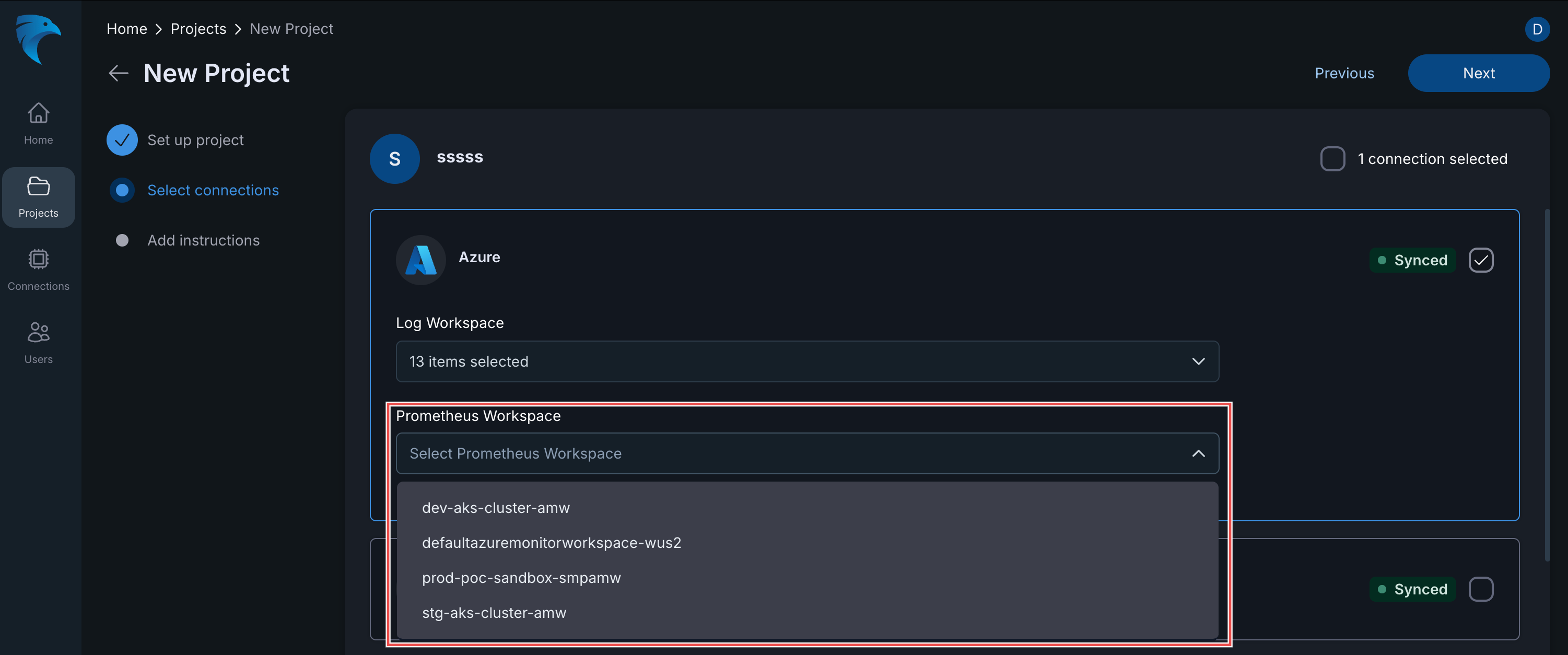
Step-by-Step
Section titled “Step-by-Step”- Set Up Project: Complete the initial “Set up project” stage.
- Select Connections: In the “Select connections” stage, choose your existing Azure connection.
- Log Workspace: Confirm the required log workspaces are selected.
- Prometheus Workspace: Under the Prometheus Workspace section, use the dropdown menu to select the specific workspace monitoring your Azure K8s environment (e.g.,
dev-aks-cluster-amw,prod-poc-sandbox-smpamw).
Connection Fields
Section titled “Connection Fields”| Field | Required | Description |
|---|---|---|
| Name | Yes | A unique, descriptive identifier for this connection |
| Description | No | Brief outline of the connection’s scope, environment, or purpose |
| Telemetry Sources | Yes | At least one of: Alerts, Metrics, Logs, Config |
| Tenant ID | Yes | Your Azure tenant ID (found on the app registration overview page) |
| Client ID | Yes | The client ID from your registered application |
| Client Secret | Yes | The secret value generated in Step 2 |
For general instructions on creating and managing connections, see the Connections Overview.