

Notifications
Overview
Section titled “Overview”The Notifications page lets your team decide what NeuBird tells people about, and where. Each notification is a rule with four parts:
- Watch: signals, Agent Task runs, or connection health.
- When: the moments that fire it, for example Signal arrives or Investigation completed.
- Where: a Slack or Teams channel, a channel NeuBird creates for each signal, or a person.
- Match (optional): which signals or runs count, for example only alerts whose title contains
checkout.
Use notifications to route each team’s alerts to its own channel, to hear when NeuBird has finished investigating rather than when an alert first fires, to open a war room per incident, or to follow scheduled tasks and failing connections.
Before you begin
Section titled “Before you begin”- Open Notifications from the Ops section of the sidebar. It replaces the former On-Call page.
- Notifications are shared across the project. Anyone can view them; creating, editing or deleting them needs the Developer role.
- To post to channels or send direct messages, connect Slack or Microsoft Teams first.
Create a notification
Section titled “Create a notification”- Click New notification.
- In the chat on the left, describe what you want. For example: “Post to #payments-oncall when an investigation completes on any alert with checkout in the title.”
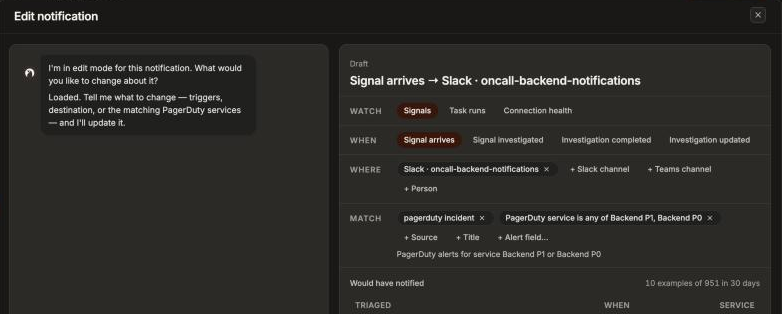
- NeuBird asks follow-up questions and fills in the Draft card on the right. You can also edit the card directly: change the When chips, add destinations with + Slack channel, + Teams channel or + Person, and add filters under Match.
- For signal notifications, check Would have notified. It lists real incidents from the last 30 days that the rule would have fired on.
- Click Save notification.
What you can watch
Section titled “What you can watch”| Watch | When | Fires when |
|---|---|---|
| Signals | Signal arrives | A matching signal first arrives. Once per incident, even if it flaps or reopens. |
| Signal investigated | NeuBird starts investigating the signal. | |
| Investigation completed | The first investigation finishes. The message includes NeuBird’s summary. | |
| Investigation updated | A later investigation of the same incident finishes. | |
| Task runs | Task run starts / Task run completes | A matching Agent Task run starts or finishes, such as Risk Sentinel or the Daily Digest. |
| Connection health | Connection error | A connection in the project starts failing. At most once every 24 hours per connection and destination. |
Signals classified as noise never send notifications.
Narrow it down with Match
Section titled “Narrow it down with Match”Without Match, a notification fires for everything in the project. Filters narrow it:
| Filter | Checks |
|---|---|
| + Source | The alert type, such as Datadog or PagerDuty. |
| + Title | Words in the alert title. |
| + Alert field… | Any field the alert’s source sent, such as labels.namespace on a Grafana alert. |
| + Task, + Connection, + Connection type | Specific tasks or connections, for those kinds of notification. |
Every filter must hold. To match alternatives or exclusions, ask the builder, for example “title contains timeout or latency, but not from uitesting”. An incident matches when any one of its alerts meets every filter.
Where notifications go
Section titled “Where notifications go”| Destination | What happens |
|---|---|
| Existing channel | Posts into the Slack or Teams channel you pick. Invite NeuBird to private channels first. |
| New channel per signal | Creates a dedicated channel for each matching signal, or reuses the incident’s channel if it has one. Name it by Incident ID (default) or Incident title. Signals only. |
| Signal’s channel | Posts back into the channel the signal came from, if it has one. Ask the builder for it. Signals only. |
| Person | Sends to you or a teammate, using their own delivery settings (below). |
Each event reaches each destination once. NeuBird also skips Signal arrives for people already assigned to the incident, and for channels that already received the incident’s card.
How you get notified
Section titled “How you get notified”Notifications addressed to you arrive on the channels you turn on in Settings → How I get notified: Desktop app, Slack direct message and Teams direct message are on by default; Email is off until you turn it on. Notify me turns them all off at once. On-call paging is not affected.
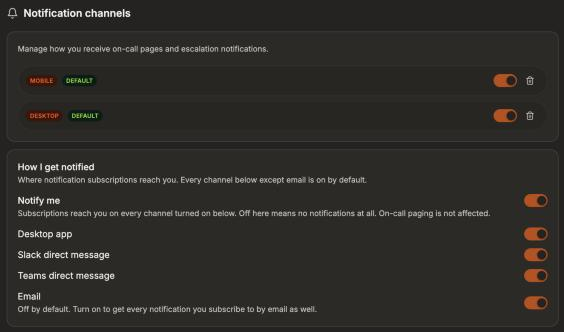
If NeuBird can’t message you on Slack or Teams, that switch is disabled with the reason, usually that your NeuBird email doesn’t match your chat account, or that NeuBird isn’t installed for you in Teams (see Teams direct messages).
Manage notifications
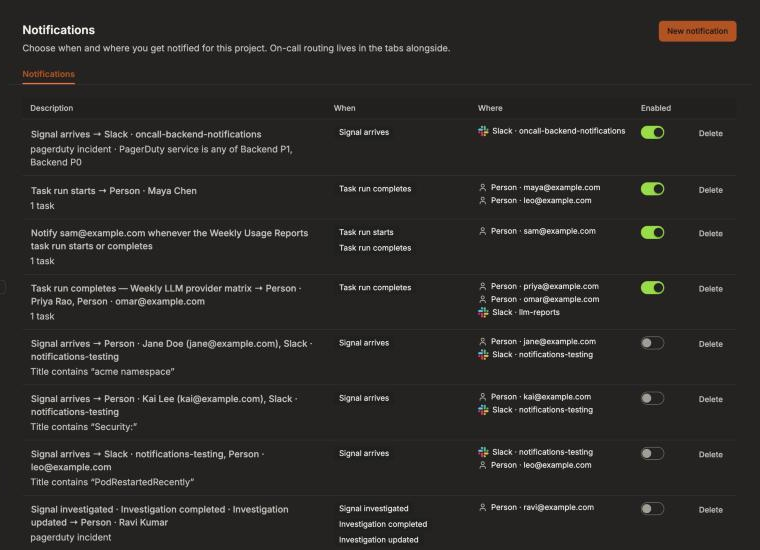
Section titled “Manage notifications”The list shows every notification in the project with its When events, Where destinations and an Enabled switch.
- Edit: click the description to reopen the builder.
- Pause: turn off Enabled.
- Delete: click Delete, then Confirm delete.
Troubleshooting
Section titled “Troubleshooting”| Problem | What to check |
|---|---|
| New notification is disabled | You need the Developer role in this project. |
| A channel gets nothing | The notification is Enabled, NeuBird is in the channel, and Would have notified isn’t empty. |
| A person gets no direct message | Their Notify me is on and their Slack or Teams row isn’t disabled. |
| New channel per signal creates nothing on Teams | Set an incidents team on the Teams connection. |