



Redis
Connect Redis to collect cache usage metrics, performance logs, and key-value store configuration data.
Step 1: Create a Redis Role and User
Section titled “Step 1: Create a Redis Role and User”To securely connect NeuBird to Redis, create a user with appropriate permissions and generate an API key.
-
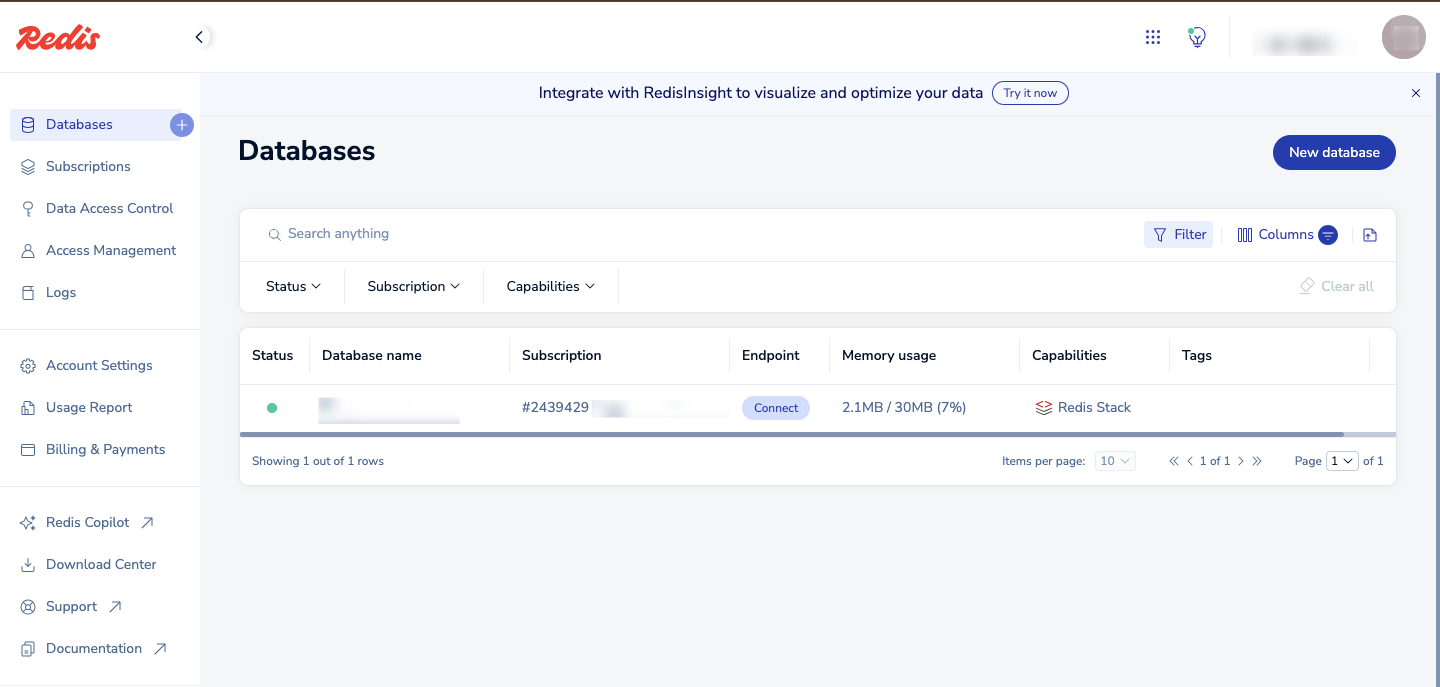
Log in to Redis: Go to the Redis Console and log in to your Redis Cloud account.
-
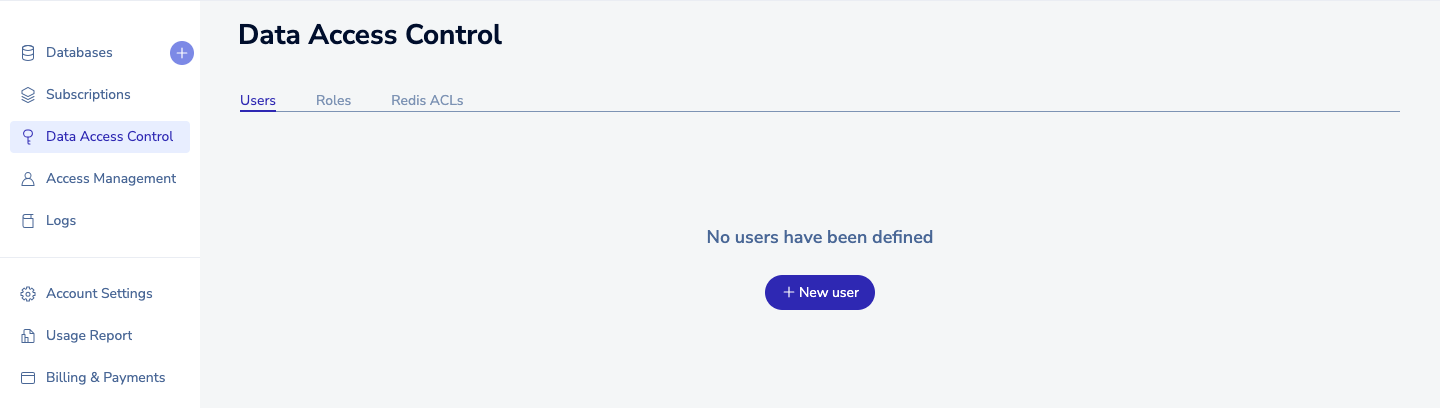
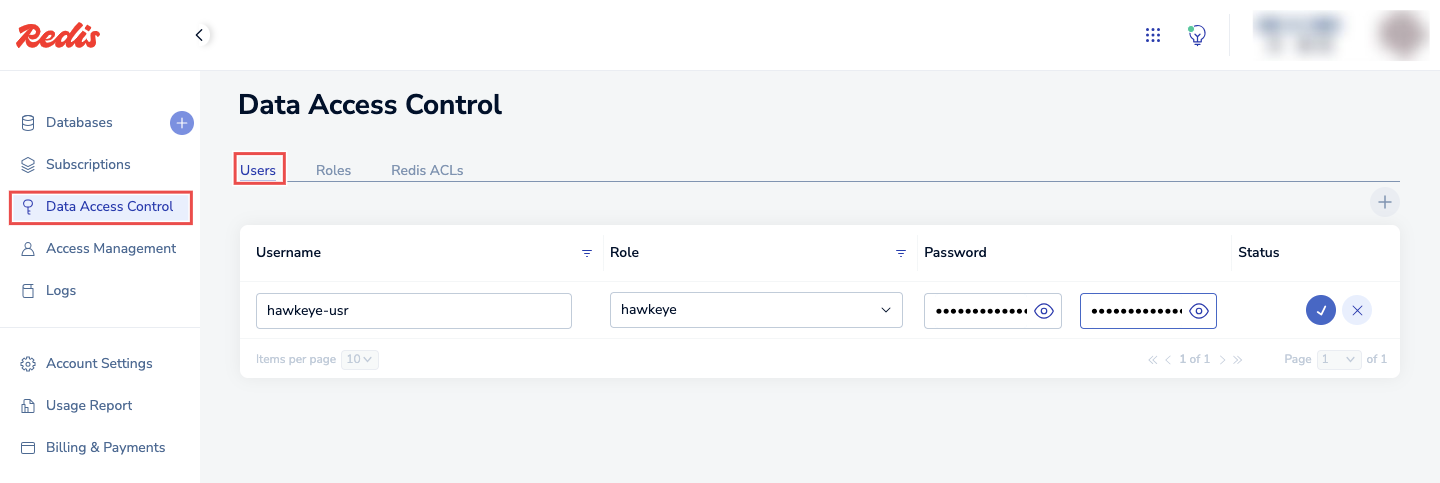
Navigate to Data Access Control: From the Redis console, go to Data Access Control.
-
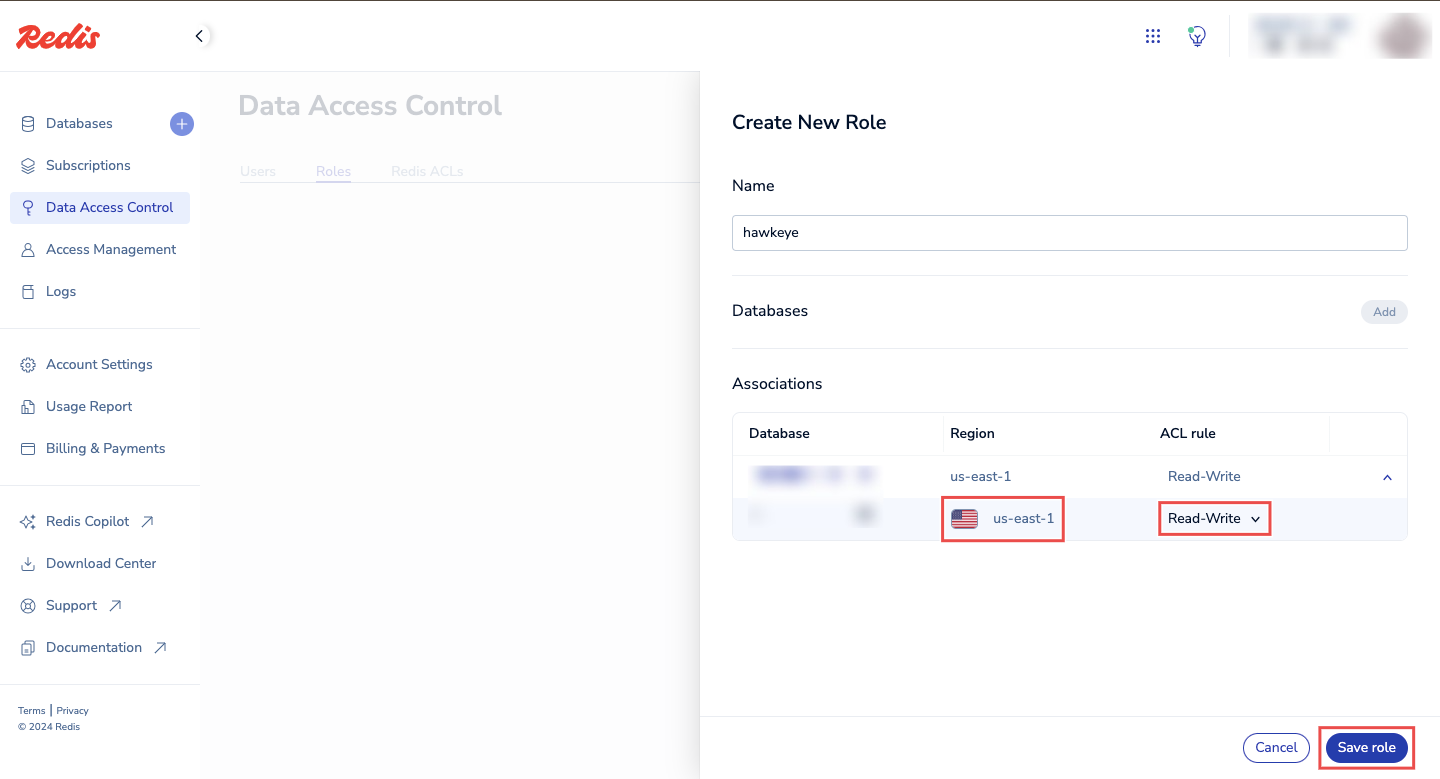
Create a Role: On the Data Access Control section, navigate to the Roles tab. You must create a role before you can create a user.
-
Click on the + icon to add a new role.

-
Fill in the details for your Redis role, including the name, ACL rule, and database.
-
-
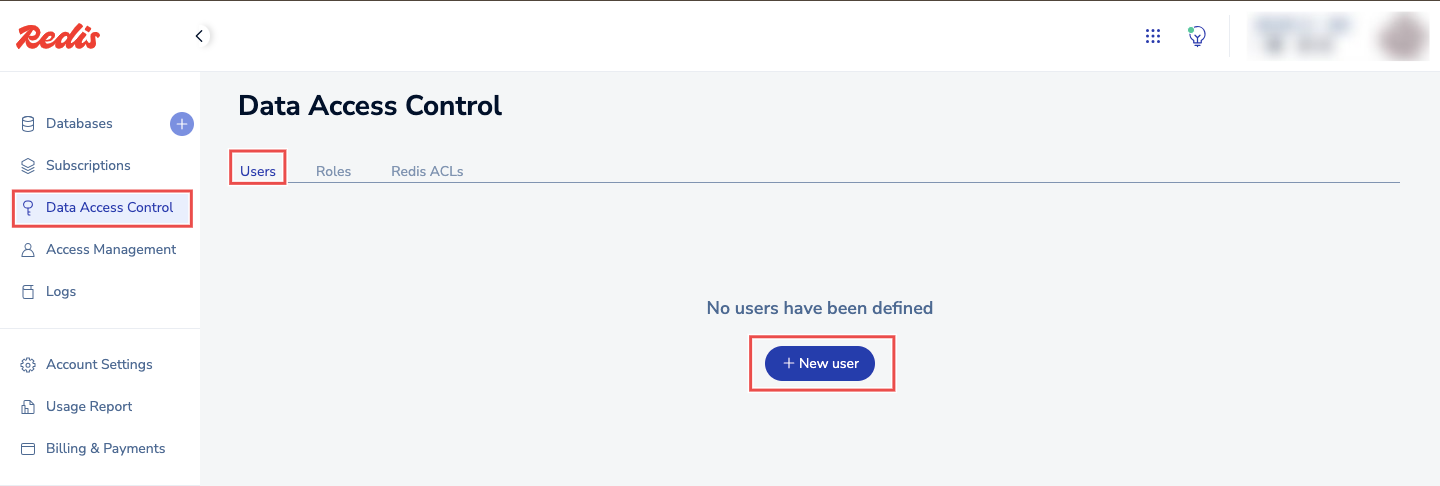
Create a Redis User: Navigate to the Users tab.
-
Click on New user to add a new user.
-
Give the user a name, attach the role created above, and set a password.
-
Step 2: Generate an API Key
Section titled “Step 2: Generate an API Key”-
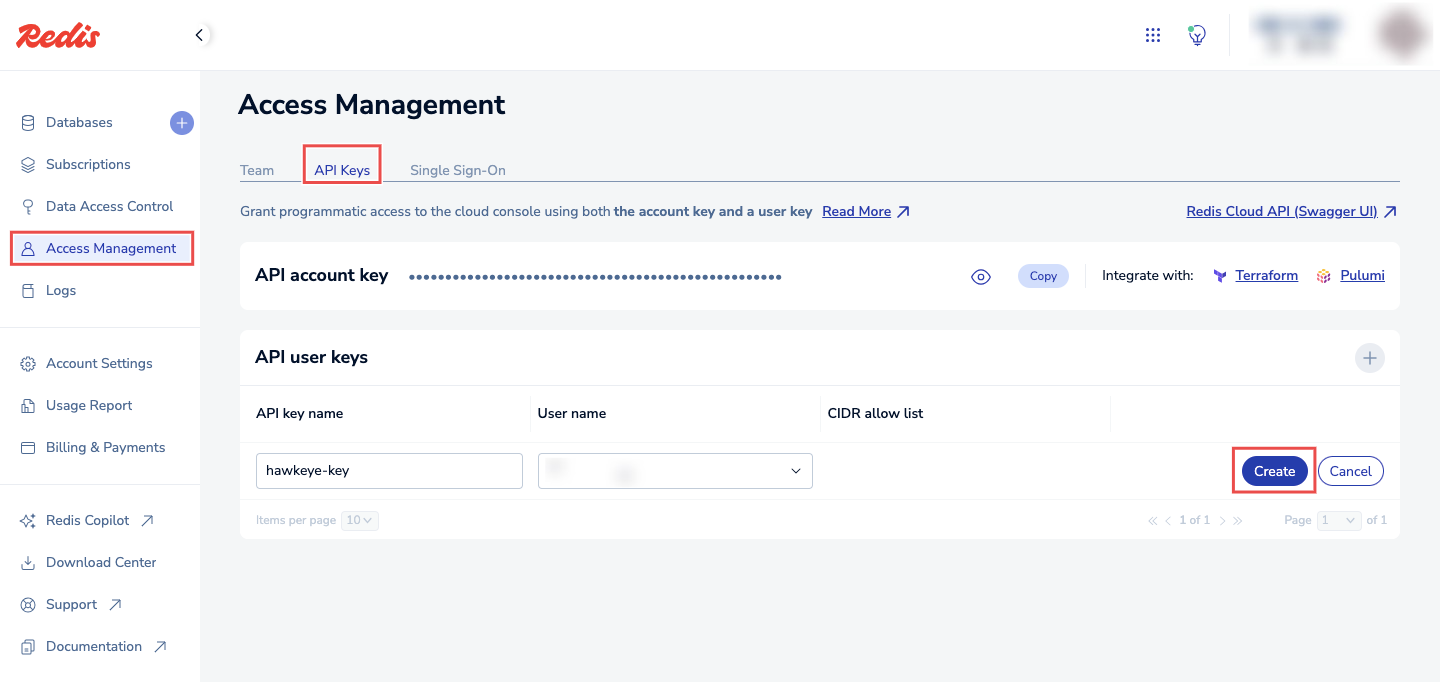
From the Redis console, navigate to Access Management > API Keys.
-
Click on the + icon and add a name for your API Key.
-
Click Create to complete the process.
-
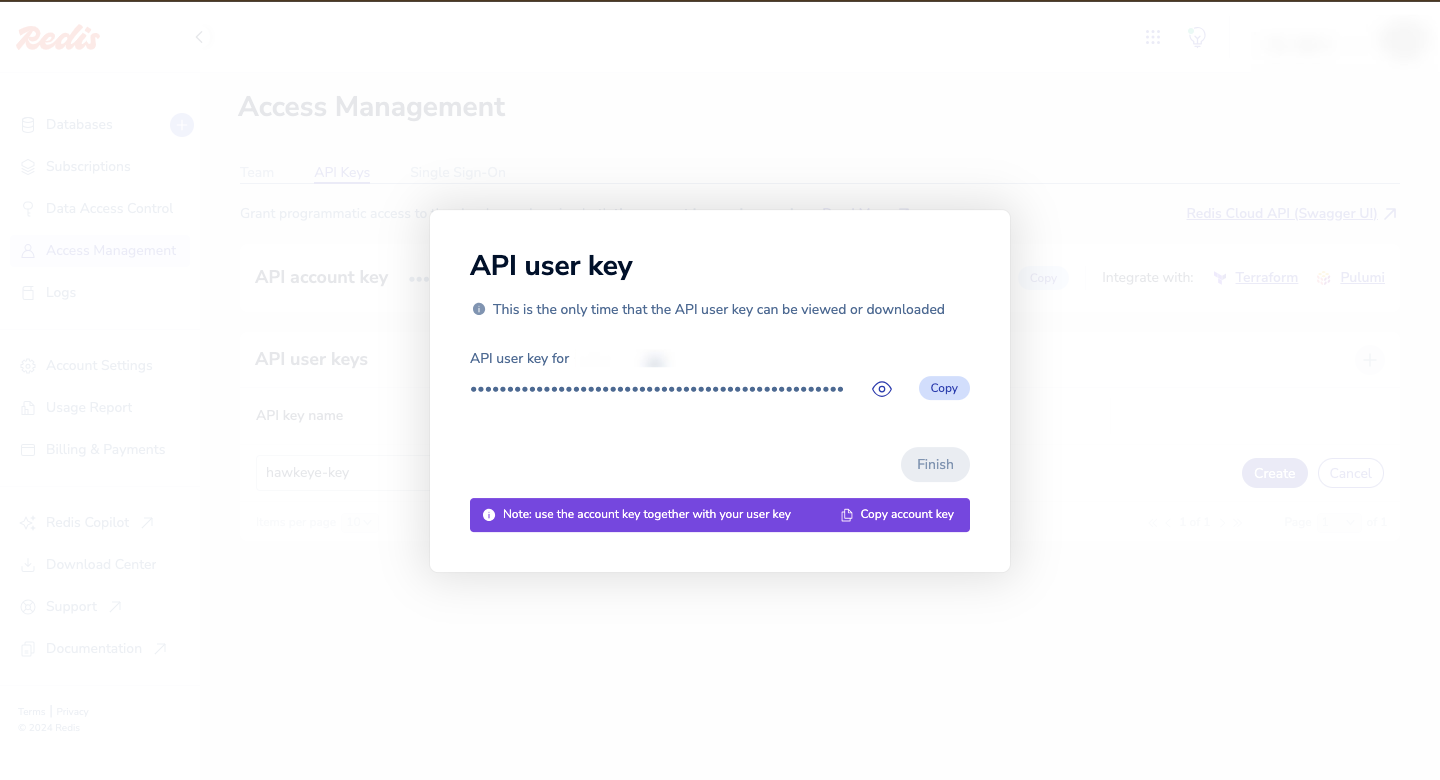
Once created, copy the API user key.
Connection Fields
Section titled “Connection Fields”| Field | Required | Description |
|---|---|---|
| Name | Yes | A display name for this connection |
| Description | No | Optional description of the connection |
| API Key | Yes | The API key generated from the Redis Cloud console |
| Host | Yes | The Redis Cloud endpoint URL |
For general instructions on creating and managing connections, see the Connections Overview.