

Investigation Review
Overview
Section titled “Overview”Review gives an investigation’s answer a second opinion. After an investigation finishes, a separate NeuBird reviewer reads the answer and the evidence behind it, re-runs the recorded queries, and reports what holds up, what doesn’t, and what it couldn’t check.
Use it to:
- Trust an answer before acting on it, especially when its confidence is low.
- Catch a wrong root cause or a risky fix before it reaches a runbook or a customer update.
- Improve the answer. With one click, re-run the question with the review’s findings included.
The reviewer works independently. It runs as its own session, treats the recorded tool results as the evidence, and doesn’t rely on the original agent’s own confidence.
Where to find it
Section titled “Where to find it”Open an investigation, switch to the Explain view, and select the Review tab. It appears once the investigation has finished. Each prompt in the investigation has its own review.
Run a review
Section titled “Run a review”- Open the finished investigation and go to Explain → Review.
- Click Run review.
The review starts in its own session, and the card changes to Reviewing, showing elapsed time, progress and how many checks it has made. A review usually takes a few minutes. You can leave the page; the result appears on the prompt when it’s done.
Each prompt is reviewed once. Run review is hidden while a review is running or after it has finished. Only prompts that completed with an answer can be reviewed: if a prompt was stopped or failed, the card says there is nothing to review.
Running a review needs a role above read-only in the project.
Review low-confidence answers automatically
Section titled “Review low-confidence answers automatically”A project can review its own low-confidence answers, with no click and nobody needing to have the investigation open.
- Go to Projects, click Edit on the project, and open Investigation Agent Config. Scroll to Automatic review.
- Turn on Review low-confidence answers automatically.
- Optionally set Confidence threshold (1–100). Answers with a confidence below it are reviewed. Leave it empty, or click Use platform default, to use 70%.
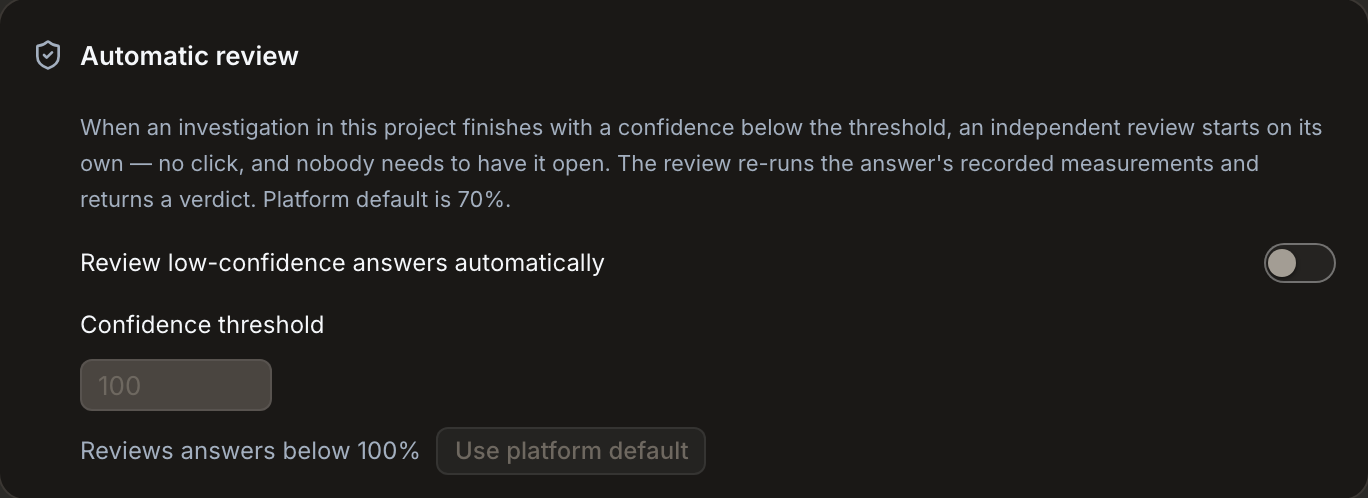
Automatic review is off until you turn it on. Changing it needs the Developer role in the project.
Automatic review skips answers at or above the threshold, prompts that didn’t complete, prompts run as workflow steps, and prompts that already have a review.
Read the result
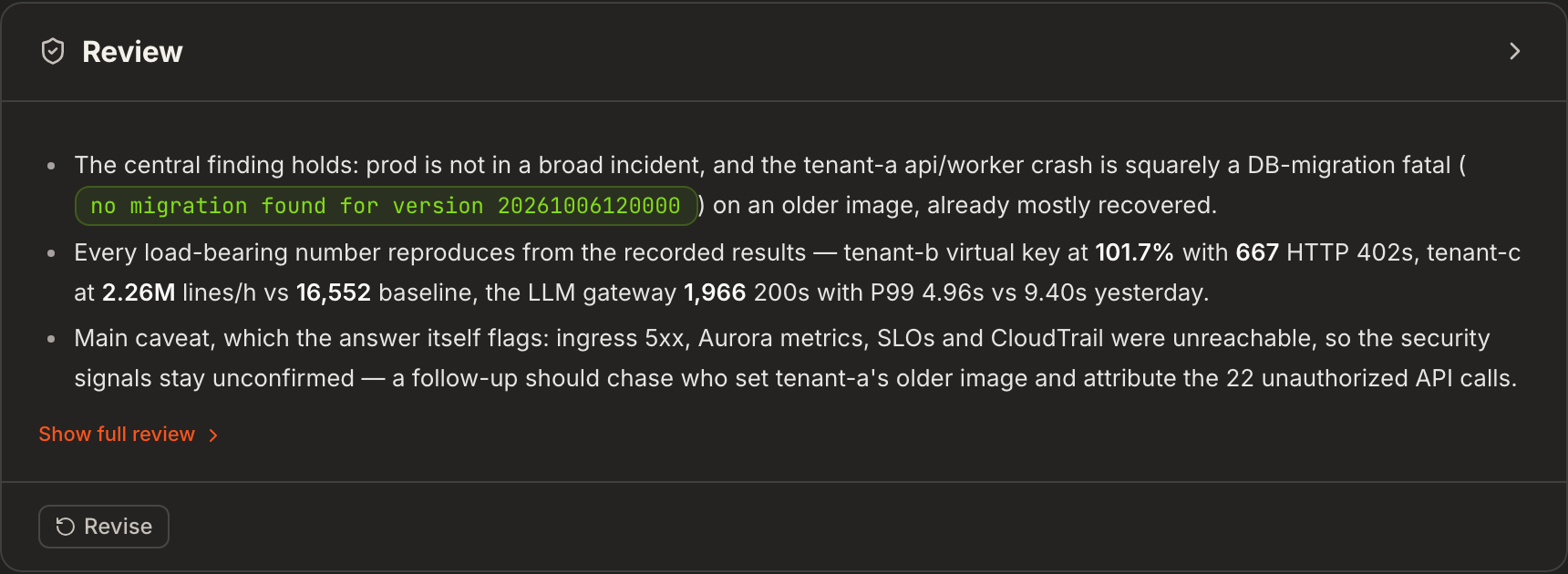
Section titled “Read the result”When the review finishes, the card shows a short summary of up to three points. Click Show full review to see the whole report:
| Section | What it tells you |
|---|---|
| Checked claims | The answer’s key claims (the root cause, the facts it rests on, the recommended fix), each marked Holds, Wrong, Missing or Couldn’t check. |
| What’s wrong | Claims the reviewer could disprove from the data, and anything the answer missed that would change the conclusion. |
| Couldn’t verify | Claims the reviewer had no data to check. These don’t count against the answer. |
| For a follow-up | What to ask or look at next. |
| How I checked | The queries and tools the reviewer ran. |
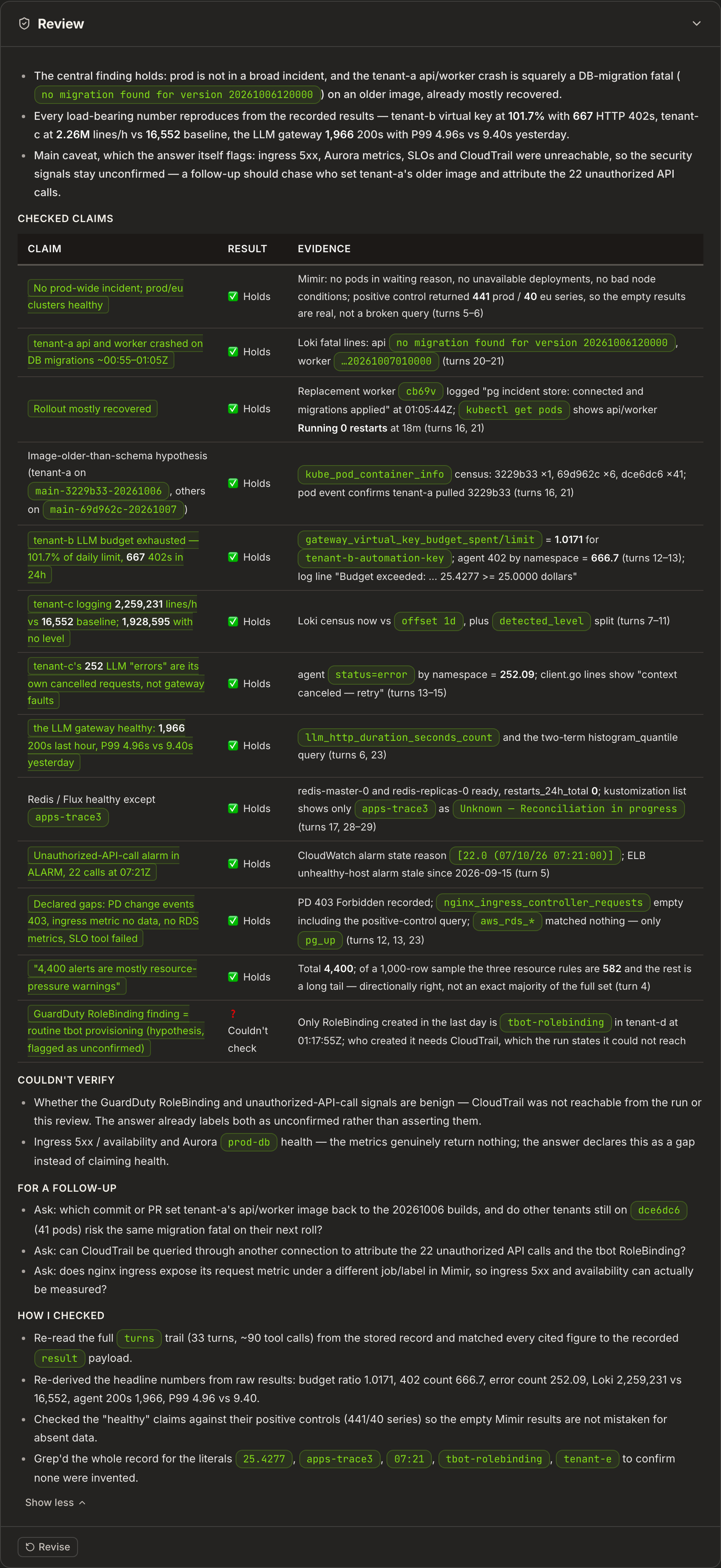
How to read it:
- Every key claim holds: the answer is supported by its own evidence. Act on it with normal care.
- A key claim is wrong or something is missing: don’t act on the conclusion as-is. Revise the answer (below) or investigate further.
- Most claims couldn’t be checked: the data wasn’t reachable or the answer gave little to test. Treat the answer as unconfirmed.
Revise the answer
Section titled “Revise the answer”After a review, click Revise to run the question again with the review included. Add any context or corrections you have (optional), then click Revise. The revised answer replaces the original, and the review card links to it as Revised as Prompt N.
If a review doesn’t finish
Section titled “If a review doesn’t finish”The card shows Review failed with the reason, and a Try again button:
| Reason | What to do |
|---|---|
| The review took too long and was stopped. | Try again. Reviews stop after 15 minutes. |
| The review was cancelled. | Try again. |
| The review ended without a verdict. / The review couldn’t complete. | Try again. If it keeps failing, contact NeuBird support. |
| This deployment’s AI usage budget is used up, so the review can’t run. | Ask your NeuBird administrator to request a budget increase. |
If you’re already at your organization’s limit of concurrent investigations, a new review can’t start until one finishes.