



Signal Context
Overview
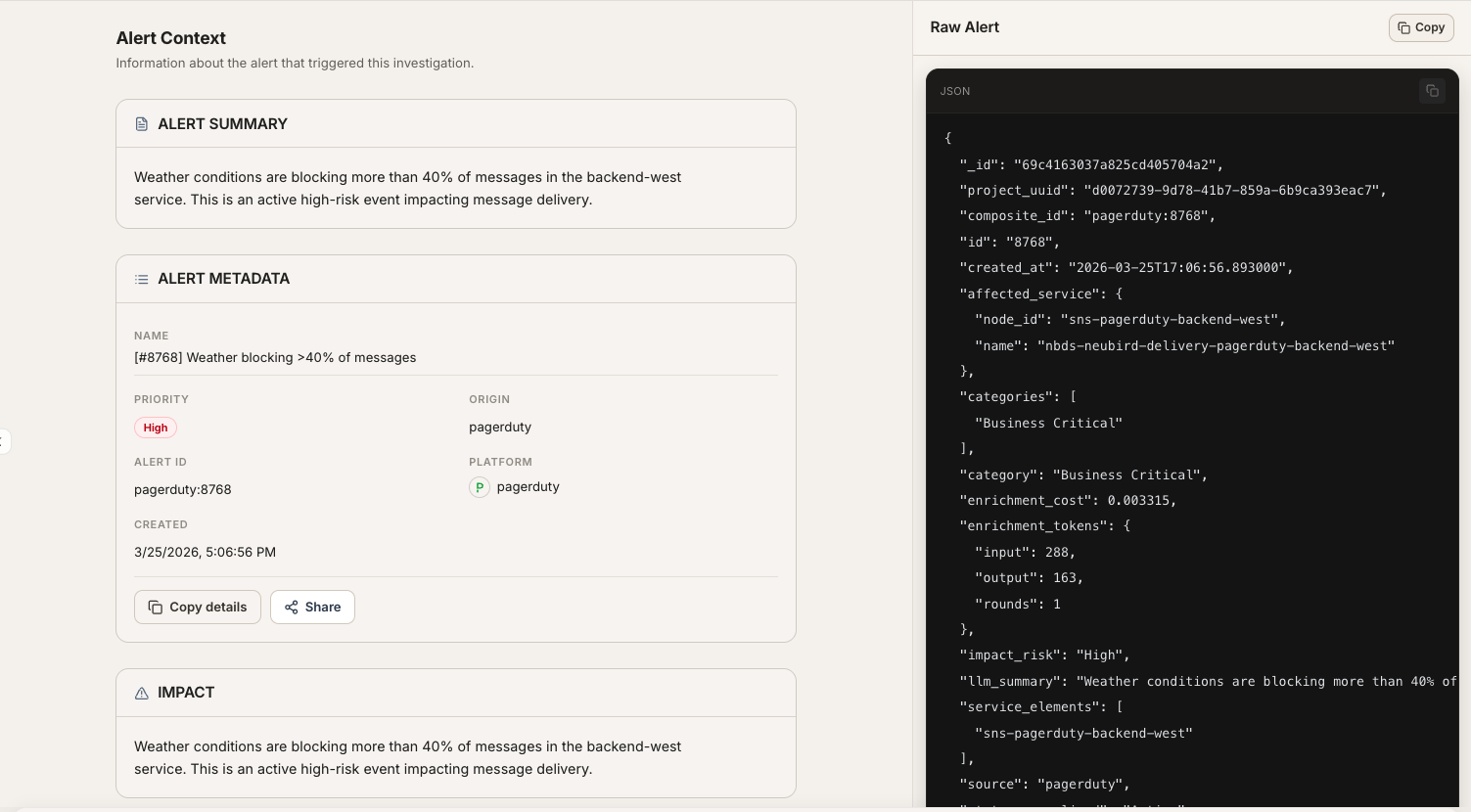
Section titled “Overview”The Signal Context view shows the alerts that triggered this investigation using the same list-and-detail layout as incident quick view. Select an alert on the left to inspect its enriched summary and raw payload on the right. Use this view to understand what started the investigation and the signal context the agent began with.
Alert list
Section titled “Alert list”The left panel lists every alert associated with the investigation (including member alerts from linked incidents). Click a row to focus that alert in the detail pane. The selected row is highlighted so you can scan and compare quickly.
Alert detail
Section titled “Alert detail”The right panel shows the selected alert’s detail, including:
- Summary — enriched what’s-happening context for the signal
- Raw Data — the unmodified alert payload from the source platform
Severity, source, service, and related metadata appear in the quick-view header and detail sections, consistent with Signals Focused mode.
Empty and loading states
Section titled “Empty and loading states”While alerts are being fetched, Signal Context shows a loading state. If no matching alert can be found (for example it was resolved or aged out of the active window), an empty state explains that no alert was found.