



Settings
Overview
Section titled “Overview”The Settings page lets you configure how the NeuBird agent behaves and review your onboarding profile. Access it from the Settings item in the sidebar navigation.
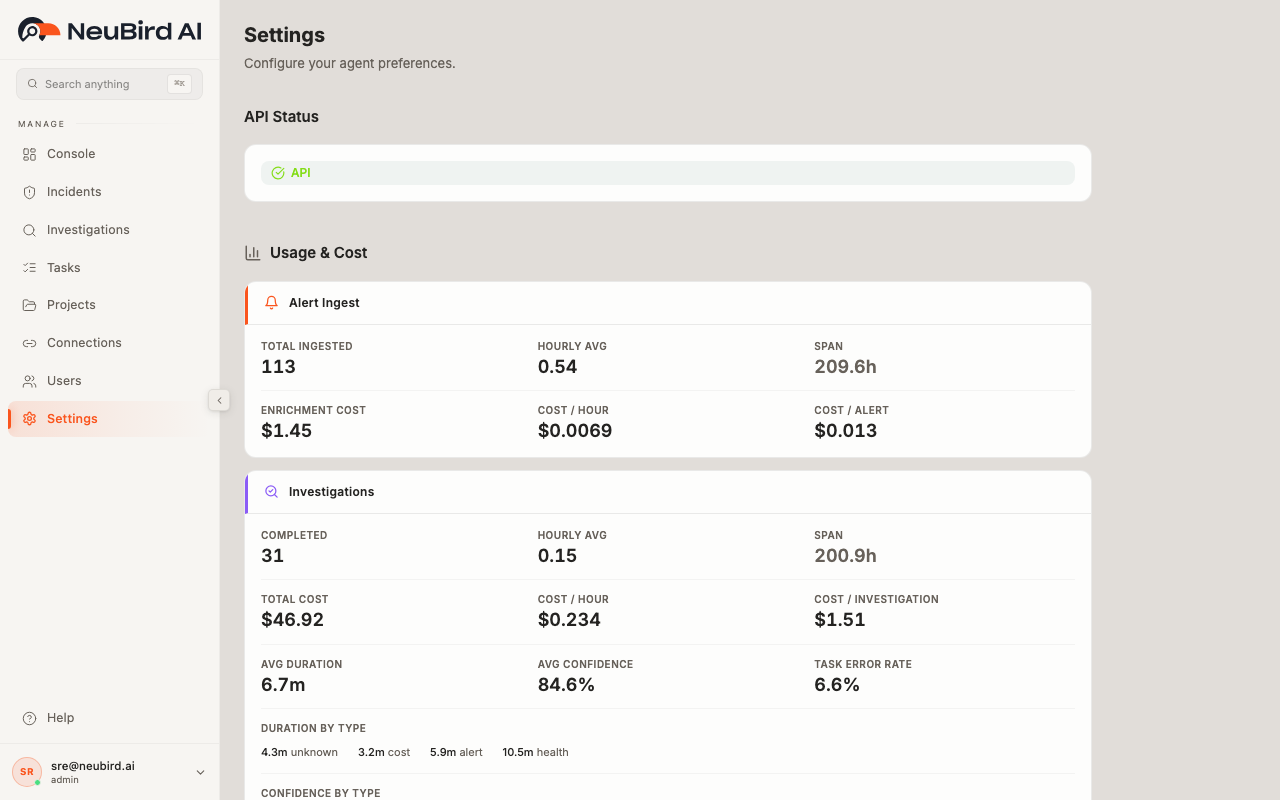
The page is organized into two sections: Your Profile and Agents.
Preferences
Section titled “Preferences”Your Profile
Section titled “Your Profile”If you have completed the onboarding flow, the Your Profile section displays the preferences NeuBird learned about you:
- Role — your described role (e.g. “SRE Lead”, “Platform Engineer”). This helps the agent tailor its responses and investigation style.
- Focus — a description of what you primarily care about (e.g. “Kubernetes reliability”, “API latency”). This guides the agent’s prioritization.
- Alert Categories — the alert types you marked as important during onboarding, shown as small labeled pills (e.g. “Infrastructure”, “Application”, “Security”).
- Generated Tasks — any recurring tasks NeuBird created based on your profile, listed by title.
To redo the onboarding flow and update your profile, click the Re-run onboarding button at the bottom of this section.
Agents
Section titled “Agents”The Agents section lets you choose which agent powers your investigations and tasks. Three agents are available, displayed as selectable cards:
- Peacock (orange) — Reliable general-purpose assistant. This is the default agent.
- Falcon (blue) — High-performance agent for advanced workflows.
- Raven (purple) — Next-gen agent powered by the Raven inference platform.
To switch agents:
- Click the card for the agent you want to use.
- The selected card shows a highlighted border and an orange checkmark in the top-right corner.
- Your choice is saved automatically and applies to all future investigations and tasks.