



Users
Overview
Section titled “Overview”The Users page is a split view for account administration. The left panel shows the full user list and invite controls, and the right panel shows detail and role controls for the selected user.
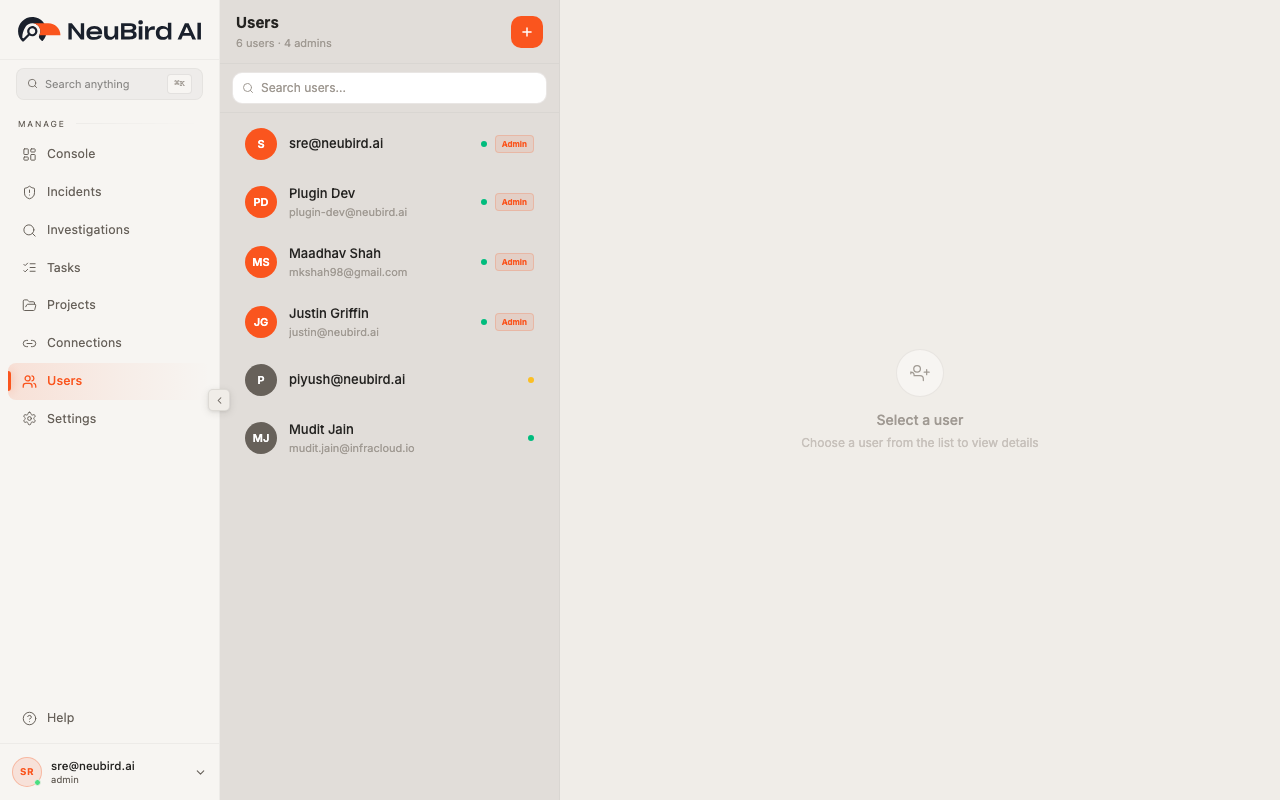
Left Panel Elements
Section titled “Left Panel Elements”Use the left panel to operate on the user directory:
- Users header with total user count and admin count
- Invite user button (plus icon)
- Search users field (matches name/email)
- User rows with avatar initials, primary identity text, role badge, and invite-status dot
Ordering is role-aware: admins are listed first, then non-admin users.
Invite User Flow
Section titled “Invite User Flow”Click the invite button to open the invite dialog.
The dialog includes:
- Email input with validation
- Role selector (when enabled by feature flags)
- Send Invite action
- Success state with generated shareable invite link
- Copy link control and expiration info (when available)
- Invite another and Done actions after sending
Right Panel (User Detail)
Section titled “Right Panel (User Detail)”Select a user to open detail view with:
- Name, email, avatar
- Role chip
- Invite/account status
- Joined timestamp
- Role change section
- Optional danger-zone action for user removal (permission-gated)
If no user is selected, the page shows an empty-state prompt.
Role Management
Section titled “Role Management”Available role options are:
- Admin - full administrative access
- Developer - standard operational and project access
- Viewer - read-only access
Role changes are applied directly from the detail panel and show confirmation toasts on success/failure.
User Removal
Section titled “User Removal”When permitted, admins can remove other users from the organization from the detail panel’s danger zone. Self-removal is blocked.
Access and Safety Rules
Section titled “Access and Safety Rules”- Write actions are disabled for read-only users.
- Disabled actions surface explanatory tooltips.
- Service account users are hidden from the displayed list.
- Invite and role updates include optimistic feedback and error handling.